Fast, Secure Access to Excel Conversion for Windows, Linux & macOS. Export Access tables, query results to Excel (XLS/XLSX) in clicks — no Microsoft Excel required. Automate scheduled exports with CLI & dynamic filenames. Access to Excel Exporter - Withdata DBToFile. Download DBToFile Now
Why Choose Withdata DBToFile to Export Access to Excel?
Cross-Platform Support: Works seamlessly on Windows, Linux, and macOS
Two Modes: Intuitive GUI for manual exports, CLI for automation & scheduled tasks
Blazing Fast: Convert millions of Access rows to Excel in under a minute
100% Local Export: No data uploads—your Access data stays secure on your device
No Excel Installation Needed: Export directly to Excel file without Microsoft Excel installed
No Microsoft Access Required: Read Access data directly without Microsoft Access installed
Flexible Export Options: Single tables, multiple tables, query results, custom reports & more
All Access to Excel Export Features You Need
DBToFile is the all-in-one Access to Excel converter, supporting every export scenario for personal and business use—from one-click table exports to automated scheduled reports.
Easily export any single Access table to a clean Excel file with full column mapping and date format customization. Preview data before export to ensure accuracy, and retain all table structure and values with zero data loss. 📷
Simple Steps: Connect to Access → Select a table → Set Excel options → Export (107 rows exported in 0.016s in our tests!).
Merge data from multiple structurally similar Access tables into a single Excel sheet—perfect for consolidating related data (e.g., employees1, employees2, employees3). Select all target tables, map columns uniformly, set row limits per sheet, and export in one go. 📷
Export multiple distinct Access tables to separate sheets in a single Excel file (e.g., COUNTRIES, departments, employees to one Excel). Keep your data organized and avoid scattered files—ideal for database backups and comprehensive data sharing. 📷
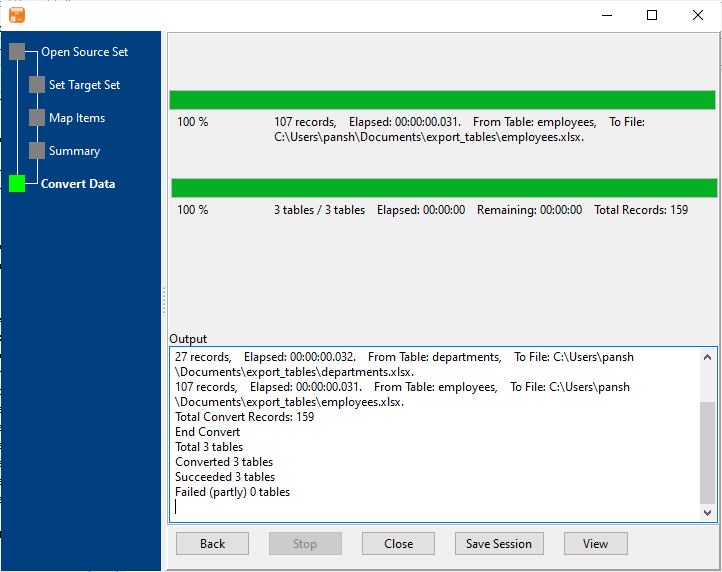
Batch convert multiple Access tables to separate Excel files (one table = one file) and save them to a designated folder. Streamline bulk exports for large databases with just a few clicks, no repetitive manual work required. 📷
Run custom SQL queries on your Access database and export the filtered results directly to Excel. Support for all standard Access SQL syntax—filter, sort, and aggregate data before export to create targeted Excel datasets (e.g., SELECT * FROM employees WHERE salary > 5000). 📷
Build professional Excel reports from Access by exporting filtered query results. Customize column selection, date formats, and report naming to match your business needs—no extra report-building tools required. Perfect for financial, HR, and operational reports. 📷
Export Access tables or query results to Excel files with auto-generated filenames using the current system date/time (e.g., employees_2024_10_18_10_19_53.xlsx). Use the built-in template syntax: #yyyy# (year) | #mm# (month) | #dd# (day) | #hh# (hour) | #mi# (minute) | #ss# (second)
Ideal for time-stamped backups and daily/weekly report exports. 📷
Eliminate repetitive export work by automating Access to Excel conversions:
1. Save your export session in DBToFile (GUI mode)
2. Generate a .bat file (Windows) or .sh file (Linux/macOS)
3. Schedule the script with Windows Task Scheduler (Windows) or Crontab (Linux/macOS)
Automate daily, weekly, or monthly exports—your computer does the work for you.
How to Export Access to Excel (3 Simple Workflows)
GUI Mode: Step-by-Step (For Manual Exports)
Connect to Access: Enter your Access File, username, password. 📷
Select Export Type: Choose from single table (Export From Table), multiple tables (Export Similar Tables), query results (Export From Query), batch export (Export All Tables), etc. 📷
Customize Excel Settings: Set filename, sheet name, column mapping, date formats, and row limits. 📷
Preview & Export: Preview the first 10 rows to verify data 📷 → Click "Start Convert" to generate your Excel file. 📷
CLI Mode: For Automation & Scheduled Tasks & AI agents
After saving your export session in GUI mode, run the export via command line on Windows, Linux, or macOS—perfect for integrating into scripts or scheduled jobs, or call command line by AI agents.
Schedule the script with your OS’s built-in task scheduler (Crontab/Linux, Task Scheduler/Windows)
Access to Excel — Quick Facts
About this database:File-based database; DBToFile does not require Microsoft Access installed.
Default port:(file-based)
Identifier quoting:[square brackets]
Row limit syntax:SELECT TOP n
Date / time types:Date/Time
Large text type:MEMO
Binary type:OLE Object
Command-line equivalent:(use Access itself)
Common Pitfalls When Exporting Access to Excel
One worksheet holds 1,048,576 rows, so anything larger has to be split across sheets or files.
Excel dates are serial numbers, so a date column only displays correctly when the cell format is set explicitly.
Text that looks numeric loses its leading zeros unless the column is forced to text.
A workbook allows 255 sheets, which caps batch exports that write one sheet per table.
OLE Object fields hold binary data with no text form, so export them separately or skip them.
Memo fields can contain line breaks that break simple parsers.
Frequently Asked Questions (FAQ)
How long does it take to export Access to Excel?
+
DBToFile is optimized for speed—millions of rows are converted in minutes. Small tables (100-200 rows) export in milliseconds (107 rows in 0.016s, 159 rows in 0.031s).
Is it safe to export Access to Excel with DBToFile?
+
Absolutely. All exports happen locally on your device—no Access data is uploaded to external servers. Your data is 100% secure.
Can I export Access to Excel on Linux or macOS?
+
Yes! DBToFile has native versions for Windows, Linux, and macOS—no emulators or virtual machines required.
Do I need Microsoft Excel installed to use DBToFile?
+
No. DBToFile exports directly to standard Excel XLS/XLSX format without any Excel installation—you can open the files in Excel, Google Sheets, LibreOffice, or any XLS/XLSX-supported tool.
Do I need Microsoft Access installed?
+
No. DBToFile reads Access files directly without MS Access installation.
Can I customize column mapping and date formats?
+
Yes. For every export, you can select which columns to include, map source Access columns to destination Excel columns, and set custom date formats (e.g., mm/dd/yyyy).
What Access versions does DBToFile support?
+
DBToFile support Access .mdb and .accdb formats.
What Excel formats does DBToFile support?
+
DBToFile exports to XLS/XLSX (the modern Excel format) — compatible with all Excel versions, Google Sheets, and LibreOffice Calc.
Get Started with Access to Excel Export Today
DBToFile makes Access to Excel conversion effortless—whether you need a one-time export or automated scheduled reports. Works for all Access versions, all operating systems, and all export use cases.