Want to export data from Clipper table to CSV using current date as file name?
Try Withdata DBToFile, a Clipper to CSV converter for Windows, Linux, and macOS, Export Clipper data to CSV, Easy and Fast.
- Can run in GUI mode, Step by Step, just a few mouse clicks.
- Can run in Command line, for Scheduled Tasks and Streams.
- Support Windows, Linux, and macOS.

Export data from Clipper table to CSV file using dynamic filename with date and time
Login to Clipper -> Choose Clipper table -> Set CSV filename template including date -> Export Clipper to CSV using current date as file name
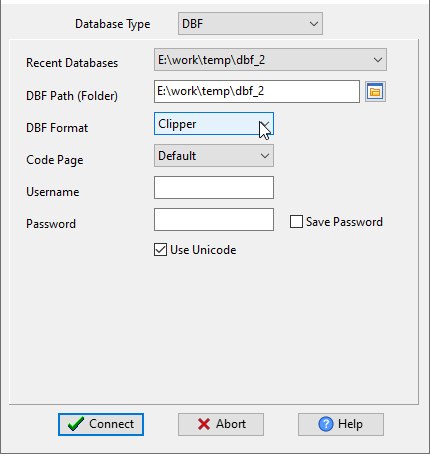
Choose Clipper and logon.
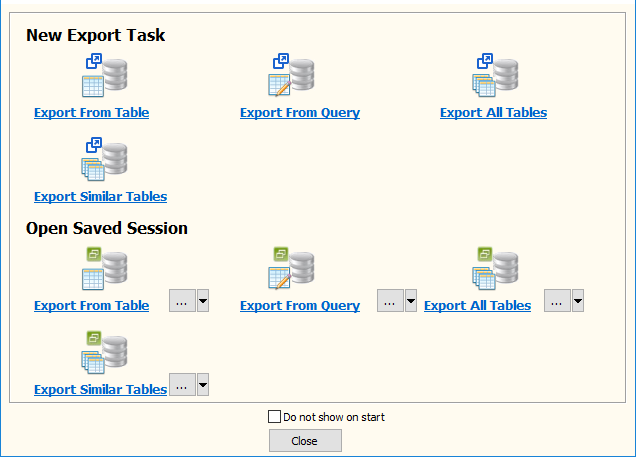
“Export From Table” for “CSV to Clipper“.
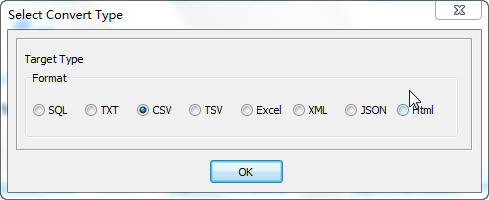
Select CSV file type.
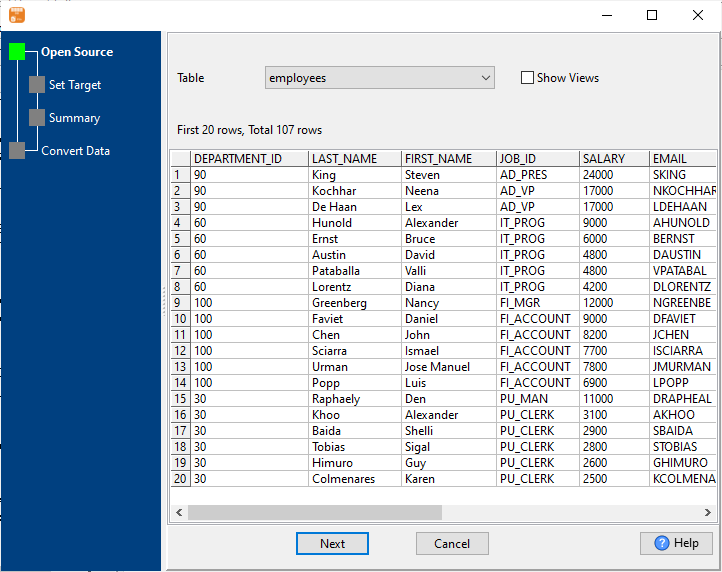
1. Choose Clipper table.
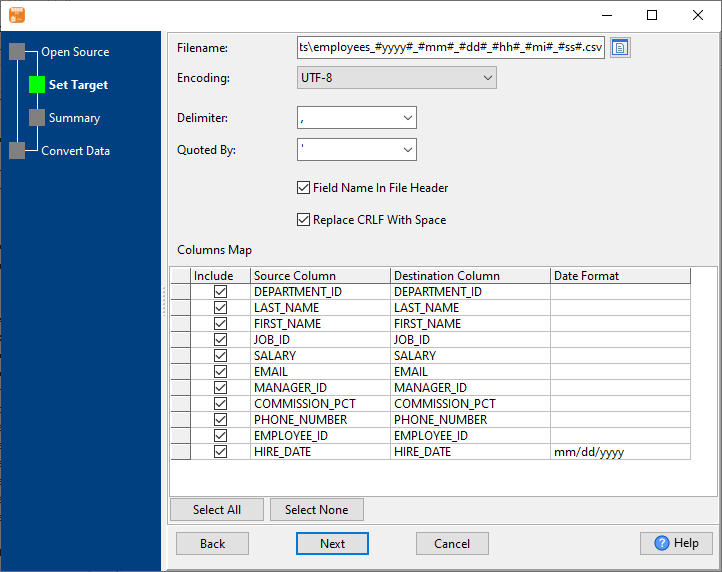
2. Set CSV file options. Enter filename template, including date, #yyyy# is for current year, #mm# month, #dd# day, #hh# hour, #mi# minute, #ss# second.
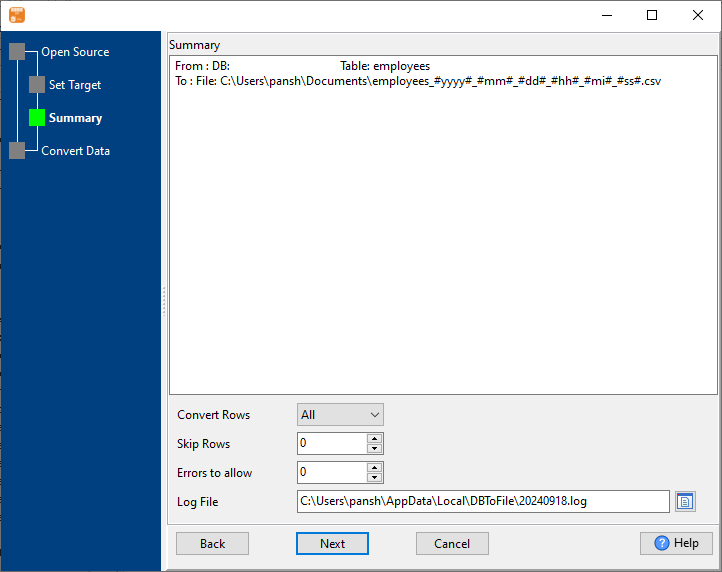
3. Set rows options.
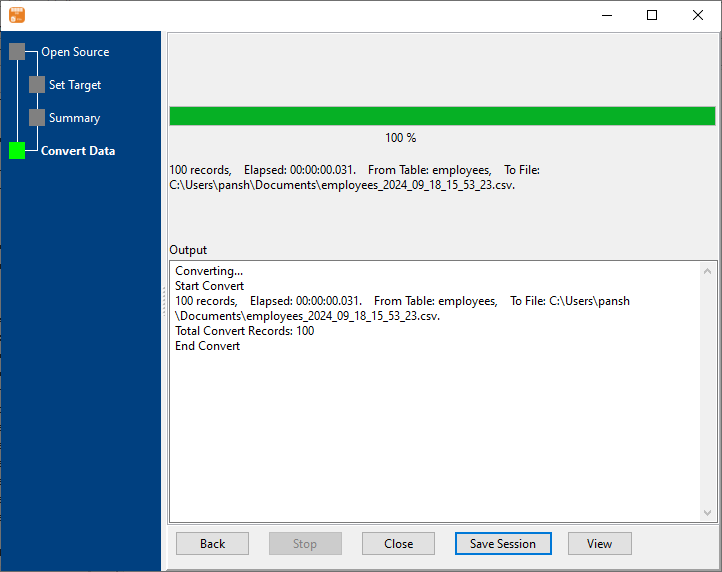
4. Export Clipper table data to CSV file. Dynamically created CSV file name using present system time.
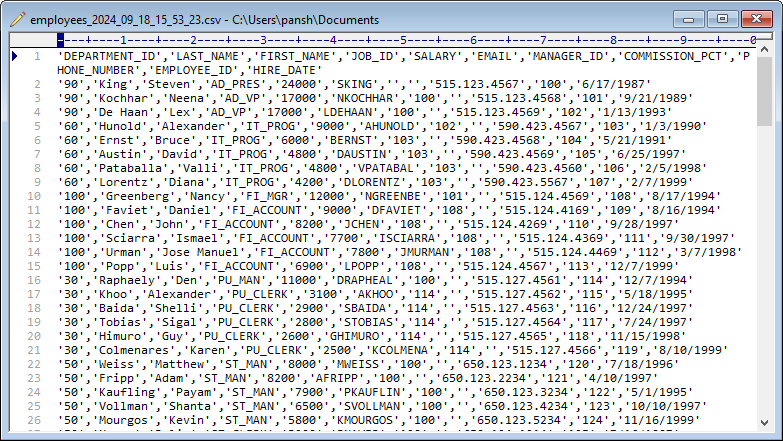
After exporting, you can view output CSV files.
More about Clipper to CSV converter
Download Withdata DBToFile