Fast, Secure SQLite to Excel Conversion for Windows, Linux & macOS. Export SQLite tables, query results to Excel (XLS/XLSX) in clicks — no Microsoft Excel required. Automate scheduled exports with CLI & dynamic filenames. SQLite to Excel Exporter - Withdata DBToFile. Download DBToFile Now
Why Choose Withdata DBToFile to Export SQLite to Excel?
Cross-Platform Support: Works seamlessly on Windows, Linux, and macOS
Two Modes: Intuitive GUI for manual exports, CLI for automation & scheduled tasks
Blazing Fast: Convert millions of SQLite rows to Excel in under a minute
100% Local Export: No data uploads—your SQLite data stays secure on your device
No Excel Installation Needed: Export directly to Excel file without Microsoft Excel installed
Flexible Export Options: Single tables, multiple tables, query results, custom reports & more
All SQLite to Excel Export Features You Need
DBToFile is the all-in-one SQLite to Excel converter, supporting every export scenario for personal and business use—from one-click table exports to automated scheduled reports.
Easily export any single SQLite table to a clean Excel file with full column mapping and date format customization. Preview data before export to ensure accuracy, and retain all table structure and values with zero data loss. 📷
Simple Steps: Connect to SQLite → Select a table → Set Excel options → Export (107 rows exported in 0.016s in our tests!).
Merge data from multiple structurally similar SQLite tables into a single Excel sheet—perfect for consolidating related data (e.g., employees1, employees2, employees3). Select all target tables, map columns uniformly, set row limits per sheet, and export in one go. 📷
Export multiple distinct SQLite tables to separate sheets in a single Excel file (e.g., COUNTRIES, departments, employees to one Excel). Keep your data organized and avoid scattered files—ideal for database backups and comprehensive data sharing. 📷
Batch convert multiple SQLite tables to separate Excel files (one table = one file) and save them to a designated folder. Streamline bulk exports for large databases with just a few clicks, no repetitive manual work required. 📷
Run custom SQL queries on your SQLite database and export the filtered results directly to Excel. Support for all standard SQLite SQL syntax—filter, sort, and aggregate data before export to create targeted Excel datasets (e.g., SELECT * FROM employees WHERE salary > 5000). 📷
Build professional Excel reports from SQLite by exporting filtered query results. Customize column selection, date formats, and report naming to match your business needs—no extra report-building tools required. Perfect for financial, HR, and operational reports. 📷
Export SQLite tables or query results to Excel files with auto-generated filenames using the current system date/time (e.g., employees_2024_10_18_10_19_53.xlsx). Use the built-in template syntax: #yyyy# (year) | #mm# (month) | #dd# (day) | #hh# (hour) | #mi# (minute) | #ss# (second)
Ideal for time-stamped backups and daily/weekly report exports. 📷
Eliminate repetitive export work by automating SQLite to Excel conversions:
1. Save your export session in DBToFile (GUI mode)
2. Generate a .bat file (Windows) or .sh file (Linux/macOS)
3. Schedule the script with Windows Task Scheduler (Windows) or Crontab (Linux/macOS)
Automate daily, weekly, or monthly exports—your computer does the work for you.
How to Export SQLite to Excel (3 Simple Workflows)
GUI Mode: Step-by-Step (For Manual Exports)
Connect to SQLite: Enter your SQLite file, password. 📷
Select Export Type: Choose from single table (Export From Table), multiple tables (Export Similar Tables), query results (Export From Query), batch export (Export All Tables), etc. 📷
Customize Excel Settings: Set filename, sheet name, column mapping, date formats, and row limits. 📷
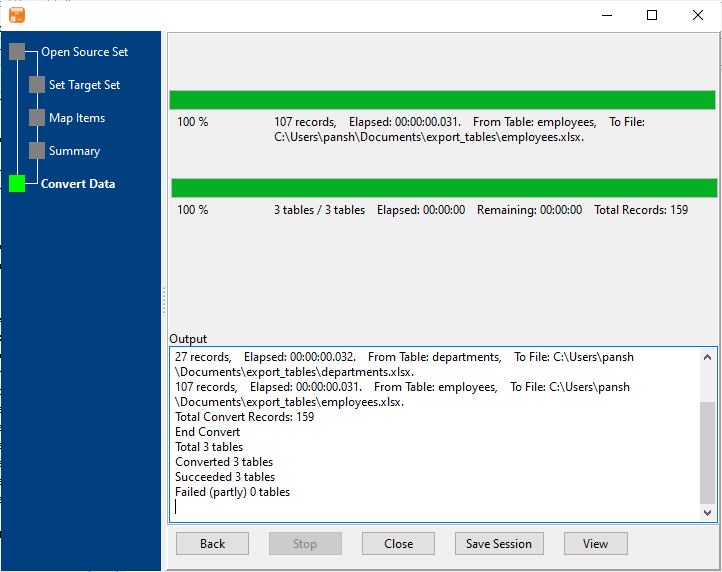
Preview & Export: Preview the first 10 rows to verify data 📷 → Click "Start Convert" to generate your Excel file. 📷
CLI Mode: For Automation & Scheduled Tasks & AI agents
After saving your export session in GUI mode, run the export via command line on Windows, Linux, or macOS—perfect for integrating into scripts or scheduled jobs, or call command line by AI agents.
Schedule the script with your OS’s built-in task scheduler (Crontab/Linux, Task Scheduler/Windows)
SQLite to Excel — Quick Facts
About this database:SQLite is a single file with no date type - dates are stored as TEXT.
Default port:(file-based)
Identifier quoting:"double quotes" or [brackets]
Row limit syntax:LIMIT n
Date / time types:TEXT (no date type)
Large text type:TEXT
Binary type:BLOB
Command-line equivalent:sqlite3 .dump
Common Pitfalls When Exporting SQLite to Excel
One worksheet holds 1,048,576 rows, so anything larger has to be split across sheets or files.
Excel dates are serial numbers, so a date column only displays correctly when the cell format is set explicitly.
Text that looks numeric loses its leading zeros unless the column is forced to text.
A workbook allows 255 sheets, which caps batch exports that write one sheet per table.
SQLite has no date type, so the exact text that was stored is what lands in the output.
Dynamic typing means one column can hold numbers on some rows and text on others.
Frequently Asked Questions (FAQ)
How long does it take to export SQLite to Excel?
+
DBToFile is optimized for speed—millions of rows are converted in minutes. Small tables (100-200 rows) export in milliseconds (107 rows in 0.016s, 159 rows in 0.031s).
Is it safe to export SQLite to Excel with DBToFile?
+
Absolutely. All exports happen locally on your device—no SQLite data is uploaded to external servers. Your data is 100% secure.
Can I export SQLite to Excel on Linux or macOS?
+
Yes! DBToFile has native versions for Windows, Linux, and macOS—no emulators or virtual machines required.
Do I need Microsoft Excel installed to use DBToFile?
+
No. DBToFile exports directly to standard Excel XLS/XLSX format without any Excel installation—you can open the files in Excel, Google Sheets, LibreOffice, or any XLS/XLSX-supported tool.
Can I customize column mapping and date formats?
+
Yes. For every export, you can select which columns to include, map source SQLite columns to destination Excel columns, and set custom date formats (e.g., mm/dd/yyyy).
What SQLite versions does DBToFile support?
+
DBToFile support SQLite 3.0+ (all modern versions).
What Excel formats does DBToFile support?
+
DBToFile exports to XLS/XLSX (the modern Excel format) — compatible with all Excel versions, Google Sheets, and LibreOffice Calc.
Get Started with SQLite to Excel Export Today
DBToFile makes SQLite to Excel conversion effortless—whether you need a one-time export or automated scheduled reports. Works for all SQLite versions, all operating systems, and all export use cases.