Want to bulk import data from Access to SQL Server ?
Using DBCopier, a native GUI software, a Access to SQL Server converter, you can bulk import data from Access to SQL Server easily and fast.
- Step by step, just a few mouse clicks.
- Support schedule and automate db importing.
- Support Windows, Linux, macOS.
- Can work without Microsoft Access installed.

Here’s how to.
Bulk import data from Access to SQL Server
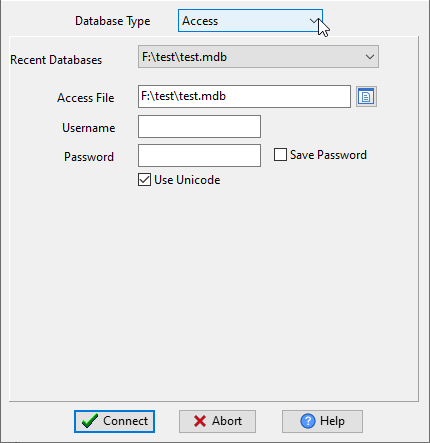
Choose source Access database and logon.
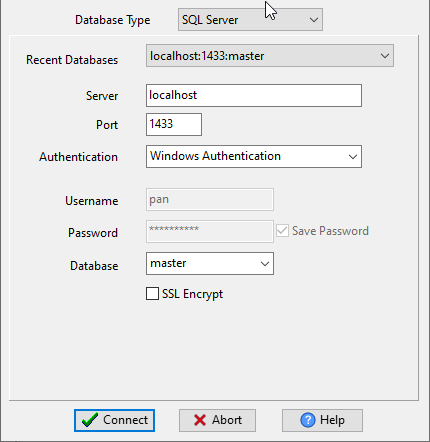
Choose target SQL Server database and logon.
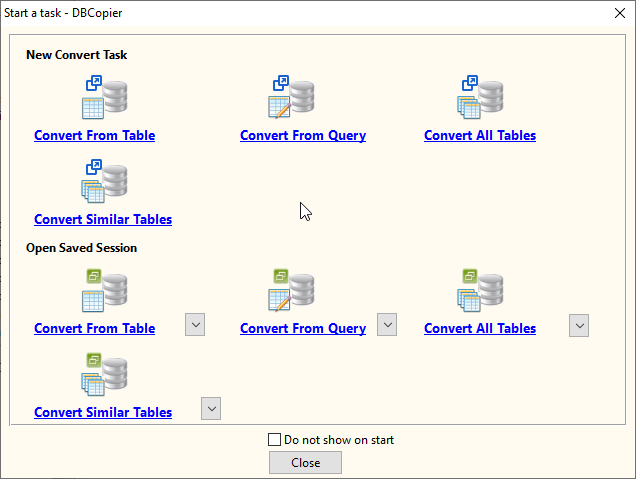
Click “Wizard – Import All Tables” at task dialog.
then show the wizard.
1. Open source Access .
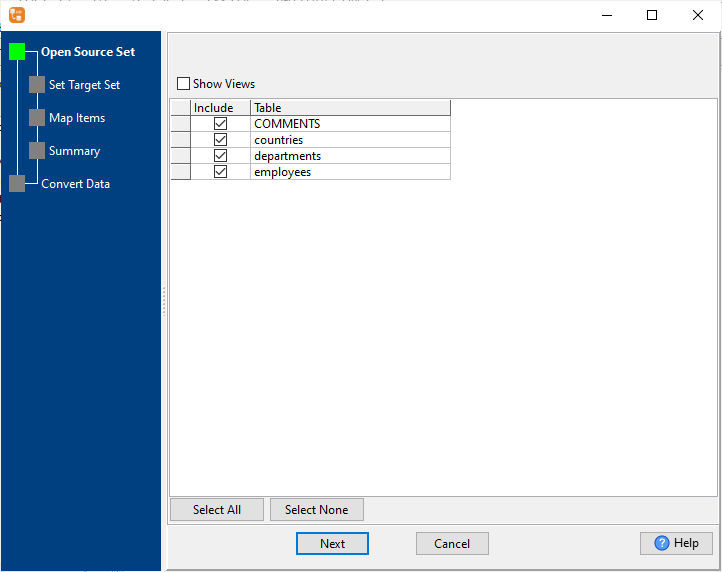
2. List target SQL Server tables.
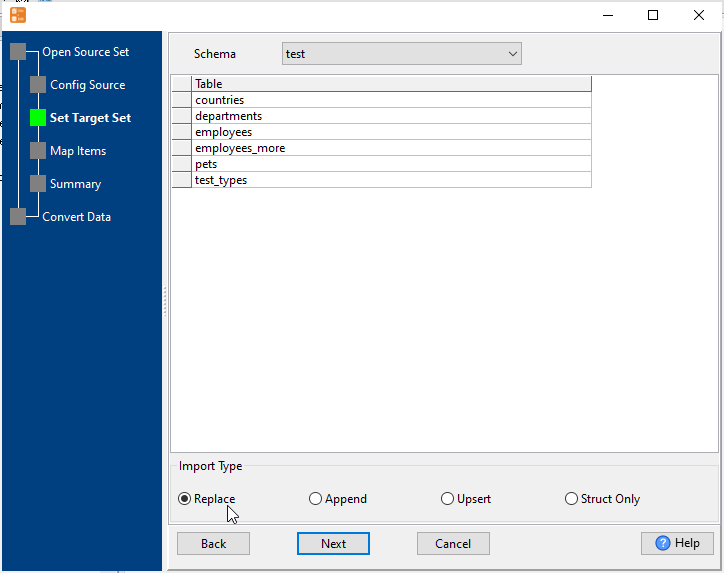
3. Select SQL Server tables to import.
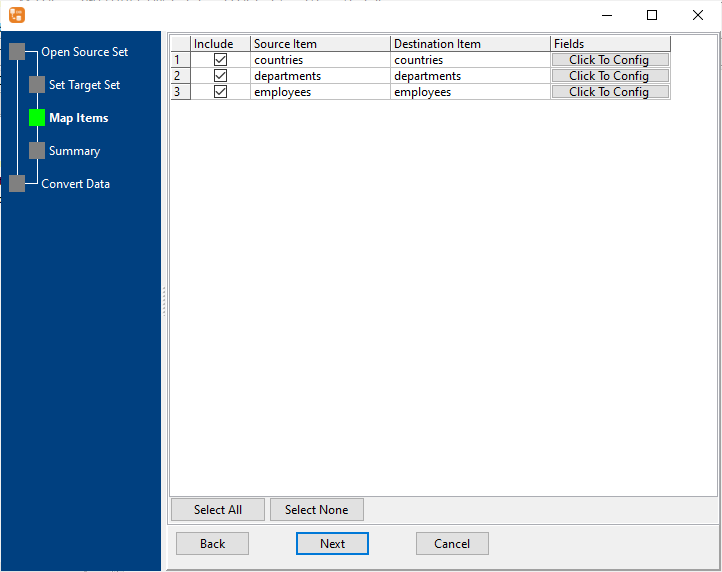
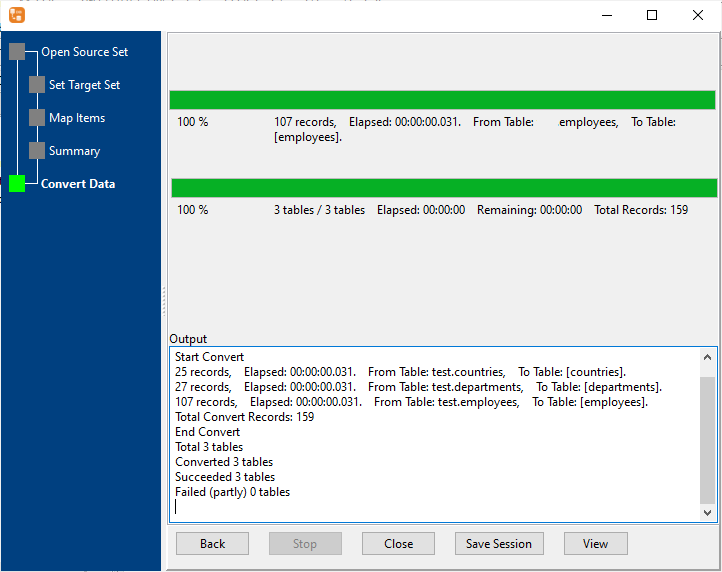
4. Bulk import data from Access to SQL Server.
Save/load session of importing Access to SQL Server
You can save/load session to run “Access to SQL Server” importing repeatly.
1.Save Session.
Click “Save Session” button, then enter a session file name.
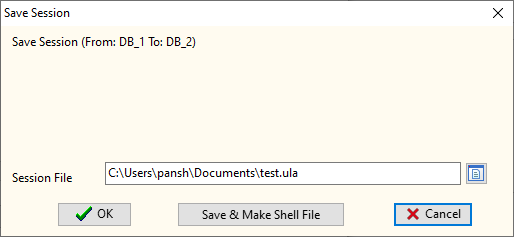
click “OK” button.
2.Load Session.
Click the “Open Saved Session” in task window, select a session file.
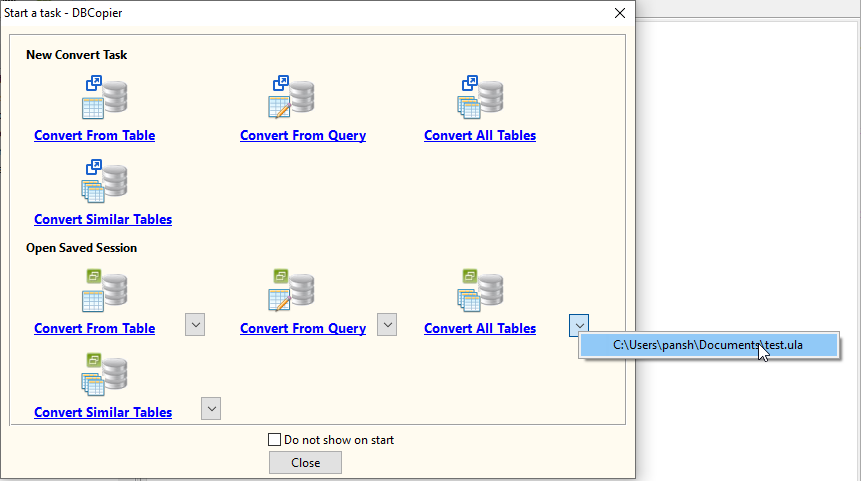
then show the wizard form, click a few “Next” to bulk import Access to SQL Server.
Run in command line for importing Access to SQL Server
You can run “Access to SQL Server” importing in command line.
When you save session, you can click “Save & Make Batch File”.
The “Save & Make Batch File” form shows.
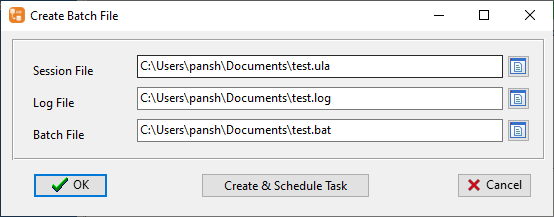
Click “OK” button, you’ll create a batch file, in Windows, like this:
C:
cd "C:\Users\pansh\AppData\Local\Programs\DBCopier"
DBCopier task="C:\Users\pansh\Documents\test.ula" logfile="C:\Users\pansh\Documents\test.log"
You can run this batch file in command line.
Run as scheduled task for importing Access to SQL Server
You can run “Access to SQL Server” importing automatically at specific time.
On Linux/macOS, you can use Crontab.
For macOS, How to Fix Cron Permission Issues in macOS.
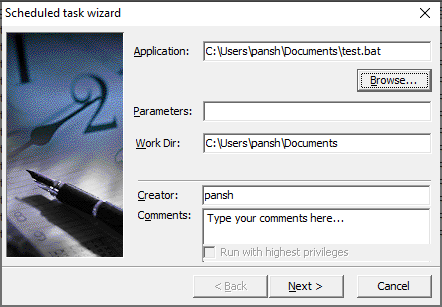
On Windows, in “Save & Make Batch File” form, you can click “Create & Schedule Task” to set a scheduled task.
And then, with scheduled task wizard, step by step.
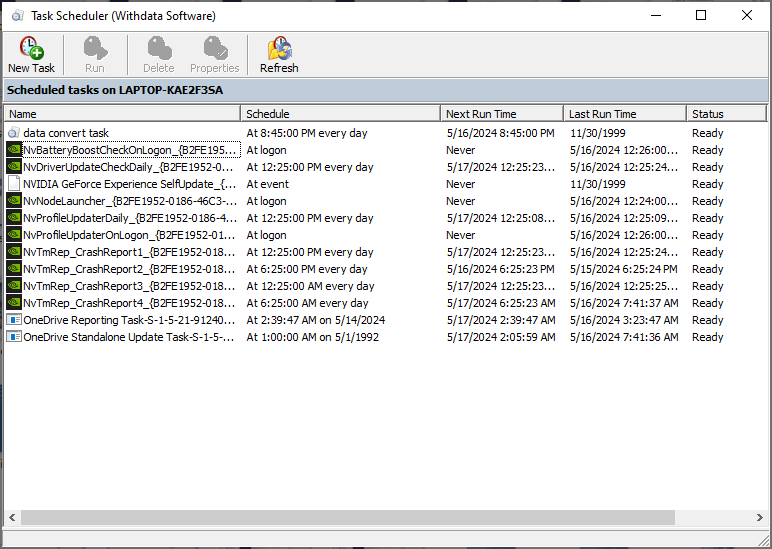
You’ll see created task listed in scheduled task list.
Download
Here you can download DBCopier, and buy DBCopier.
30-day free trial 
Access → SQL Server reference
Type mapping
| Value kind | in Access | in SQL Server |
|---|---|---|
| Int | Long Integer | int |
| Bigint | Long Integer | bigint |
| Decimal | Decimal | decimal(p,s) |
| Float | Double | float |
| Text | Text(n) | nvarchar(n) |
| Long text | Long Text | nvarchar(max) |
| Date | Date/Time | date |
| Datetime | Date/Time | datetime2 |
| Binary | OLE Object | varbinary(max) |
| Boolean | Yes/No | bit |
Dialect differences
Both Access and SQL Server are database servers, so the differences below are dialect-level: the same concept is spelled differently on each side.
| Property | in Access | in SQL Server |
|---|---|---|
| port | (file-based) | 1433 |
| dates | Date/Time | datetime, datetime2, date, time |
| long text | MEMO | nvarchar(max) |
| binary | OLE Object | varbinary(max) |
Command line
| Side | Command |
|---|---|
| SQL Server | bcp |
| SQL Server (load) | bcp, or BULK INSERT |
Convert your data online, free
Free in-browser converters for CSV, Excel, JSON, XML and SQL: Withdata Online Data Conversion. Large files, batch conversion or scheduling? See the offline desktop apps, or browse all data conversion tools.