Want to sync data from Access to SQL Server ?
Try Withdata DBCopier, a Access to SQL Server converter for Windows, Mac, and Linux, Synchronize Access to SQL Server, Easy and Fast.
- Can run in GUI mode, Step by Step, just a few mouse clicks.
- Can run in Command line, for Scheduled Tasks and Streams.
- Support Windows, Linux, and macOS.

Synchronize data from Access to SQL Server
Login to Access and target SQL Server -> Select source Access tables -> Set target SQL Server tables -> Sync Access data to SQL Server
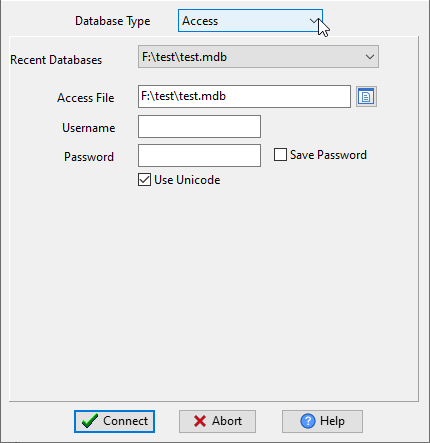
Choose source Access database and logon.
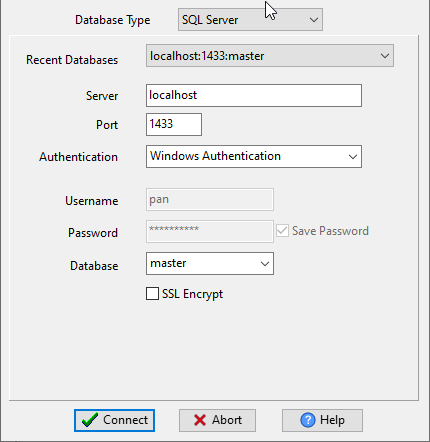
Choose target SQL Server database and logon.
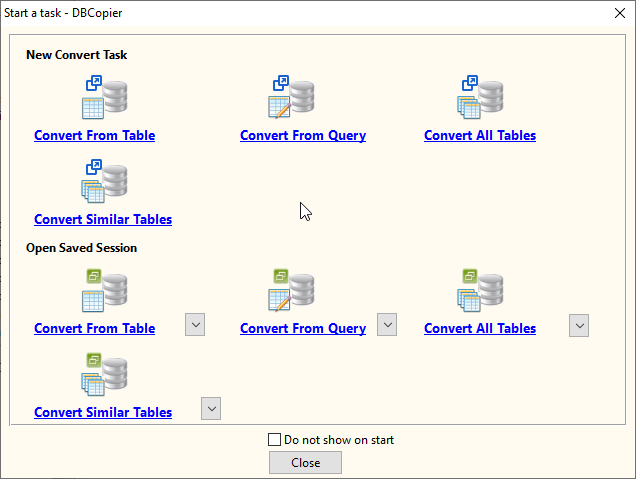
Click “Wizard – Import All Tables” at task dialog.
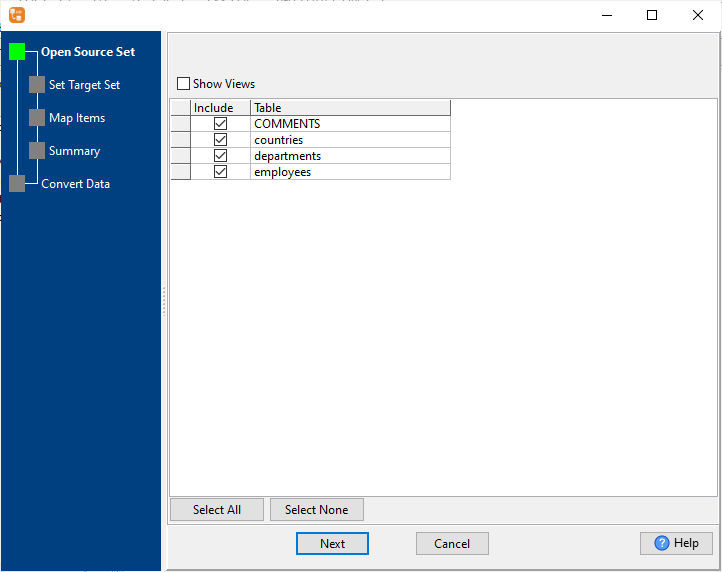
then show the wizard.
1. Select source Access tables to sync.
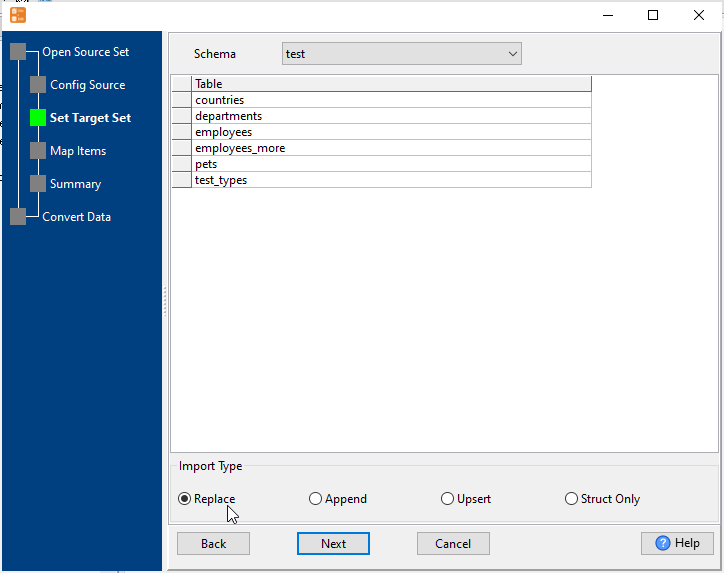
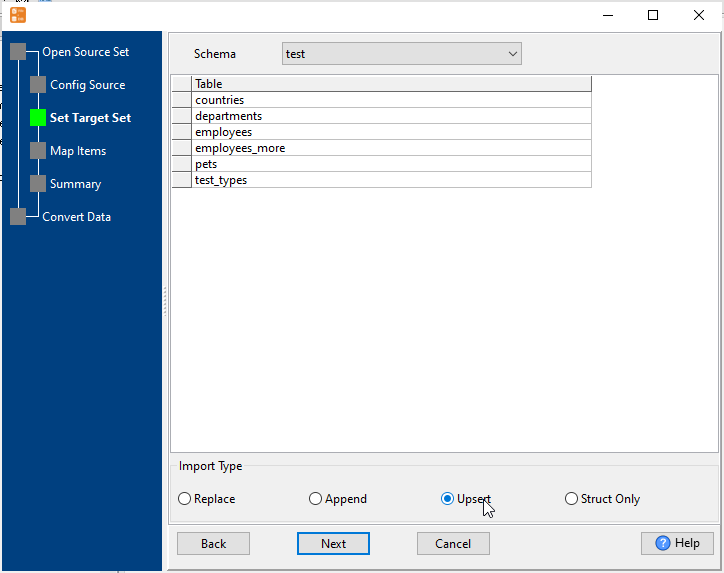
2. List target SQL Server tables.
Set “Import Type” to “Replace”, it will do a full synchronization.
Or set “Import Type” to “Upsert”, it will do a upsert synchronization.
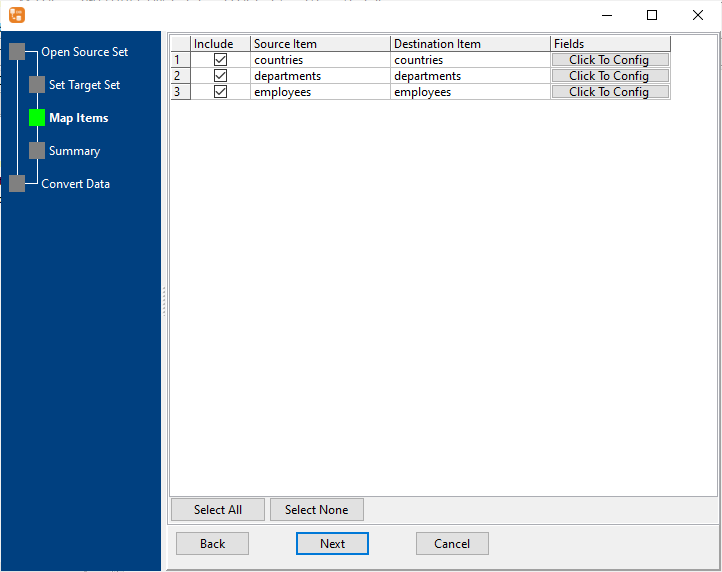
3. Select SQL Server tables to sync.
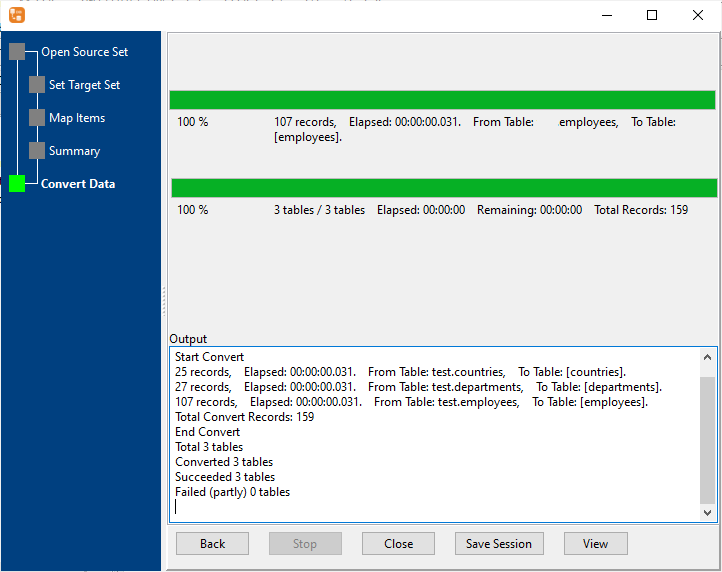
4. Sync Access data to SQL Server.
More about Access to SQL Server converter
Download Withdata DBCopier
See also: