Want to update data from TXT (“|” pipe delimited text) file to Azure?
Try Withdata FileToDB, a desktop TXT to Azure converter for Windows, MacOS, and Linux, Convert TXT to Azure, Easy and Fast.
- Can run in GUI mode, Step by Step, just a few mouse clicks.
- Can run in Command line, for Scheduled Tasks and Streams.
- Convert locally and securely, avoid uploading large or private TXT file(s) to online services.
- Support Windows, Linux, and macOS.

Update data from TXT (“|” pipe delimited text) file to Azure
Login to Azure -> Choose TXT file -> Set Azure table -> Update TXT to Azure
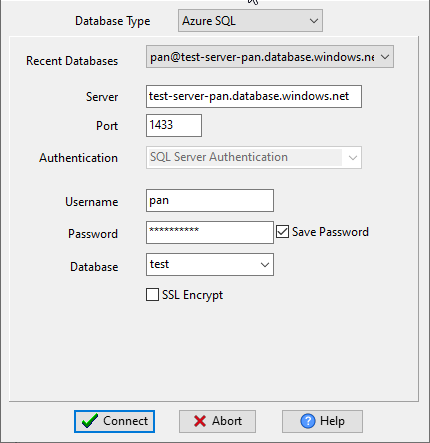
Choose Azure and logon.
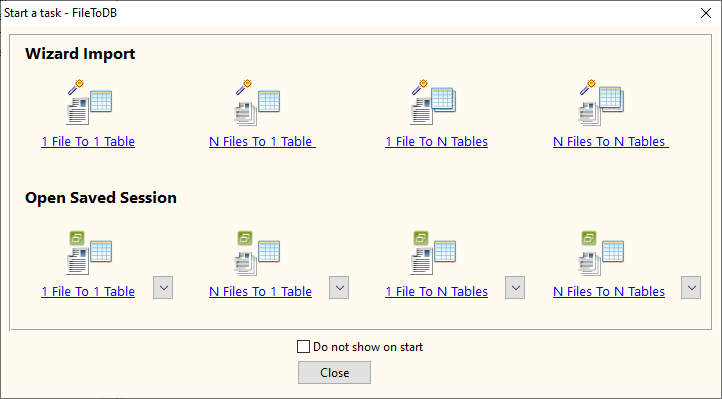
Click “Wizard – 1 File To 1 Table” at task dialog.
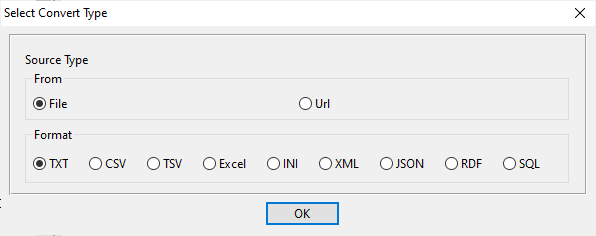
Select the “TXT” file type.
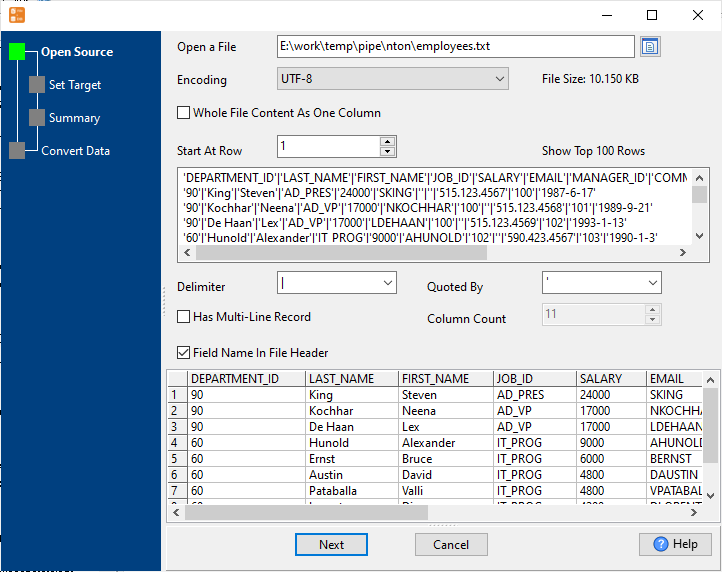
then show the wizard.
1. Open a source TXT (“|” pipe delimited text) file.
2. Select a Azure table and config fields.
Set “Load Type” to “Update”, choice “By Key”.

3. Preview data.

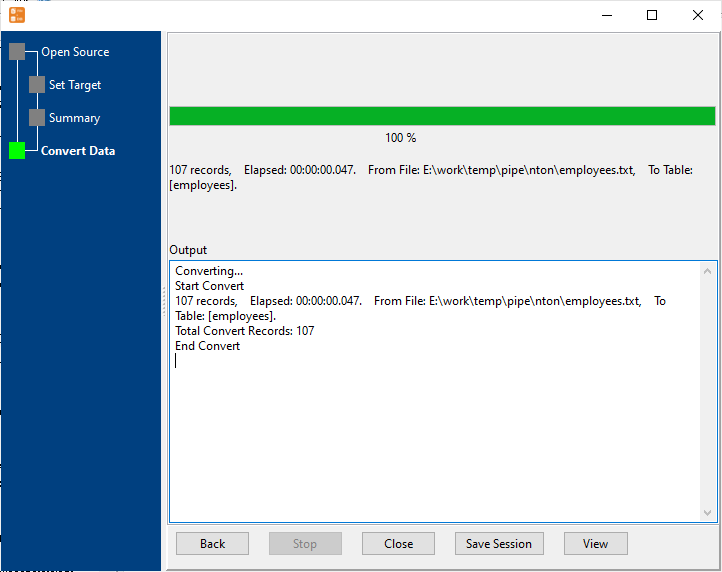
4. Update TXT data to Azure.
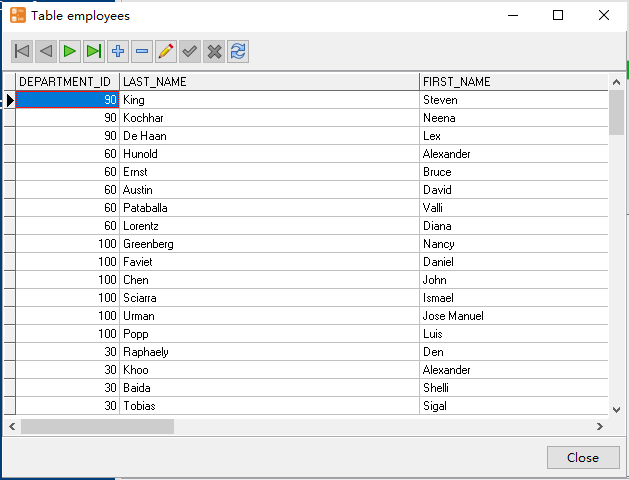
View updated data
Update TXT (“|” pipe delimited text) data to Azure in command line
Save “TXT to Azure” session, then you can:
- Update TXT (“|” pipe delimited text) to Azure in Windows command line.
- Update TXT (“|” pipe delimited text) to Azure in Linux command line.
- Update TXT (“|” pipe delimited text) to Azure in macOS command line.
Set scheduled tasks for updating TXT (“|” pipe delimited text) data to Azure
You can schedule and automate this “TXT to Azure” conversion task by:
- Save session and create .bat (Windows) or .sh (Linux/macOS) file for “TXT to Azure” conversion.
- Set scheduled task for “TXT to Azure” conversion.
FAQ
More about Withdata FileToDB – TXT (“|” pipe delimited text) to Azure converter
Download Withdata FileToDB
Convert your data online, free
Free in-browser converters for CSV, Excel, JSON, XML and SQL: Withdata Online Data Conversion. Large files, batch conversion or scheduling? See the offline desktop apps, or browse all data conversion tools.