Want to import data from TXT (“;” semicolon delimited text) file to dBase?
Try Withdata FileToDB, a desktop TXT to dBase converter for Windows, MacOS, and Linux, Convert TXT to dBase, Easy and Fast.
- Can run in GUI mode, Step by Step, just a few mouse clicks.
- Can run in Command line, for Scheduled Tasks and Streams.
- Convert locally and privately, avoid uploading large or private TXT file(s) to online services.
- Support Windows, Linux, and macOS.

Import data from TXT (“;” semicolon delimited text) file to dBase
Login to dBase -> Choose TXT file -> Set dBase table -> Import TXT to dBase
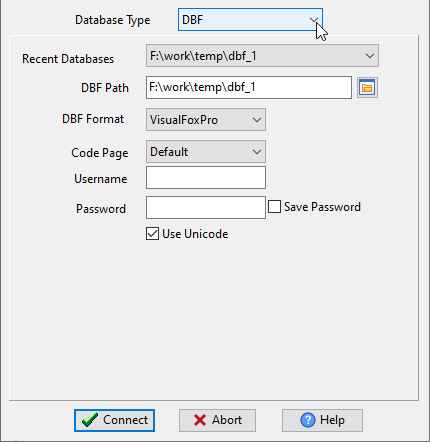
Choose dBase and logon.
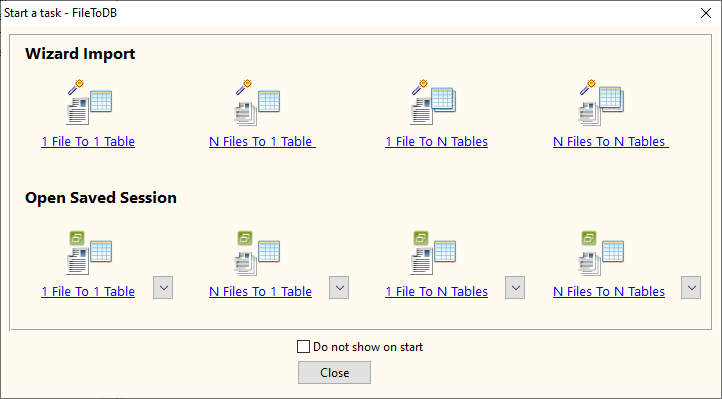
Click “Wizard – 1 File To 1 Table” at task dialog.
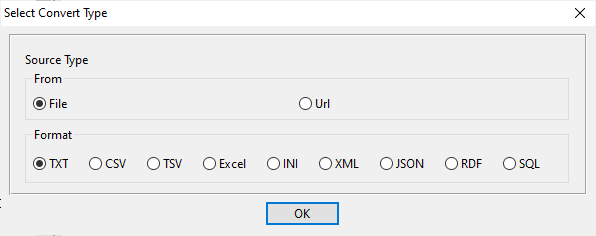
Select the “TXT” file type.
then show the wizard.
1. Open a TXT (“;” semicolon delimited text) file.
Support large ( > 4GB ) TXT file.
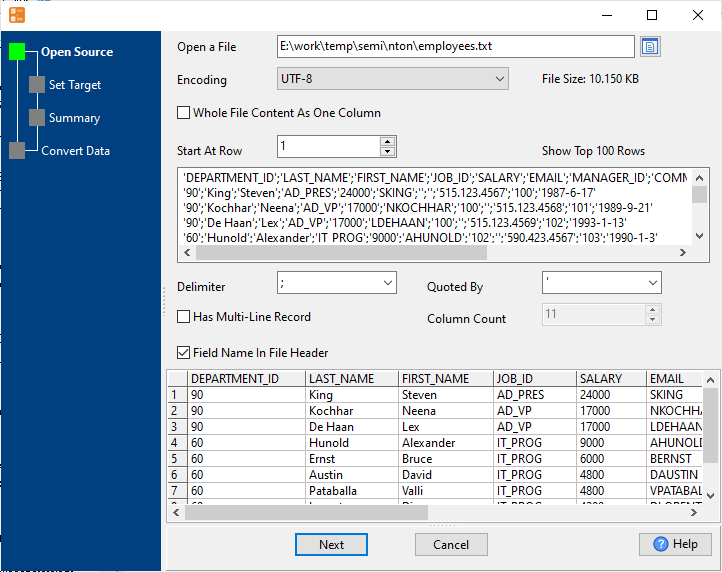
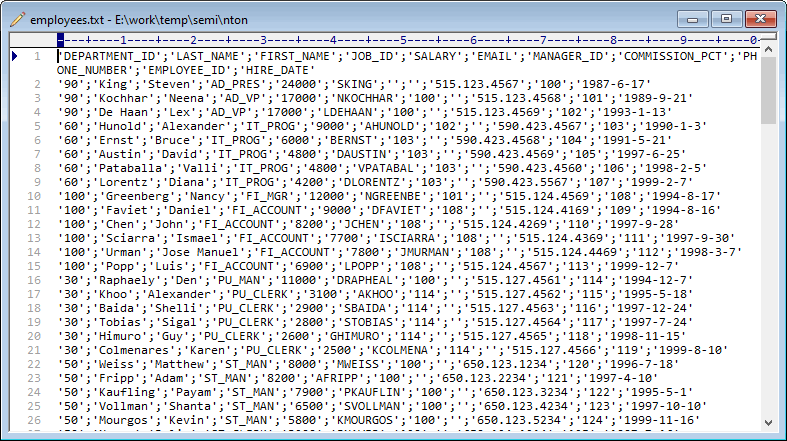
Here is the file’s content.
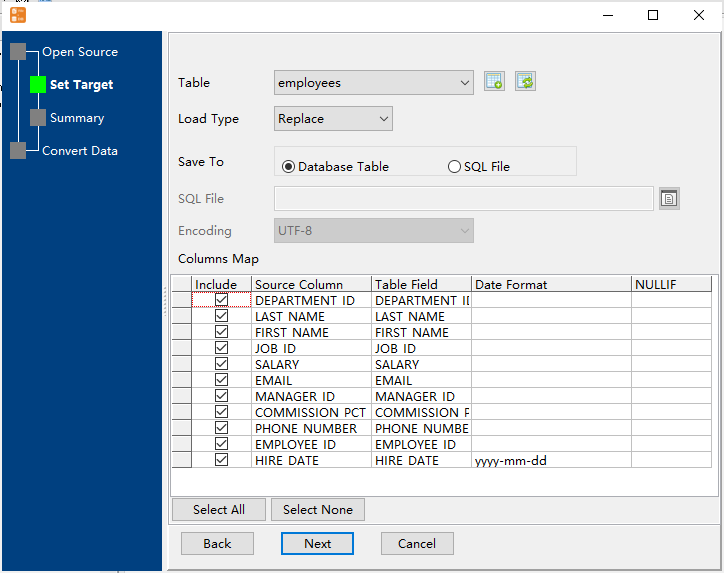
2. Select a dBase table and config fields.
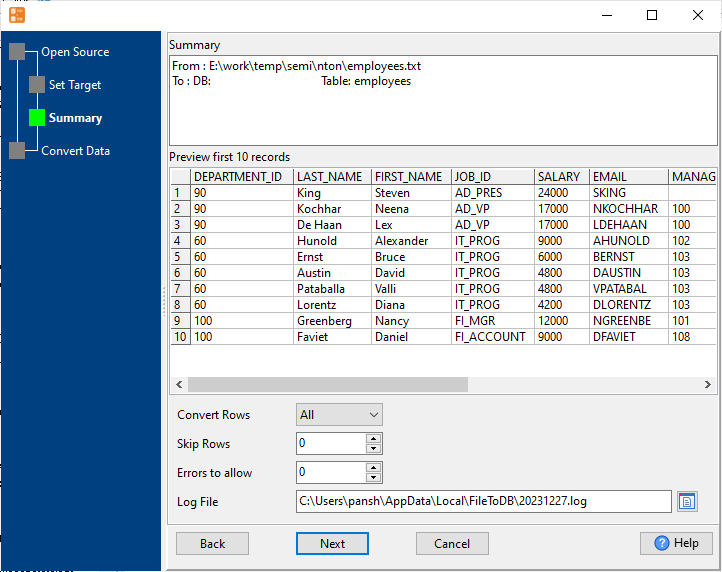
3. Preview data will be in dBase table.
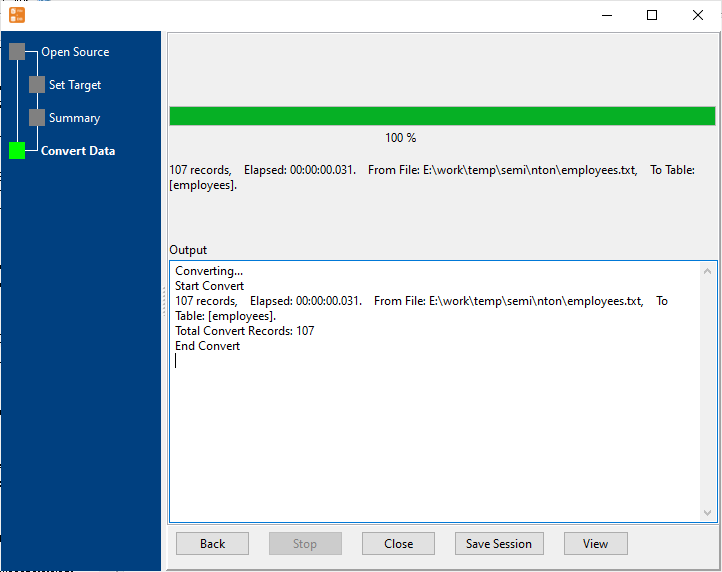
4. Import TXT data to dBase.
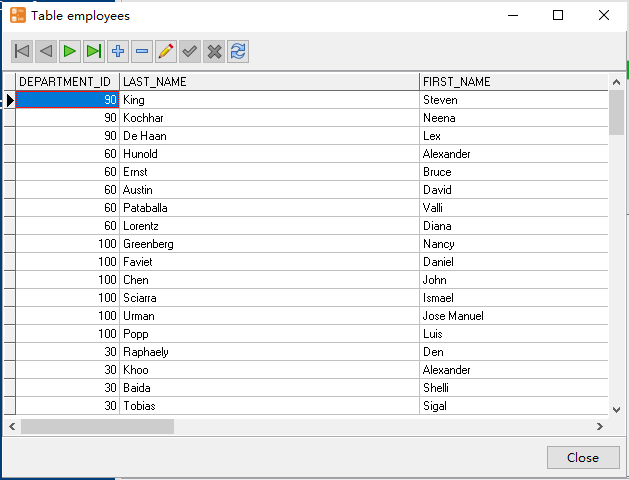
View imported data in dBase table
Import TXT to dBase in command line
Save “TXT to dBase” session, then you can:
- Import TXT to dBase in Windows command line.
- Import TXT to dBase in Linux command line.
- Import TXT to dBase in macOS command line.
Set scheduled tasks for importing TXT to dBase
You can schedule and automate this “TXT to dBase” conversion task by:
- Save session and create .bat (Windows) or .sh (Linux/macOS) file for “TXT to dBase” conversion.
- Set scheduled task for “TXT to dBase” conversion.
FAQ
What is Withdata FileToDB?
How long does it take to import TXT (“;” semicolon delimited text) data to dBase?
Is it safe to import TXT (“;” semicolon delimited text) data to dBase using FileToDB?
Can I import TXT (“;” semicolon delimited text) data to dBase on Linux, Mac OS?
Can I import TXT (“;” semicolon delimited text) data to dBase in command line?
More about Withdata FileToDB – TXT (“;” semicolon delimited text) to dBase converter
Download Withdata FileToDB
See also:
Semicolon-delimited text → dBase reference
Type mapping
| Value kind | in Semicolon-delimited text | in dBase |
|---|---|---|
| Int | 1234 | Numeric(10,0) |
| Bigint | 9007199254740993 | Numeric(19,0) |
| Decimal | 1234.56 | Numeric(p,s) |
| Float | 1.234e+10 | Float |
| Text | quoted only when it contains a semicolon or a quote | Character(n) |
| Long text | must be quoted; line breaks inside force multi-line records | Memo |
| Date | 2026-09-18 | Date |
| Datetime | 2026-09-18 14:30:00 | (none) |
| Binary | not representable - base64 or hex string | (none) |
| Boolean | TRUE / FALSE, or 1 / 0 depending on the writer | Logical |
| JSON | the whole JSON value quoted, with internal quotes doubled | (none) |
Dialect differences
Semicolon-delimited text is a file format and dBase is a database server, so the target has to be told the types the file never carried - the rows below are where the two sides diverge.
| Property | in Semicolon-delimited text | in dBase |
|---|---|---|
| port | — | (file-based) |
| identifiers | Double quotes; a literal quote is doubled ("" ) | — |
| row limit | — | (driver dependent) |
| dates | Dates often use D/M/Y or D.M.Y in European exports | Date (D) |
| long text | — | Memo (M) |
| binary | Not supported | — |
| separator | Semicolon ";" | — |
| encoding | Often ANSI or Latin-1 in European exports; UTF-8 needs a BOM | — |
| typing | None - every field is text | — |
| shape | Flat table, optional header row | Tables of rows and columns |
| ceiling | No formal limit; row count bounded by memory | — |
No counterpart
- Semicolon-delimited text values of kind Date and time have nowhere to go in dBase.
- Semicolon-delimited text values of kind Binary have nowhere to go in dBase.
- Semicolon-delimited text values of kind JSON have nowhere to go in dBase.
Convert your data online, free
Free in-browser converters for CSV, Excel, JSON, XML and SQL: Withdata Online Data Conversion. Large files, batch conversion or scheduling? See the offline desktop apps, or browse all data conversion tools.