Want to import data from each sheet in an Excel file to a separate Visual FoxPro table?
Try Withdata FileToDB, a desktop Excel to Visual FoxPro converter for Windows, MacOS, and Linux, Convert Excel to Visual FoxPro, Easy and Fast.
- Can run in GUI mode, Step by Step, just a few mouse clicks.
- Can run in Command line, for Scheduled Tasks and Streams.
- Import Excel to Visual FoxPro locally and privately, avoid uploading Excel file(s) to online services.
- Support Windows, Linux, and macOS.

Import data from each sheet in an Excel file to a separate Visual FoxPro table
Login to Visual FoxPro -> Select Excel worksheets -> Set Visual FoxPro tables -> Excel worksheets to Visual FoxPro tables
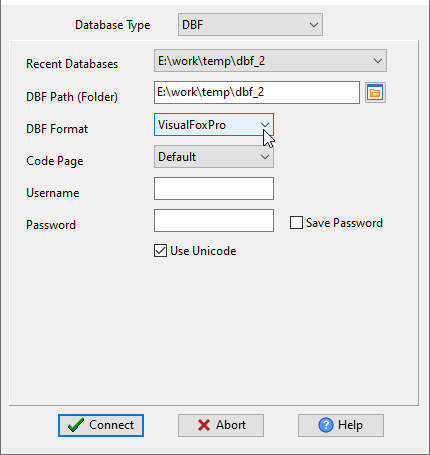
Choose Visual FoxPro and logon.
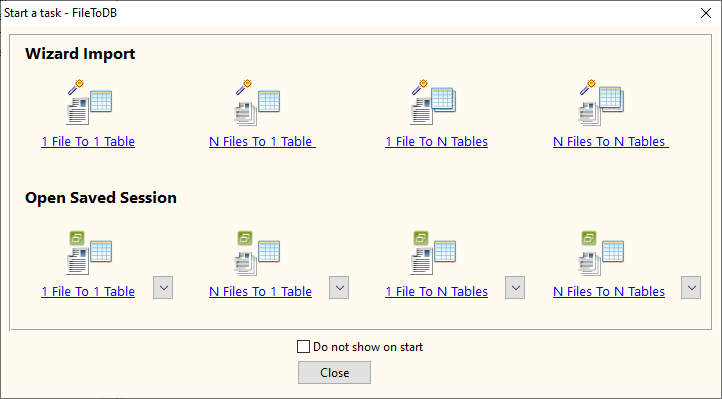
Click “Wizard – 1 File To N Tables” at task dialog.
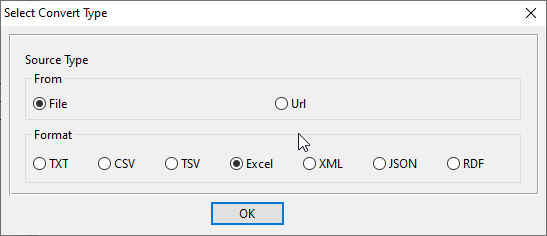
Select the “Excel” file type.
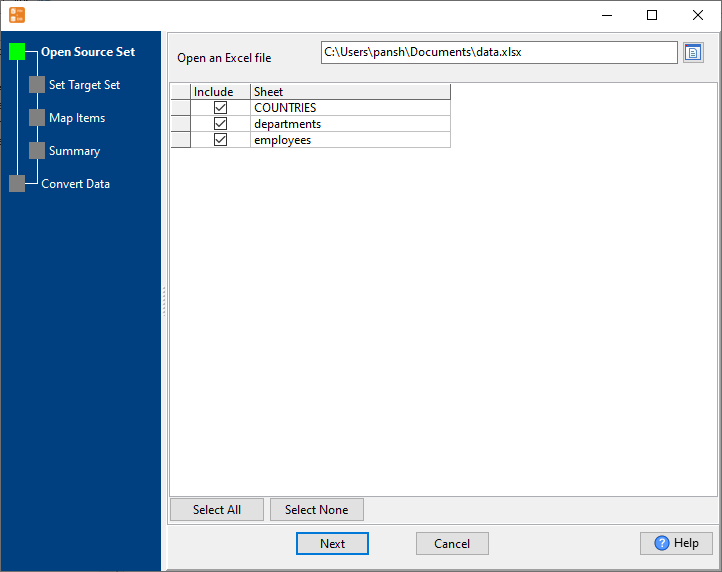
then show the wizard.
1. Open Excel file, select worksheets.
2. Show existing Visual FoxPro tables, choose “Import Type”.
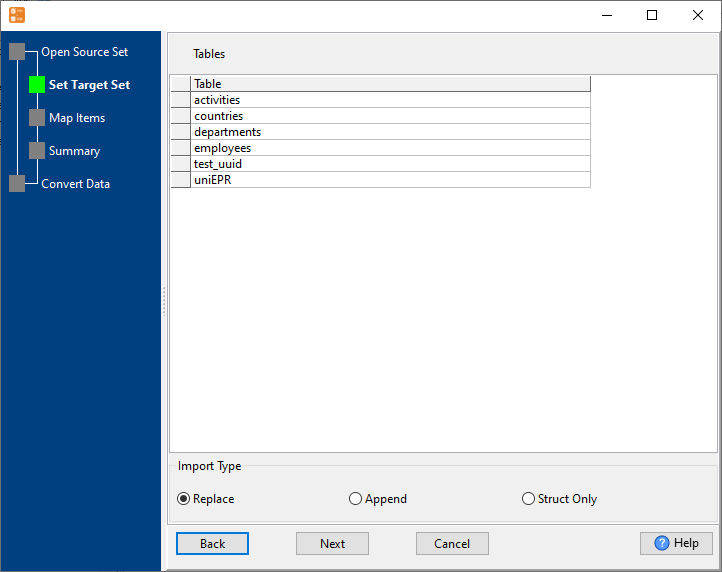
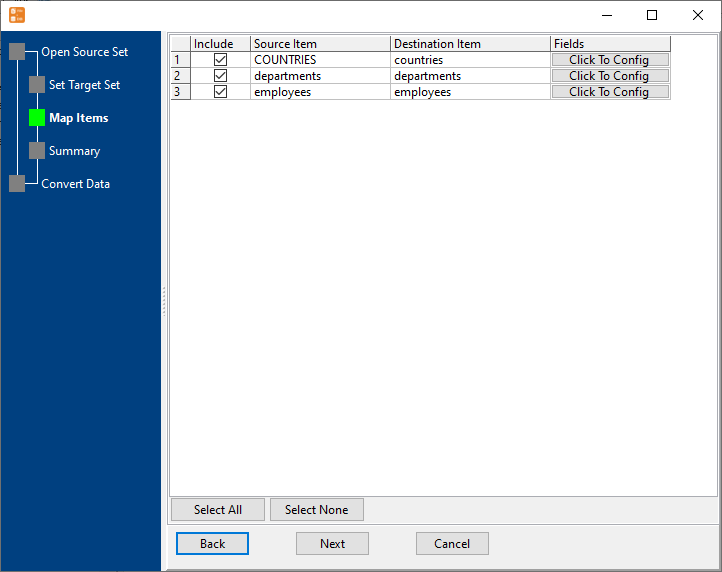
3. Set Visual FoxPro tables.
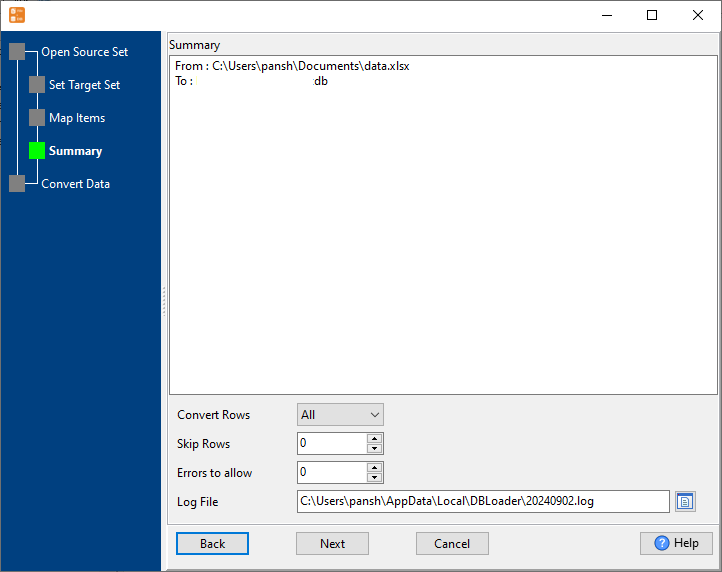
4. Show summary, set “Convert Rows”.
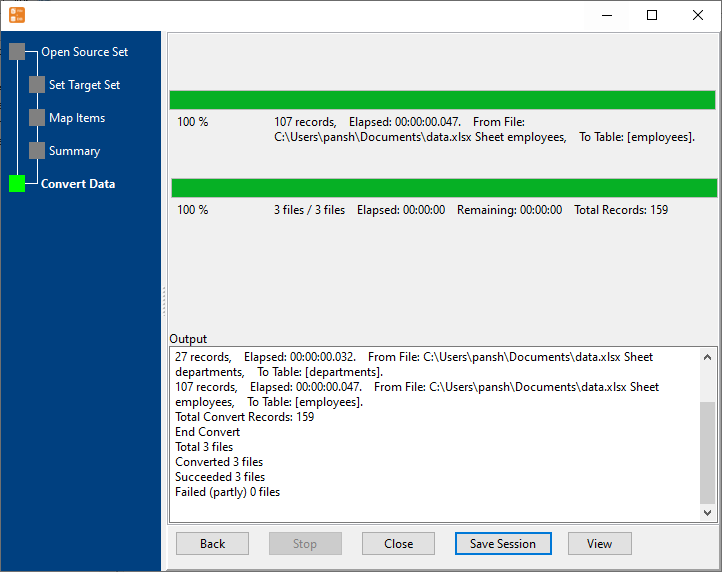
5. Import data from each sheet in an Excel file to a separate Visual FoxPro table.
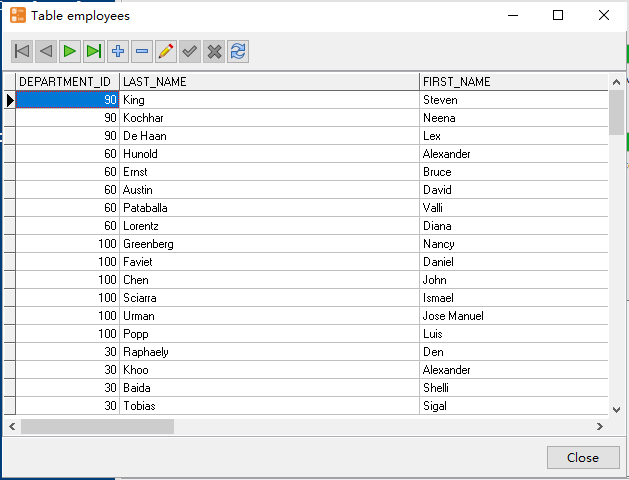
View imported data in Visual FoxPro table
More about Excel to Visual FoxPro converter
Download Withdata FileToDB