Looking for a reliable way to view RTF data in SQL Server VARCHAR(MAX), read RTF from SQL Server VARCHAR(MAX) column, or display RTF stored in SQL Server VARCHAR(MAX)? Withdata DBBlobEditor is a professional tool to easily open and view RTF content stored in SQL Server VARCHAR(MAX) columns without complex SQL coding, supporting Windows, macOS and Linux systems.
How to View RTF Data in SQL Server VARCHAR(MAX) and Read RTF from SQL Server VARCHAR(MAX)
Whether you need to view RTF data in SQL Server VARCHAR(MAX) for a single record or batch view RTF data in SQL Server VARCHAR(MAX) table for multiple entries, Withdata DBBlobEditor provides a user-friendly GUI to access RTF content directly from SQL Server VARCHAR(MAX) quickly. Below is the step-by-step guide:
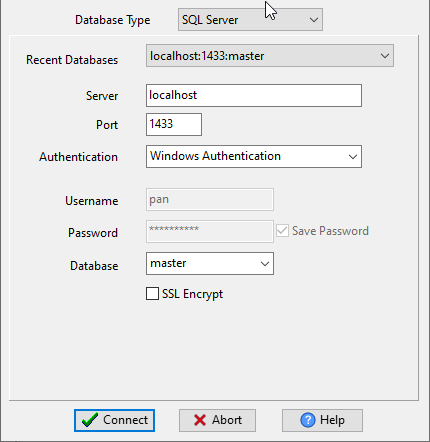
Step 1: Connect to Your SQL Server Database
Launch Withdata DBBlobEditor and enter your SQL Server database credentials to connect. This is the first step before you can view RTF data in SQL Server VARCHAR(MAX) or read RTF from SQL Server VARCHAR(MAX) column.
Step 2: Select SQL Server Table and VARCHAR(MAX) Column
Navigate to the target SQL Server table, select the VARCHAR(MAX) column that stores RTF content.
You can enter “where” clause to filter the records you want to view. This ensures you only access the RTF data you need to view RTF data in SQL Server VARCHAR(MAX).
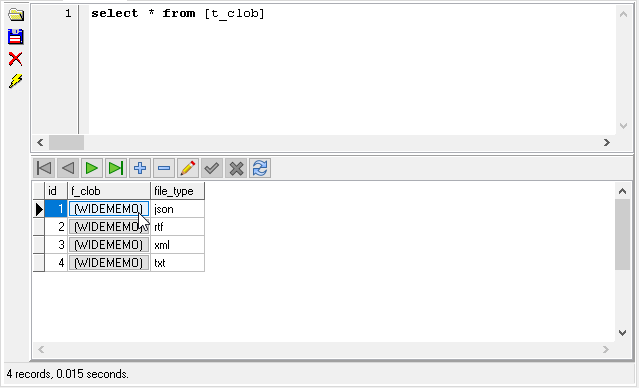
Step 3: View RTF Content Directly from SQL Server VARCHAR(MAX)
Double click the “MEMO” or “WIDEMEMO” cell in DBBlobEditor to open RTF from SQL Server VARCHAR(MAX) directly within the tool. The original RTF format, formatting and text styles are fully retained when you read RTF from SQL Server VARCHAR(MAX).
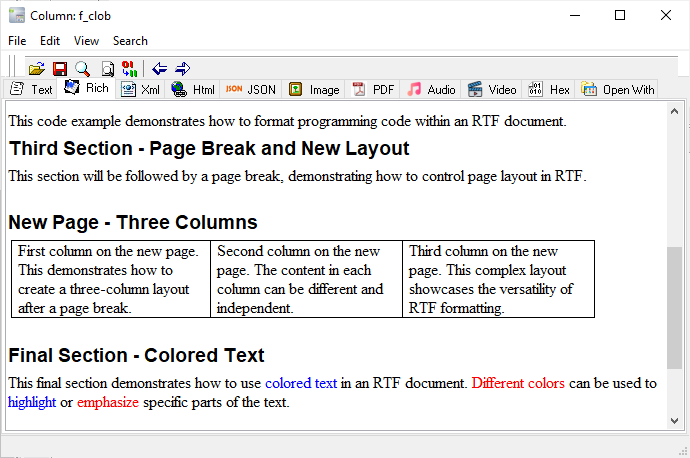
Step 4: Extract RTF from SQL Server VARCHAR(MAX) (Optional)
If needed, click menu “File” -> “Save”, or click tool button “save to file” to extract RTF from SQL Server VARCHAR(MAX) and save it to your computer.
And you can batch extract RTF from SQL Server VARCHAR(MAX) for multiple records at once with DBBlobEditor.
Key Features for Viewing RTF Data in SQL Server VARCHAR(MAX)
- Directly view RTF data in SQL Server VARCHAR(MAX) without exporting to local first
- Batch view RTF data in SQL Server VARCHAR(MAX) table to save time on bulk viewing operations
- Retain original RTF formatting when you display RTF stored in SQL Server VARCHAR(MAX)
- Support all RTF versions to read RTF from SQL Server VARCHAR(MAX) column
- Cross-platform (Windows, macOS, Linux) to view RTF file in SQL Server VARCHAR(MAX) column anywhere
- No SQL coding required to view RTF data in SQL Server VARCHAR(MAX) or extract RTF from SQL Server VARCHAR(MAX)
Withdata DBBlobEditor is the best solution to view RTF data in SQL Server VARCHAR(MAX), read RTF from SQL Server VARCHAR(MAX) column, and display RTF stored in SQL Server VARCHAR(MAX). It simplifies the process to batch view RTF data in SQL Server VARCHAR(MAX) table and extract RTF from SQL Server VARCHAR(MAX), making SQL Server VARCHAR(MAX) RTF management efficient and error-free.
Download DBBlobEditor