Want to migrate from Access to dBase?
Try Withdata DBCopier, a Access to dBase converter for Windows, Mac, and Linux, Migrate Access to dBase, Easy and Fast.
- Step by Step, just a few mouse clicks.
- Create dBase tables with auto mapping data types. Create dBase indexes.
- Can work without Microsoft Access installed.

Migrate from Access to dBase
Login to Access -> Login to dBase -> Select tables to migrate -> Migrate from Access to dBase
Choose source Access database and logon.
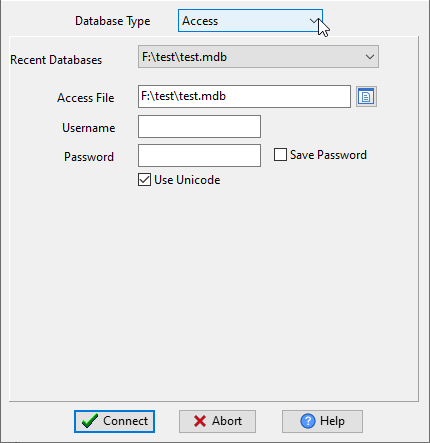
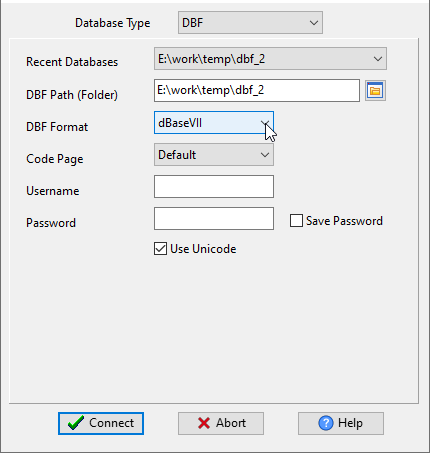
Choose target dBase database and logon.
Click “Wizard – Import All Tables” at task dialog.
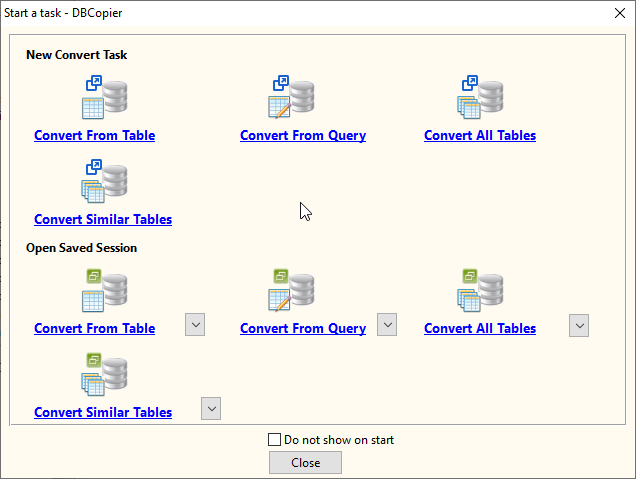
then show the wizard.
1. Open source Access.
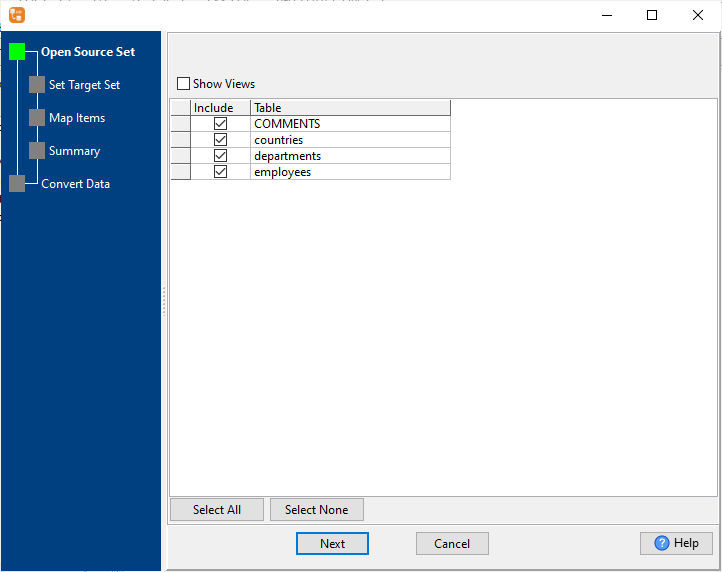
2. Set “Import Type”.
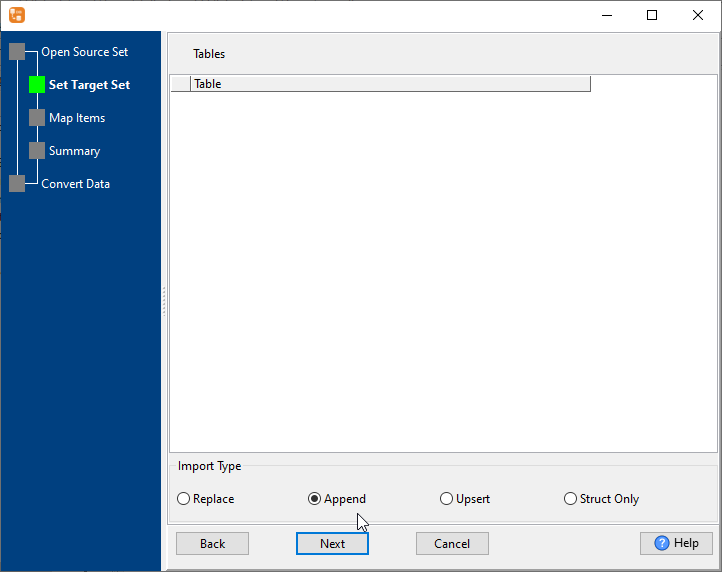
3. Select dBase tables to migrate.
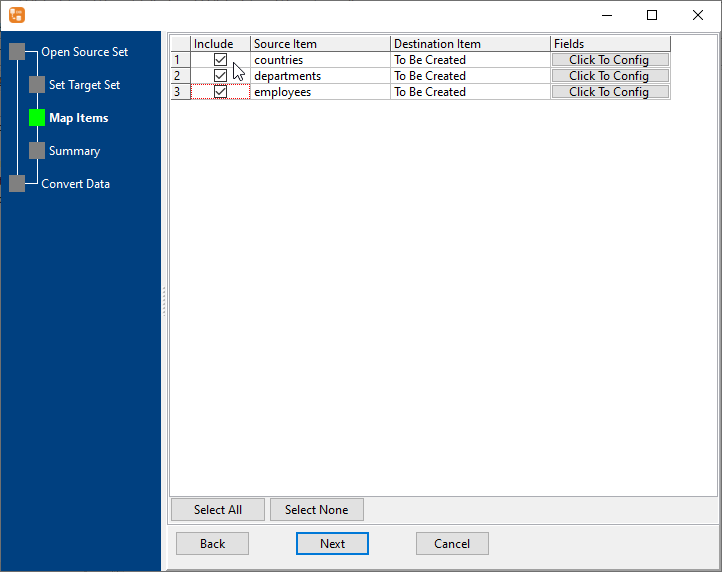
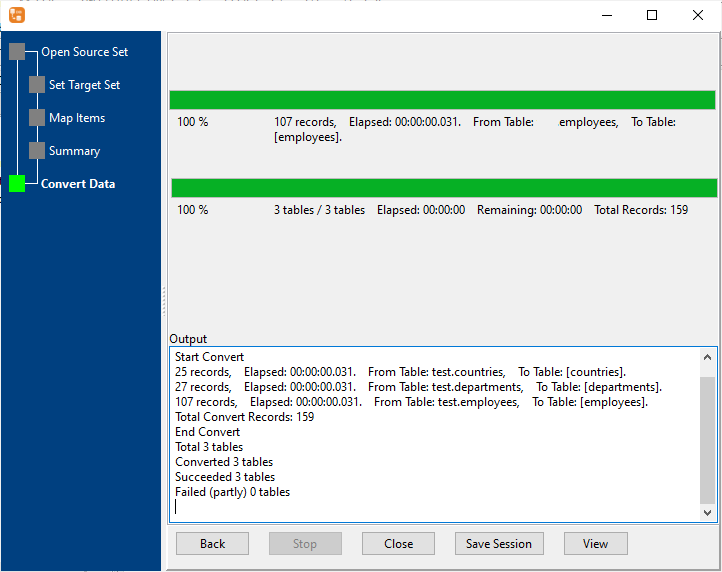
4. Migrate from Access to dBase.
Create dBase tables. Copy Access data to dBase. Create dBase indexes.
FAQ
More about Access to dBase converter
Download Withdata DBCopier
See also: