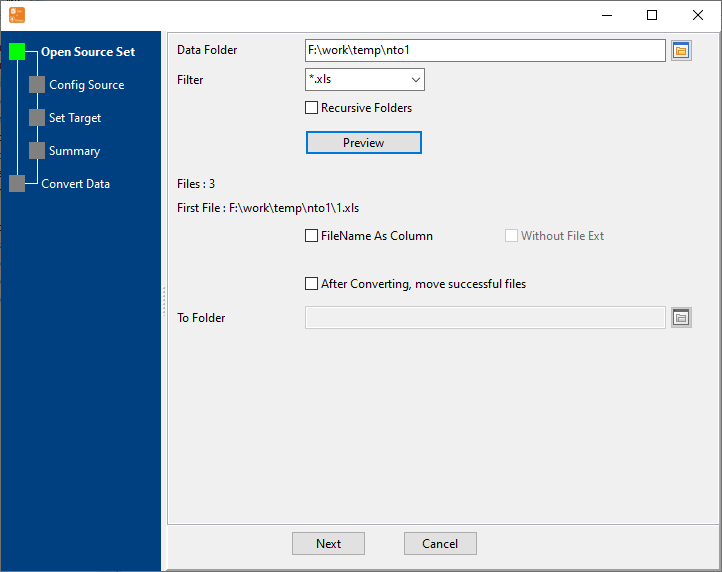
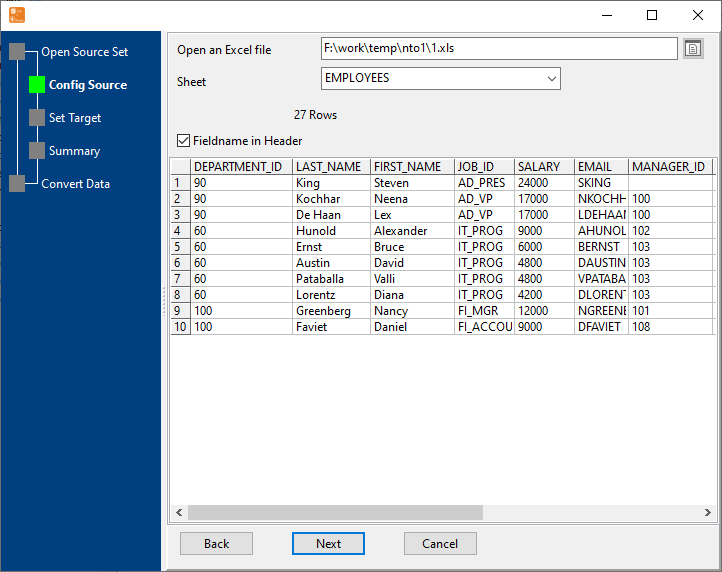
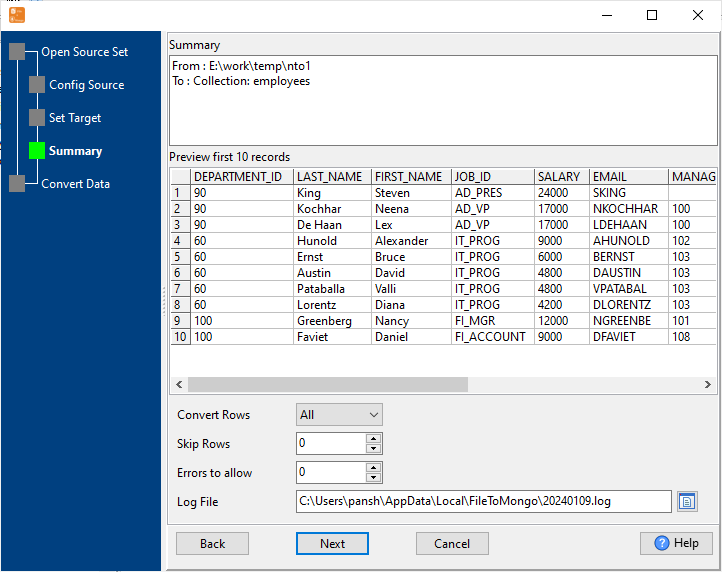
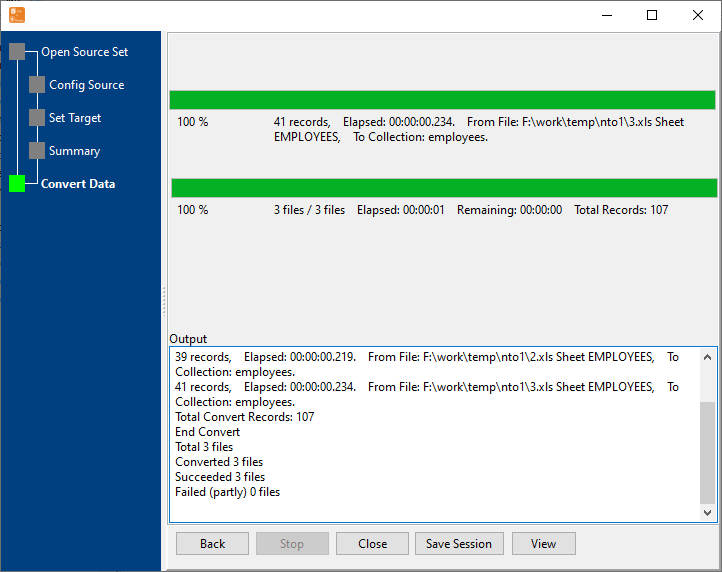
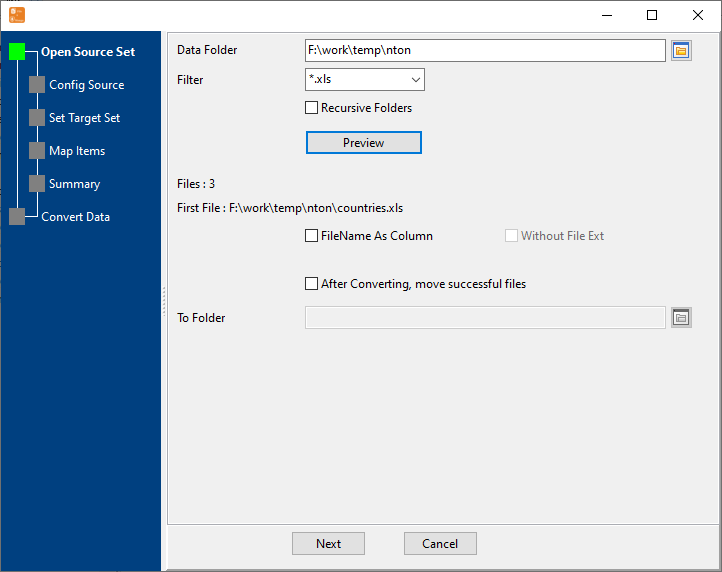
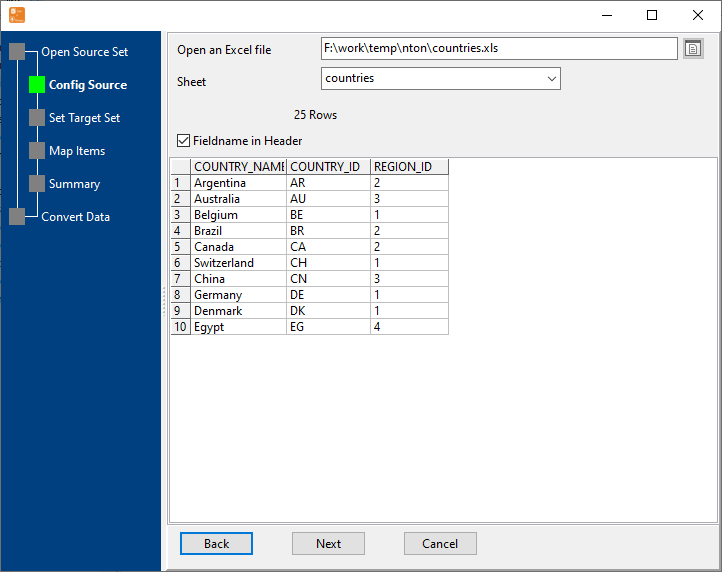
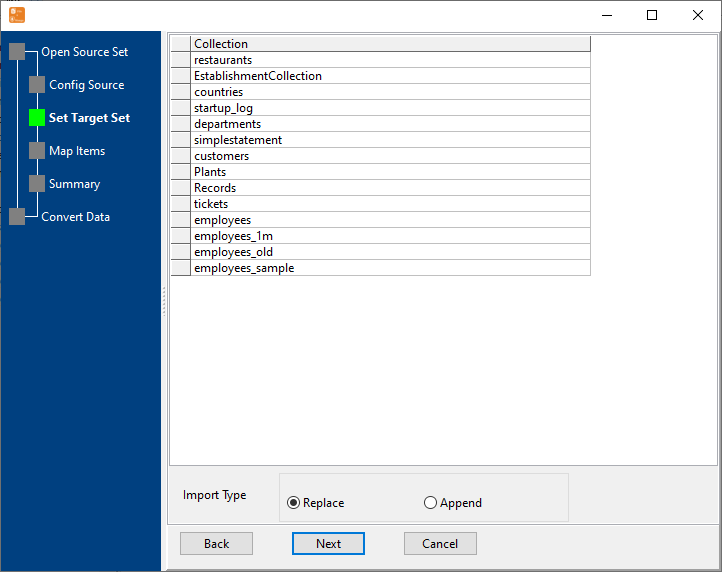
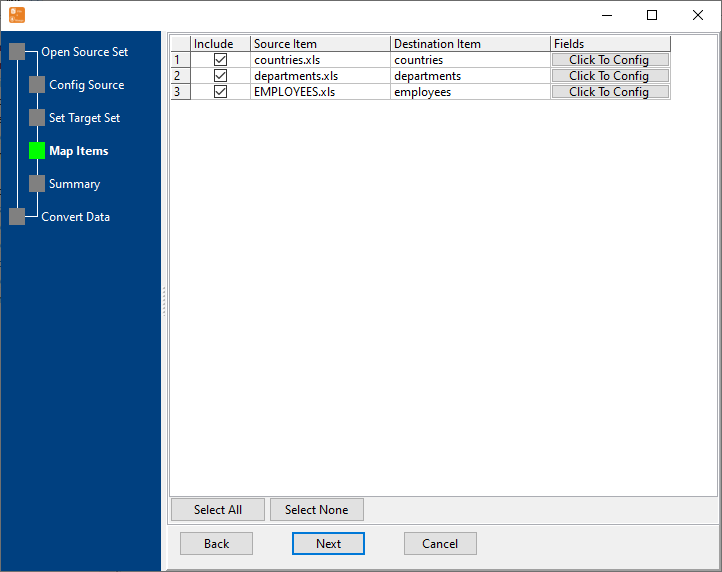
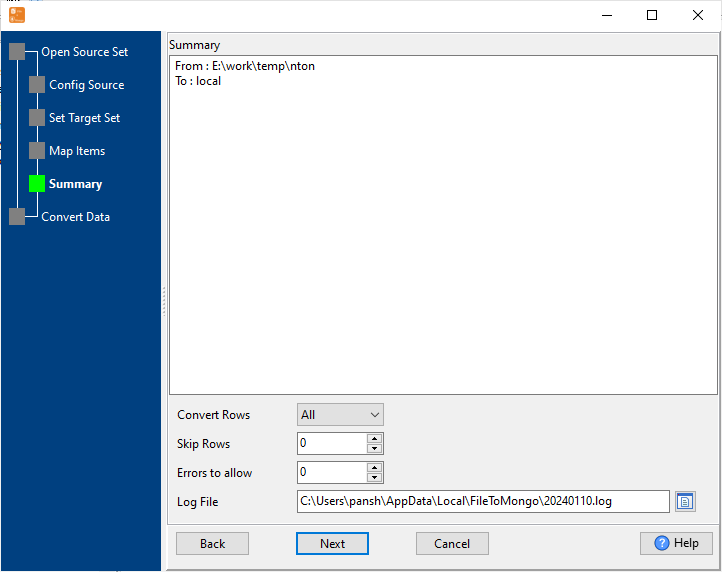
4 Simple Steps to Import Excel to MongoDB Database
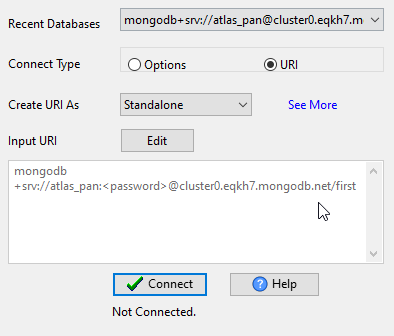
Connect MongoDB
Configure your MongoDB connection details (URI/host:port, authentication) — — supports standalone, replica set, sharded cluster, MongoDB Atlas, and self-hosted servers.
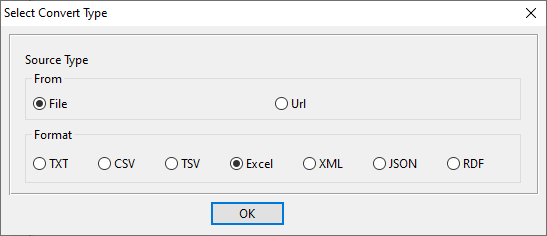
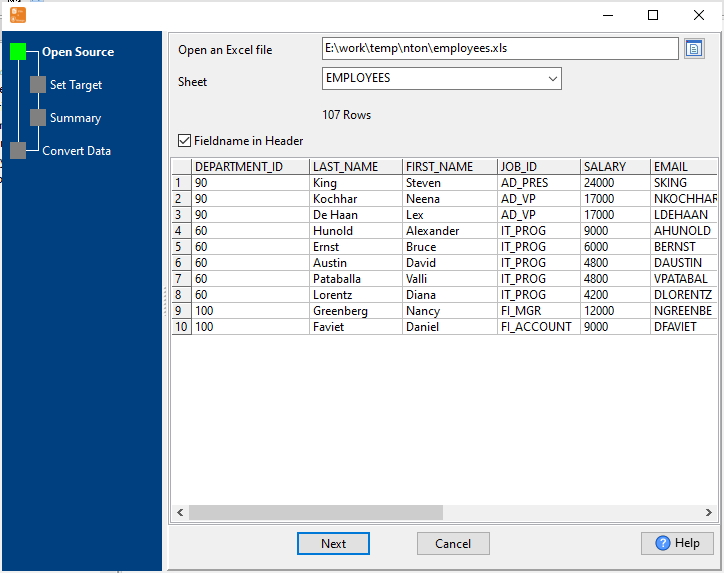
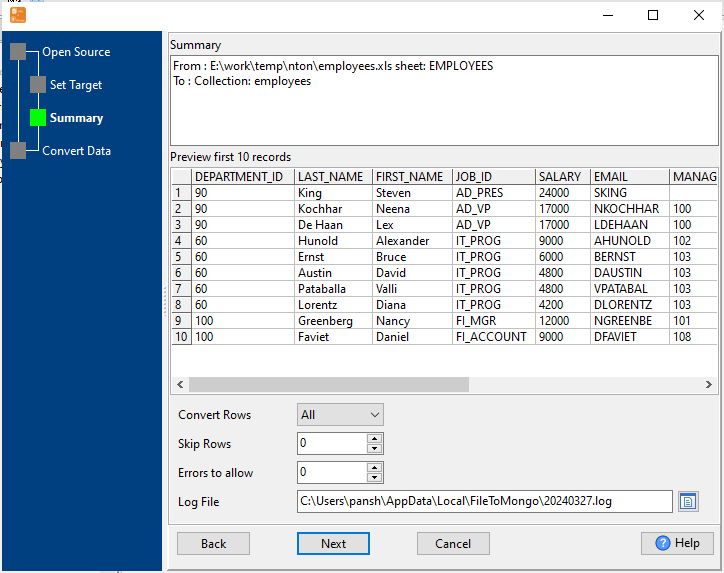
Select Excel File & Sheets
Select your Excel file (.xlsx/.xls) and select target sheets to import. Support partial import (specific rows/columns) and multiple sheet selection.
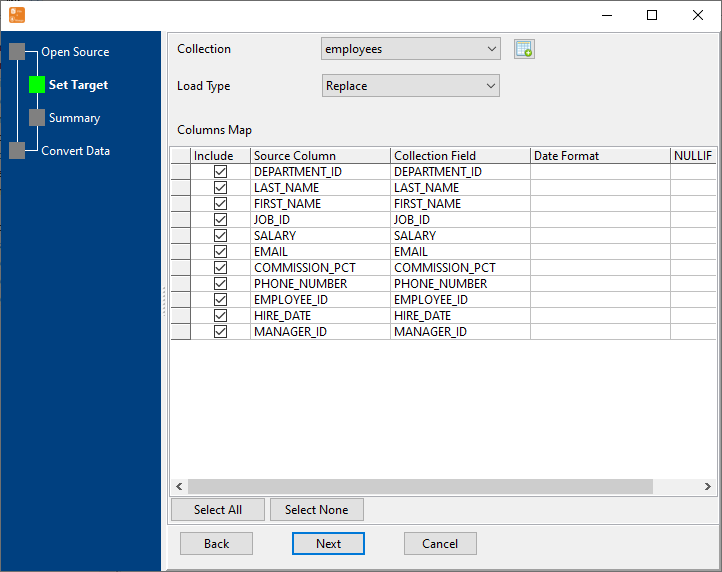
Configure Import Rules Mapping
Set field mapping (Excel columns ↔ MongoDB fields), data type conversion rules, data load type (append/replace/update/upsert), and empty value processing.
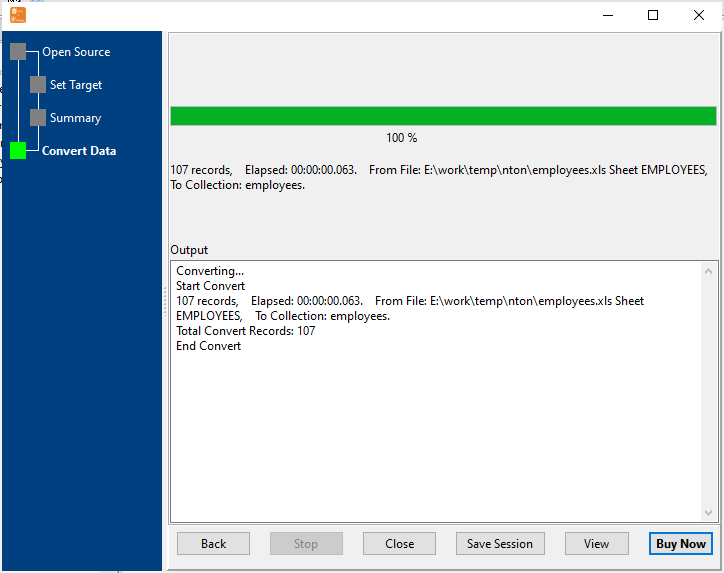
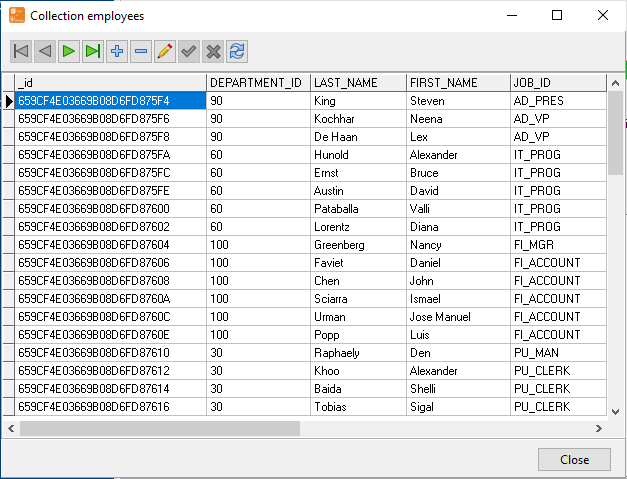
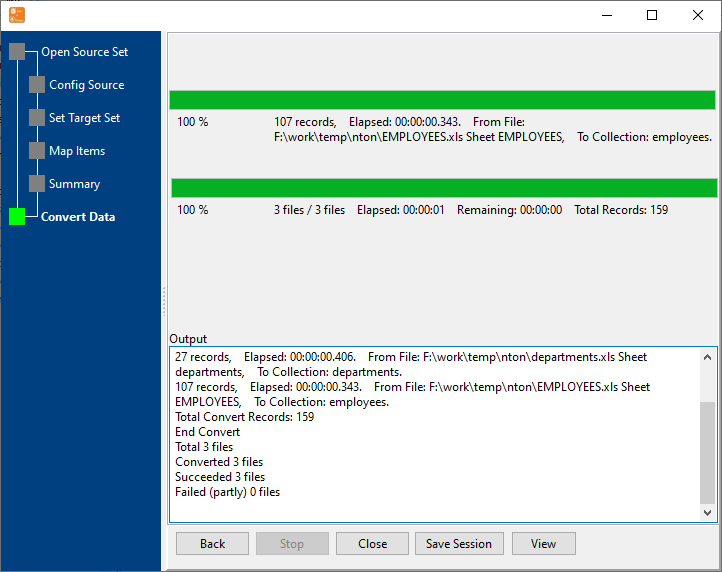
Start Excel Import & View Real-Time Progress
Real-time display of import speed, success/failure count, and error details. Failed rows are marked for easy retry — even for large Excel datasets.
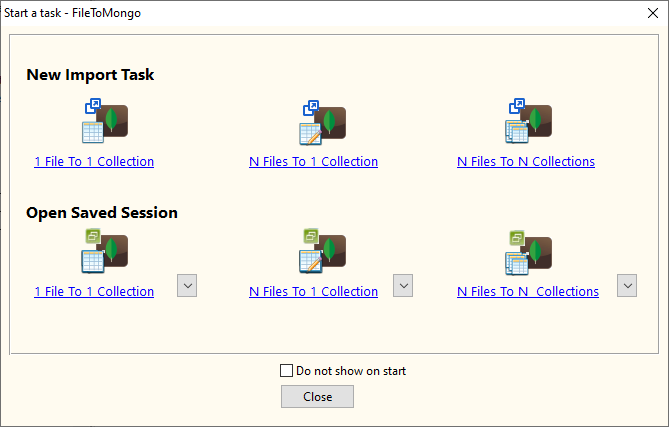
3 Flexible Excel to MongoDB Import Types
Single Sheet to Single Collection
Import one Excel sheet to one MongoDB collection — ideal for targeted data migration or single dataset import. Preserves all columns and rows from the sheet.
Example:
Excel Sheet: employees_2024 → MongoDB Collection: employees
✅ Auto-map Excel column names to MongoDB field names (case-insensitive)
Multiple Sheets to Multiple Collections
Import multiple Excel sheets to corresponding MongoDB collections in one operation — perfect for bulk data migration from multi-sheet Excel files.
Example:
Sheets: customers, products → Collections: customers, products
✅ Custom collection naming for each Excel sheet
Multiple Sheets to Single Collection
Combine data from multiple Excel sheets into a single MongoDB collection — ideal for merging related datasets into one collection.
Example:
Sheets: sales_jan, sales_feb → Collection: sales_2024
✅ Add sheet identifier field to distinguish data sources
Key Features of Excel to MongoDB Importer
Excel Format Compatibility
- Dual Format Support: .xlsx (2007+) and .xls (97-2003) files
- Support for merged cells, formulas (value import), and cell formatting
- Compatible with Excel, WPS, LibreOffice Calc exported files
- Handle empty rows/columns automatically
High Performance & Scalability
- Huge Excel File Support: Stream processing avoids memory overflow
- Batch Import: Process millions of rows in minutes
- Real-time progress tracking with error logging
- Failed row retry mechanism for data integrity
Advanced Field Mapping Mapping
- Excel Column ↔ MongoDB Field mapping (rename, ignore, merge)
- Auto Data Type Conversion: Excel → MongoDB (Text→String, Number→Int/Double, Date→ISODate)
- Custom mapping rules for nested MongoDB documents
- Header row detection (auto/manual select header row)
Secure & Reliable
- Local Processing: No Excel data uploaded to third-party servers
- Cross-Platform: Windows, macOS, Linux (GUI & CLI)
- Scheduled automated imports (daily/weekly/monthly)
- Import session saving for repeat use
Common Use Cases for Excel to MongoDB Import
Financial Data Integration
Import financial Excel spreadsheets to MongoDB with precise data type conversion (currency, percentage) for compliance and analysis.
Operational Data Entry
Import Excel data filled by non-technical teams into MongoDB — no coding required. Validate data format and ensure consistency before import.
Historical Data Archiving
Archive old Excel reports and spreadsheets into MongoDB for centralized storage and easy querying. Preserve data types and relationships.
Business Data Migration
Migrate legacy Excel-based data to MongoDB for modern application development. Support bulk import of customer, product, and sales data with field mapping.
Frequently Asked Questions About Excel to MongoDB Import
How to handle Excel column names different from MongoDB fields?
Use the field mapping feature to manually map Excel columns to MongoDB fields (e.g., "employee_name" → "name", "employee_salary" → "salary"). You can also set default values for missing fields or ignore unnecessary columns.
What happens if there are duplicate records in Excel?
You can choose from three duplicate handling strategies: skip duplicate records, overwrite existing records in MongoDB, or update existing records with new values. Set a unique identifier field (e.g., email, ID) to detect duplicates.
How are Excel data types converted to MongoDB types?
The tool automatically converts common Excel types: Text → String, Numeric → Int32/Int64/Double (auto-detected), Date/Time → ISODate, Boolean → Boolean. You can override these conversions in the field mapping settings (e.g., force numeric to String).
Can I schedule automated Excel to MongoDB imports?
Yes! Save your import configuration as a .bat (Windows) or .sh (Linux/macOS) file, and schedule it using Windows Task Scheduler or Linux Crontab. Perfect for daily/weekly bulk data imports from Excel.
Ready to Import Excel to MongoDB Effortlessly?
Download Excel to MongoDB Importer (FileToMongo) and streamline your data migration, entry, and archiving workflows with secure, high-performance Excel imports.
Download FileToMongo Free Trial Buy FileToMongo - Starting at $75