4 Simple Steps to Export MongoDB to Excel
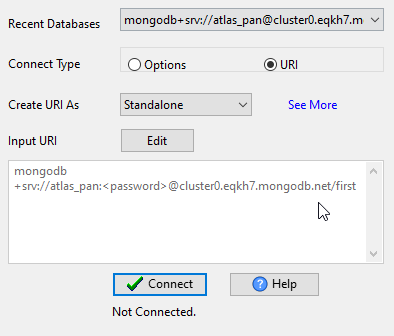
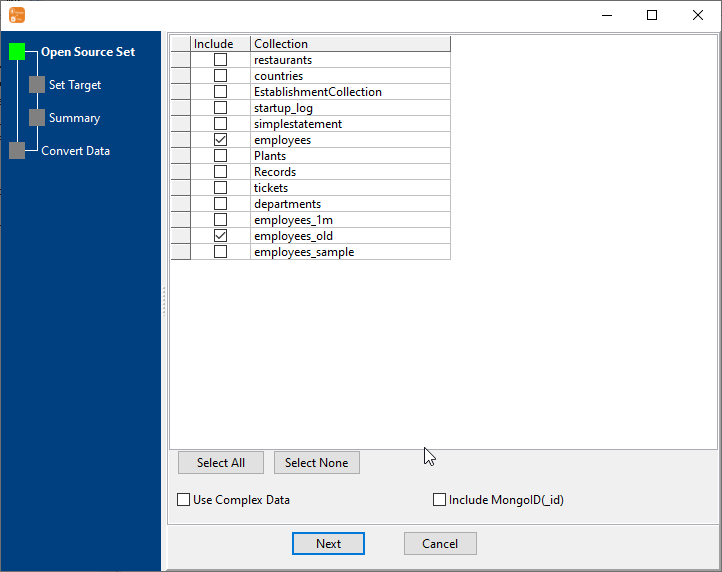
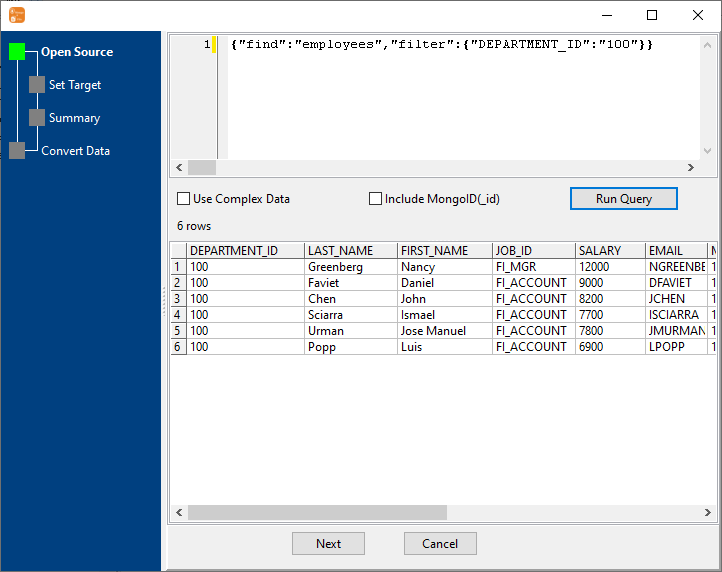
Connect MongoDB
Configure your MongoDB connection details (URI/host:port, authentication) — supports both MongoDB Atlas (cloud) and self-hosted MongoDB servers.
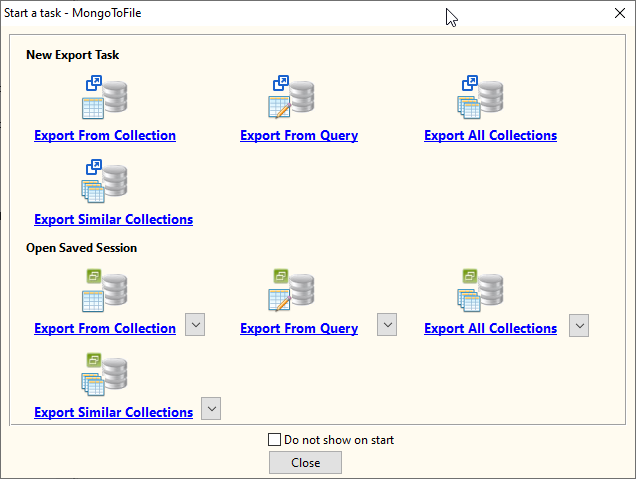
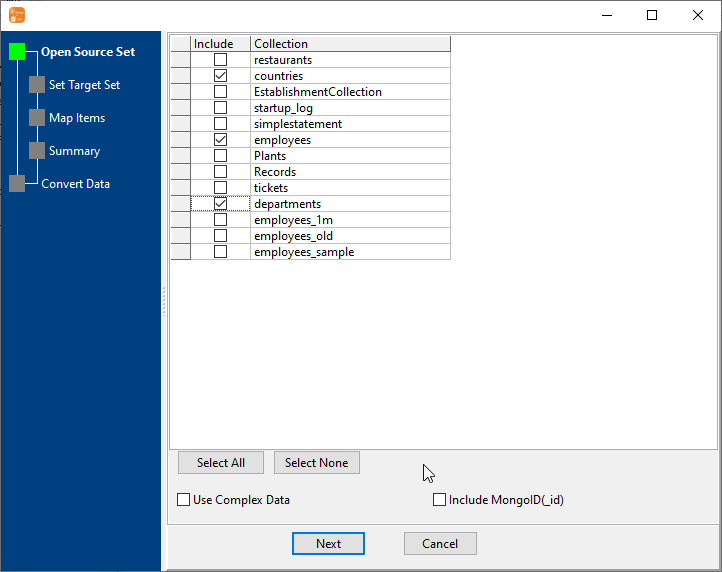
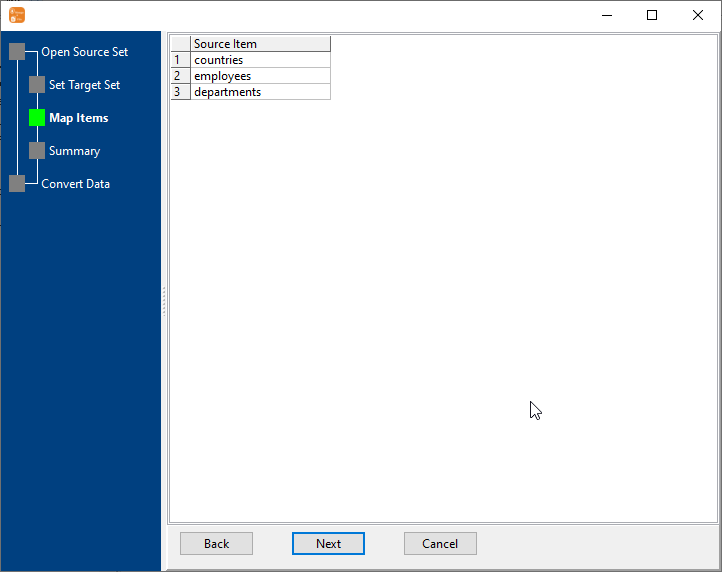
Select Export Type & Collections
Choose one of 4 flexible Excel export types and select target collections or define a custom query. Supports single/multi-sheet exports, query results to Excel.
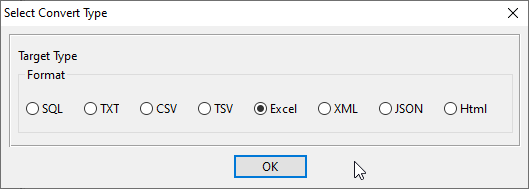
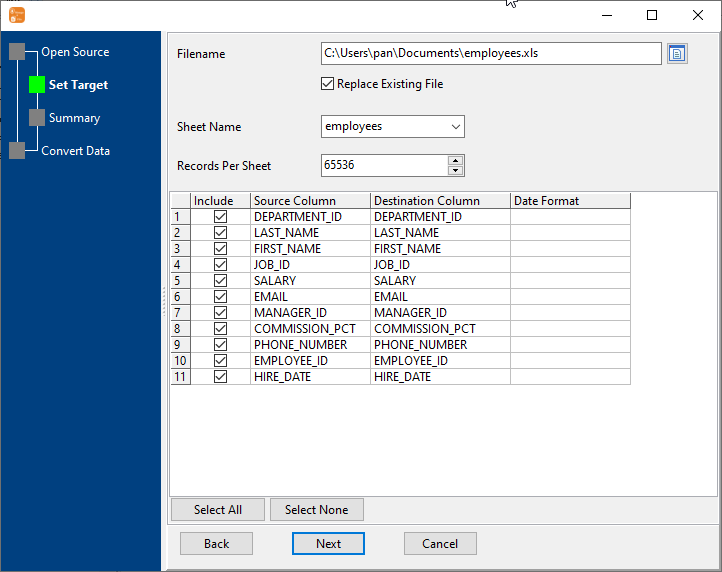
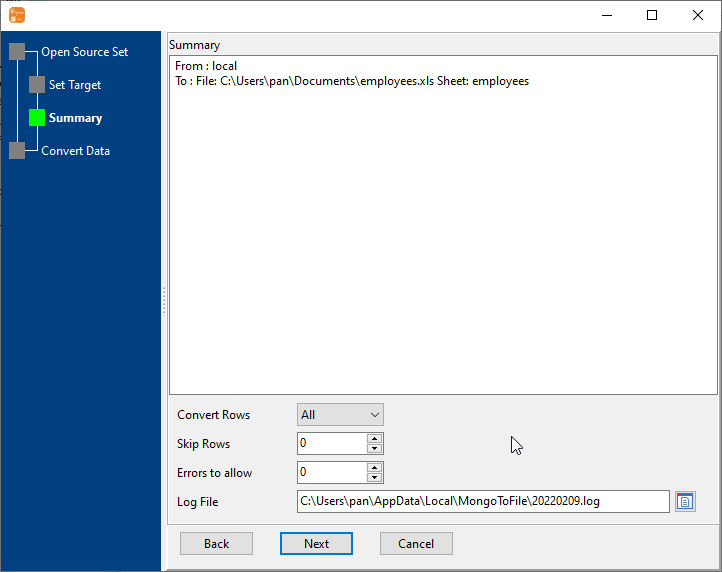
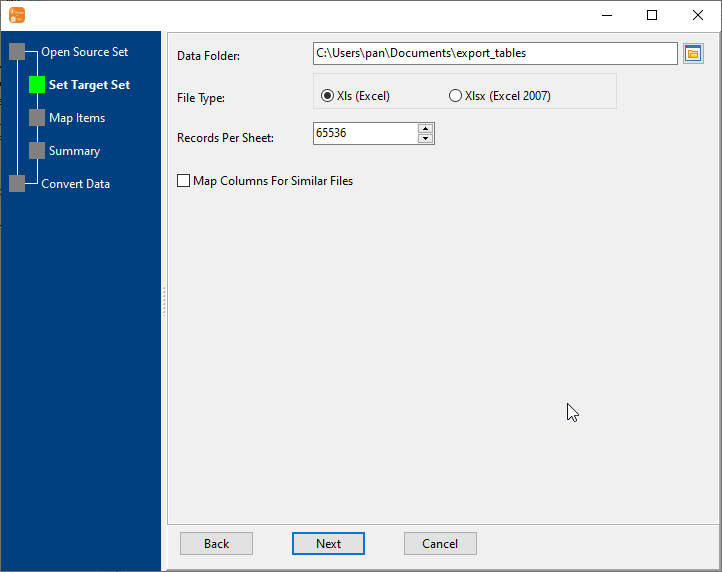
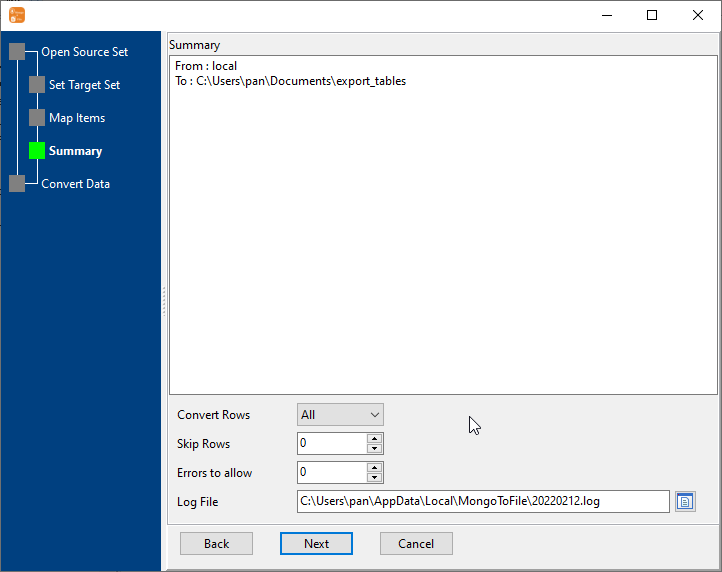
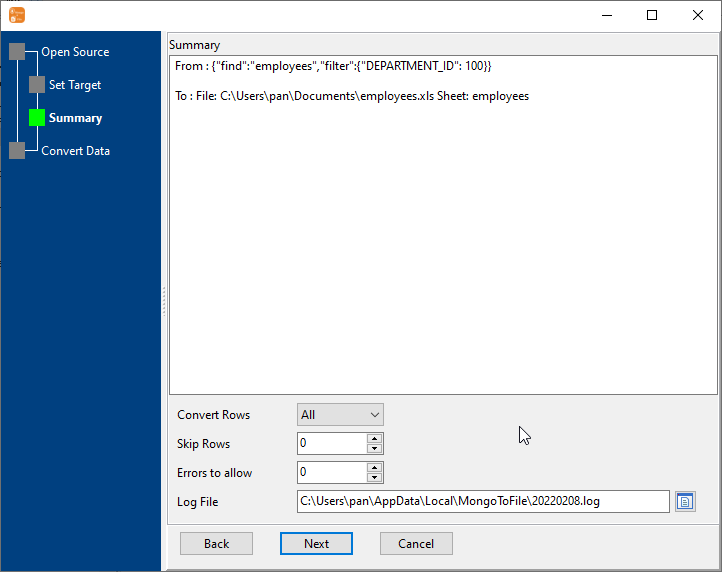
Configure Excel Settings Excel
Set Excel formatting options (file format: .xlsx/.xls, sheet naming, column mapping/renaming, cell format, header style) and apply MongoDB query filters.
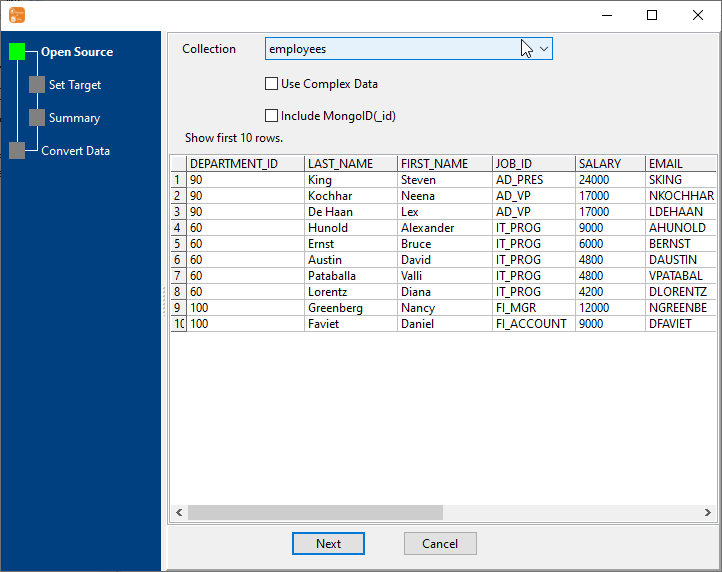
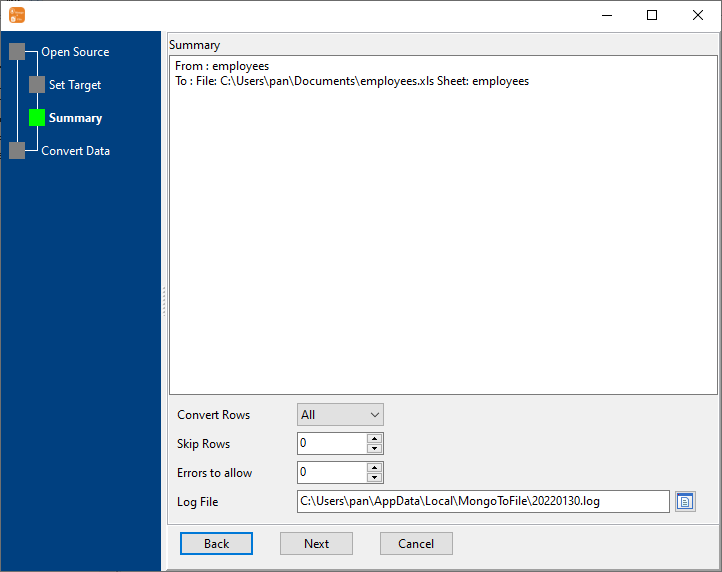
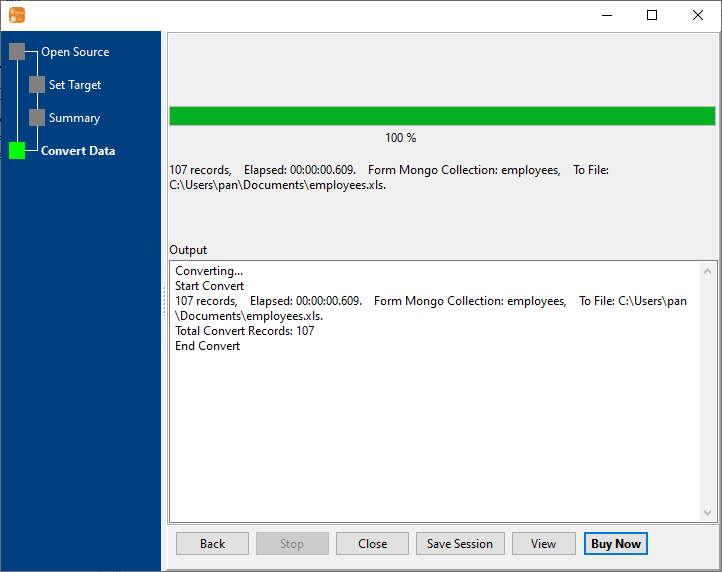
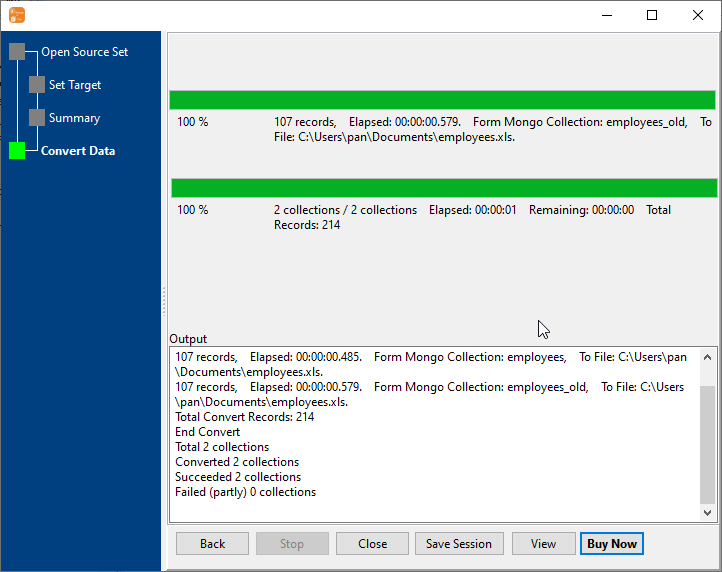
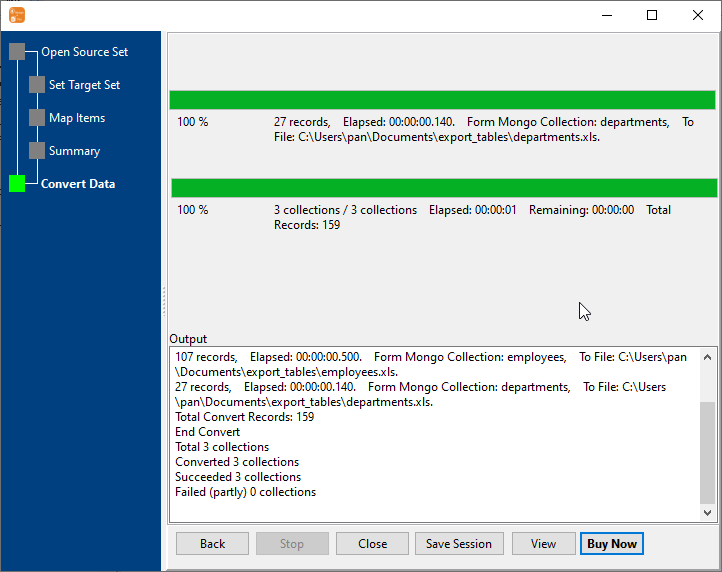
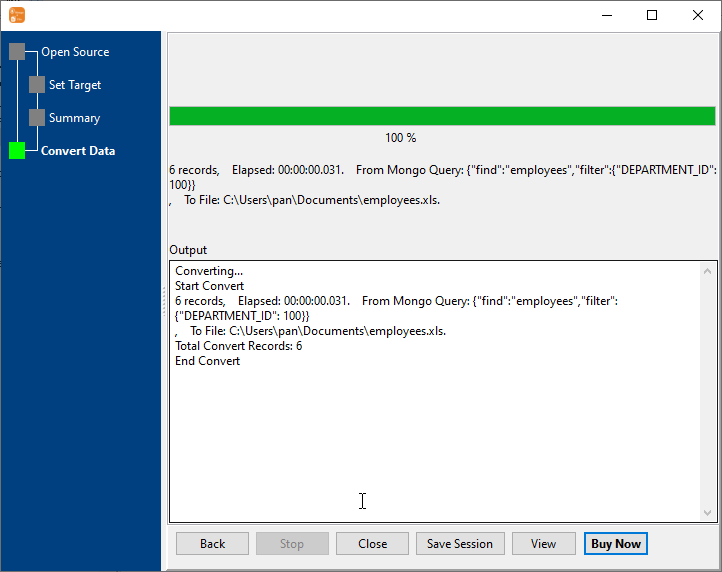
Start Excel Export & Monitor Progress
Real-time display of export speed, success/failure count, and remaining time. Export completes in seconds — even for large datasets, with automatic row limit handling for Excel.
4 Flexible MongoDB to Excel Export Types
Choose the perfect export method for your needs — from single query results to batch exports of multiple collections.
1 to 1 Single Sheet
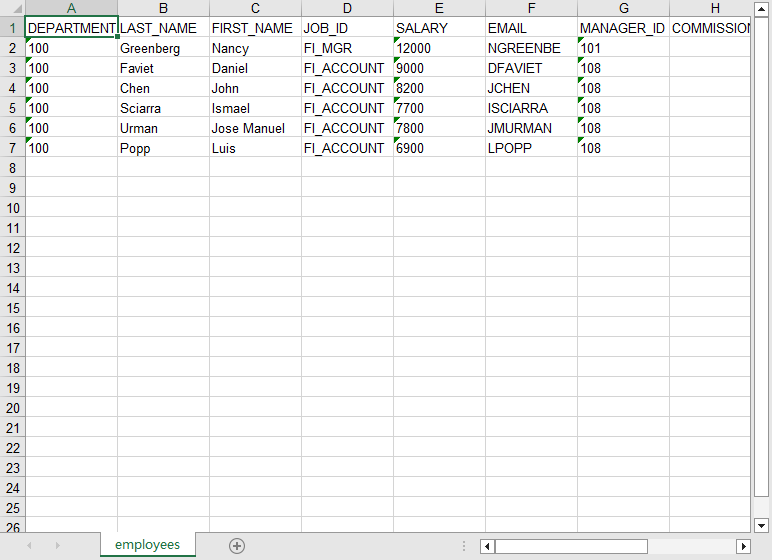
Export MongoDB collection to Excel file
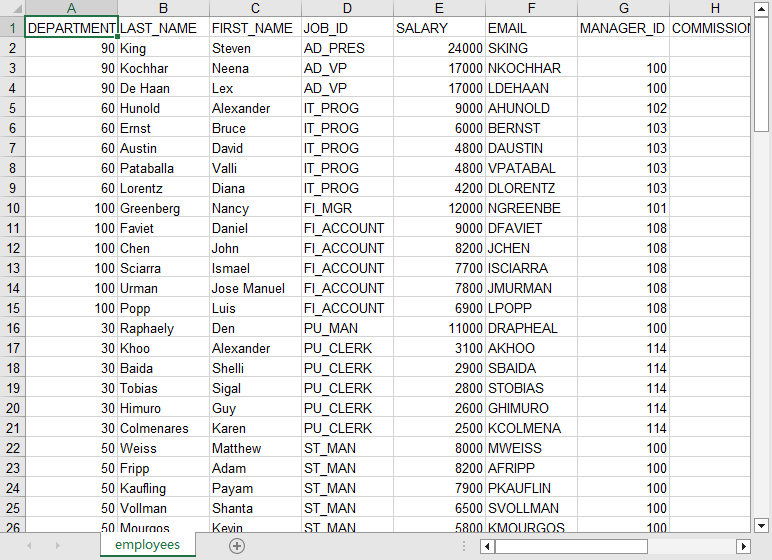
Export 1 MongoDB collection to 1 Excel file (single sheet) — ideal for single-collection reports or targeted data export.
Example:
Collection: employees → Excel File: employees.xlsx (Sheet1: employees)
✅ Supports .xlsx (Excel 2007+) and .xls (Excel 97-2003) formats
n to 1 Single Sheet
Export multiple MongoDB collections to a single Excel file
Combine data from multiple MongoDB collections into one Excel file (single sheet) — perfect for consolidated reports or bulk data delivery to business teams.
Example:
Collections: employees_2023, employees_2024 → Excel File: all_employees.xlsx (Sheet1: employees)
✅ Custom file and sheet naming, and Excel format (.xlsx / .xls)
n to n Multi File/Sheet
Batch export MongoDB collections to Excel files
Batch export multiple MongoDB collections to their own individual Excel files in one operation — saves time when creating separate Excel reports for different datasets.
Example:customers → customers.xlsx | products → products.xlsx | orders → orders.xlsx
✅ Uniform formatting across all Excel files
Find Result to Excel Filtered
Export MongoDB query to Excel file
Execute a custom MongoDB find query and export only matching documents to a single Excel sheet. Ideal for ad-hoc reporting, filtered data analysis, or selective export.
Example:db.employees.find({ "DEPARTMENT_ID": 100 }, { "name": 1, "email": 1, "salary": 1 })
✅ Auto-flatten nested MongoDB fields to Excel columns
Key Features of MongoDB to Excel Exporter
High Performance & Scalability
- 10GB+ Dataset Support: Stream processing avoids memory overflow
- Auto Row Limit Handling: Split large datasets across sheets/files (Excel row limit: 1,048,576 rows)
- Blazing Fast: Converts millions of rows to Excel in minutes
- Real-time progress tracking
Wide Compatibility
- MongoDB 3.x/4.x/5.x/6.x, MongoDB Atlas, Azure Cosmos DB
- All deployment types (standalone, replica set, sharded cluster)
- Cross-Platform: Windows, macOS, Linux (GUI & CLI)
- Excel Compatibility: Works with Excel 2007+, WPS, LibreOffice Calc
Excel Format Customization Excel
- Dual Format Support: .xlsx (modern) and .xls (legacy) compatibility
- Cell Formatting: Customize number/date/text formats (MongoDB Date → Excel Date)
- Header Customization: Rename columns, adjust header style, add freeze panes
- Sheet Management: Rename sheets, set tab colors, adjust column width
Automation & Scheduling
- Scheduled daily/weekly/monthly automated Excel exports
- CLI Support for script integration (batch Excel report generation)
- Session saving for repeat Excel export configurations
- Email notifications for completed Excel exports
Secure & Reliable
- Local Processing: No data uploaded to third-party servers
- Error Resilience with detailed logging
- Preserves data types and relationships (nested fields → flattened columns)
- Data validation: Check Excel file integrity post-export
Common Use Cases for MongoDB to Excel Export
Financial Data Export
Export financial MongoDB datasets to Excel with precise cell formatting (currency, percentage, date) for compliance, auditing, and financial analysis.
Customer & Sales Data Analysis
Export filtered customer/sales data to Excel for ad-hoc analysis, trend identification, and sales forecasting — leverage Excel's built-in analysis tools.
Business Reporting & Analytics
Export MongoDB data to Excel for interactive reports, pivot tables, and data visualization. Customize sheet structure to match your team's reporting requirements.
Operational Data Delivery
Deliver MongoDB operational data to non-technical teams in Excel format (multi-sheet for different metrics) — no SQL knowledge required for end-users.
Frequently Asked Questions About MongoDB to Excel Export
Does it support Excel's row limit (1,048,576 rows)?
Yes! The tool automatically detects when a dataset exceeds Excel's row limit and splits the data across multiple sheets or files (configurable). You can also set custom row limits per sheet.
Can I export data from MongoDB Atlas (cloud) to Excel?
Absolutely! Whitelist your IP address in Atlas, enter your cluster URI, and export directly to Excel. All processing is local — your data remains secure.
Does it support Excel's row limit (1,048,576 rows)?
Yes! The tool automatically detects when a dataset exceeds Excel's row limit and splits the data across multiple sheets or files (configurable). You can also set custom row limits per sheet.
Can I preserve MongoDB nested fields in Excel?
Yes — the tool can flatten nested fields into Excel columns (e.g., "address.city" → column name) or export nested arrays to separate sheets. You can customize the flattening rules in the export settings.
Is the exported Excel compatible with Mac/Windows/LibreOffice?
Yes — .xlsx files work with Excel 2007+ (Windows/Mac), WPS Office, and LibreOffice Calc. .xls files are compatible with legacy Excel versions (97-2003) for maximum compatibility.
Can I customize Excel cell formats (date, currency)?
Absolutely! You can map MongoDB data types to Excel cell formats: Date (MongoDB) → Short Date/Long Date (Excel), Number → Currency/Percentage, and more. Preset templates are available for common use cases.
What's the maximum dataset size supported for Excel export?
There's no strict limit. The tool uses stream processing to handle collections larger than 10GB — as long as you have enough disk space for the Excel output. Large datasets are split across multiple sheets/files automatically.
Can I schedule automated Excel exports?
Yes! Save your Excel export session as a .bat (Windows) or .sh (Linux/macOS) file, and schedule it using Windows Task Scheduler or Linux Crontab. Perfect for weekly/monthly report generation.
Ready to Export MongoDB to Excel Effortlessly?
Download MongoDB to Excel Exporter (MongoToFile) and streamline your reporting, analytics, and data delivery workflows with customized Excel exports.
Download MongoDB to Excel Exporter Buy MongoToFile - Starting at $75