BigTextFileSplitter » Use cases » CSV too big for Excel
Download BigTextFileSplitter Free Trial » Buy BigTextFileSplitter Now »
The situation
A reporting system exports a CSV per day, or per year, and it is 4 GB. Excel opens it, spins for a while, and then either gives up or leaves you with a sheet that stops partway through. The file is fine; it is simply more rows than a spreadsheet will hold.
Excel's sheet has a hard row limit of about a million rows, and a memory limit on top of that. A 4 GB CSV is several times past both. This is not a corrupt file and not a CSV problem - it is a file that has to be divided before a spreadsheet can open it.
What you do
- Click New Task and choose the CSV file.
- Pick the split mode: by line count (for example 200,000 rows per file, so every part stays inside Excel's limit) or into a fixed number of files (N files, evenly by size or by lines).
- Choose the output folder and click Split.
- Open the parts in Excel - each one fits.
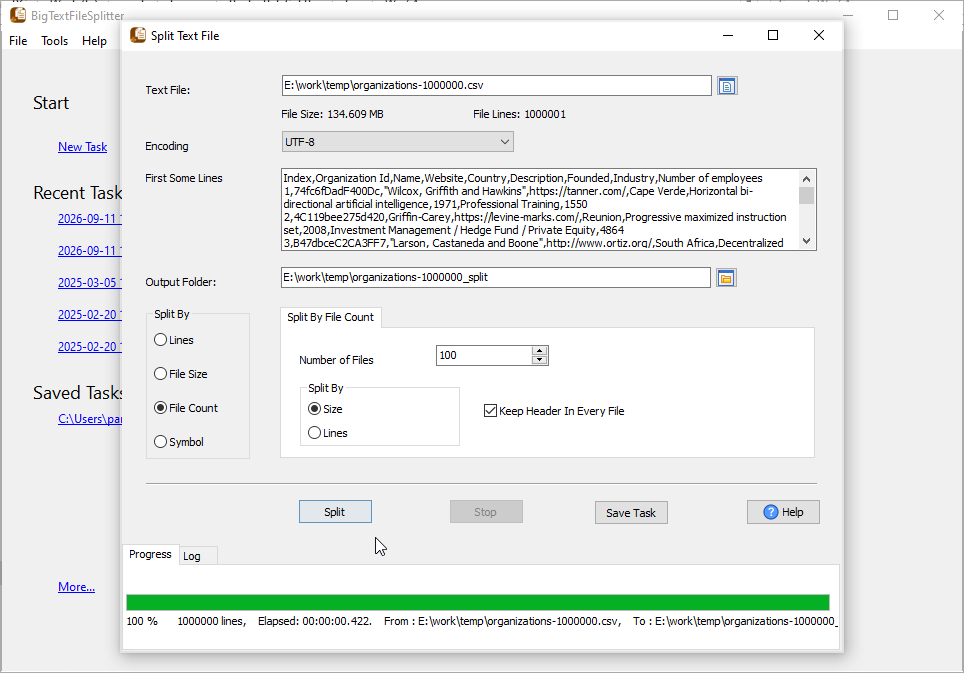
The original file is never modified, and the encoding is preserved, so the parts are the same bytes as the source, just divided. Save the task as a session if next month's export should be split the same way.

What it will not do
BigTextFileSplitter splits text; it does not understand columns. Two consequences worth knowing before you start:
- The header row is not repeated. Only the first output file contains the CSV header, because the header is simply the first line of the file. If you need a header on every part, add it to the other parts afterwards, or split in a way that keeps the header with each group.
- It never re-joins. There is no merge back into one file - use TextMerger if the parts have to become one file again.
If you need to split by column value
Splitting by rows is the right answer when the file is too big. When the file has to be divided by a value - one file per customer, per region, per table - that is a different tool: DataFileSplitter splits structured CSV, JSON and XML by field value.
Related
Splitting a large CSV in the browser: split CSV. How-to article: splitting a large CSV into smaller files. Other formats: split TXT, split LOG, split JSON, split XML. Converting the parts to another format: DataFileConverter.