Want to bulk import Excel files into dBase tables at one time?
Try Withdata FileToDB, a desktop Excel to dBase converter for Windows, MacOS, and Linux, Convert Excel to dBase, Easy and Fast.
- Can run in GUI mode, Step by Step, just a few mouse clicks.
- Can run in Command line, for Scheduled Tasks and Streams.
- Import Excel to dBase locally and privately, avoid uploading Excel file(s) to online services.
- Support Windows, Linux, and macOS.

Bulk import Excel files into dBase tables
Login to dBase -> Choose Excel files -> Set dBase tables -> Import Excel files to dBase tables
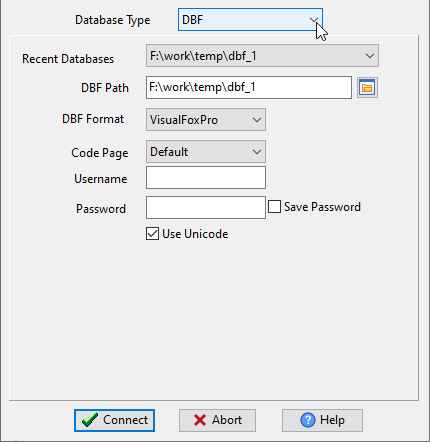
Choose dBase and logon.
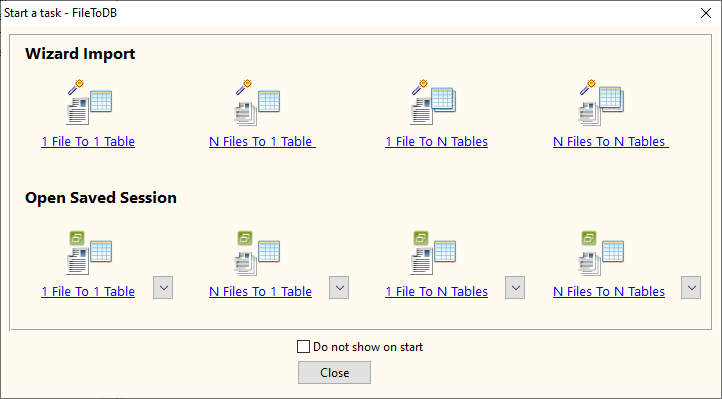
Click “Wizard – N Files To N Tables” at task dialog.
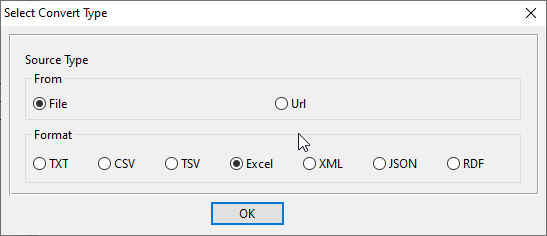
Select the “Excel” file type.
then show the wizard.
1. Select a folder that constains Excel files.
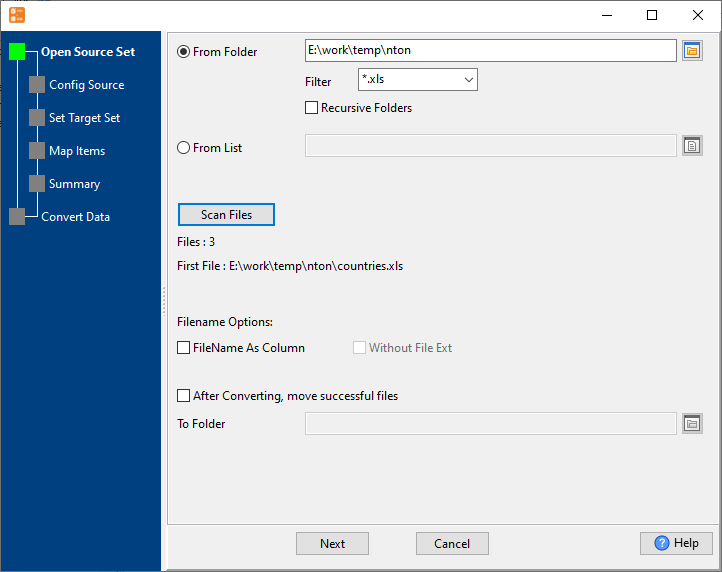
2. Config first Excel file importing options.
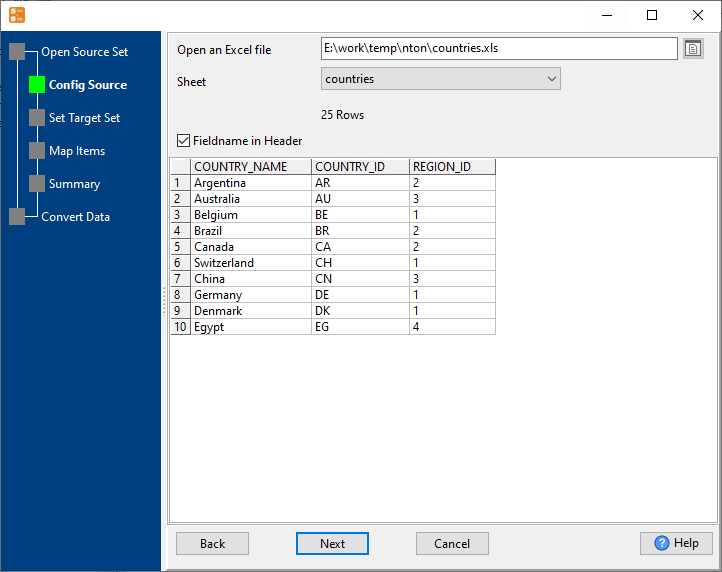
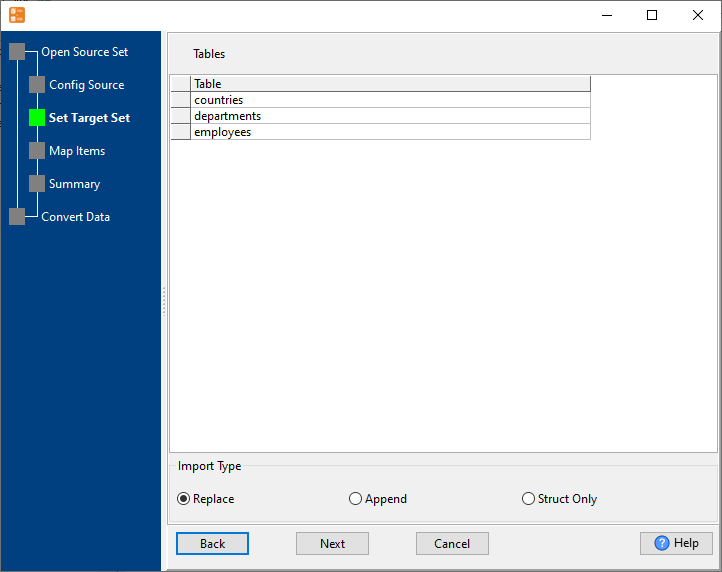
3. Set “Import Type”.
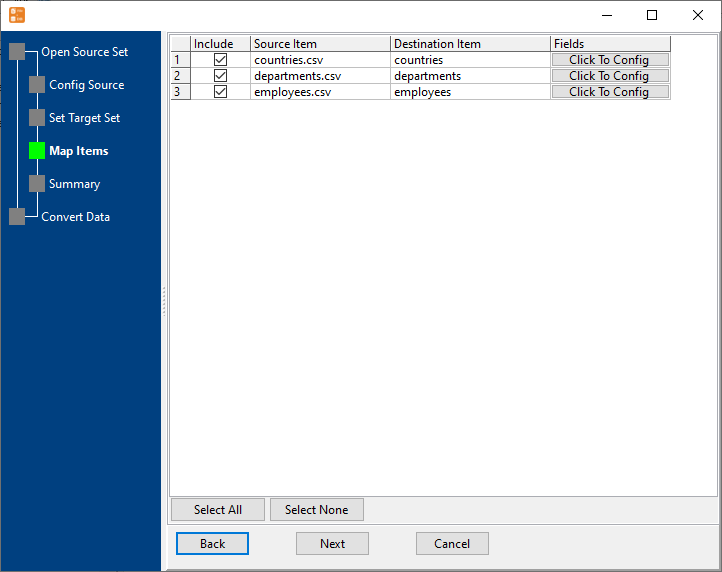
4. Map dBase tables to Excel files.
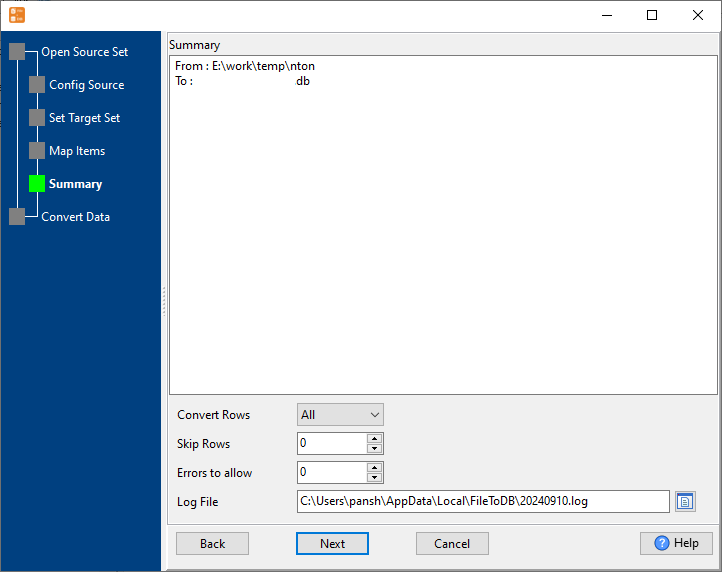
5. Summary. Set “Convert Rows” and “Skip Rows” if need.
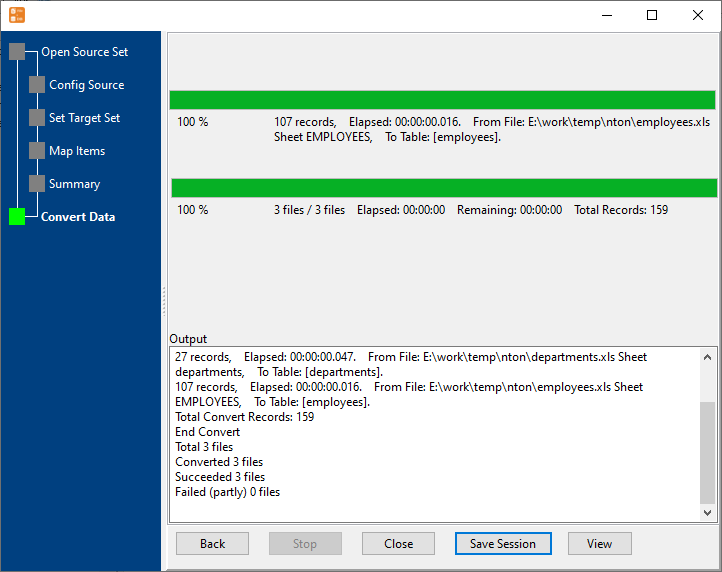
6. Import Excel files to dBase tables, 1 file to 1 table, one by one.
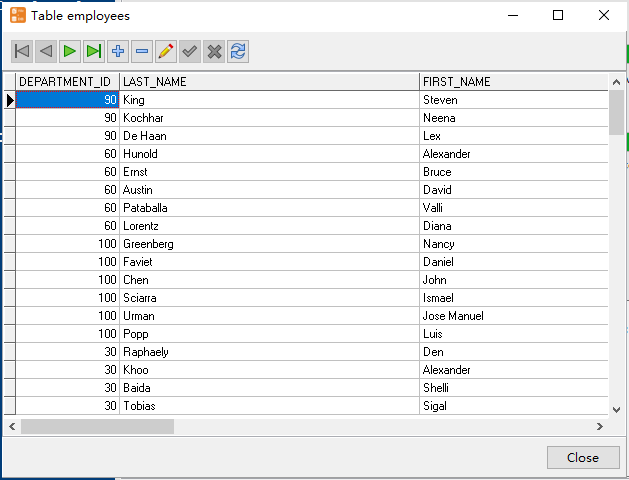
View imported data in dBase table
More about Excel to dBase converter
Download Withdata FileToDB
See also:
EXCEL → dBase reference
Type mapping
| Value kind | in EXCEL | in dBase |
|---|---|---|
| Int | 1234 (a real numeric cell) | Numeric(10,0) |
| Bigint | 9007199254740993 (exact only while the cell stays text) | Numeric(19,0) |
| Decimal | 1234.56 (numeric cell, format controls the displayed decimals) | Numeric(p,s) |
| Float | 1.234E+10 (numeric cell) | Float |
| Text | text cell; leading zeros survive only if the column is text | Character(n) |
| Long text | text cell; wraps inside the cell rather than the row | Memo |
| Date | a serial number plus a date cell format | Date |
| Datetime | a serial number plus a date-time cell format | (none) |
| Binary | not representable as data | (none) |
| Boolean | TRUE / FALSE (a real boolean cell) | Logical |
| JSON | a text cell; the quotes are part of the value | (none) |
Dialect differences
EXCEL is a file format and dBase is a database server, so the target has to be told the types the file never carried - the rows below are where the two sides diverge.
| Property | in EXCEL | in dBase |
|---|---|---|
| port | — | (file-based) |
| identifiers | Not applicable; a cell holds exactly one value | — |
| row limit | — | (driver dependent) |
| dates | Stored as a serial number; only the cell format makes it lo... | Date (D) |
| long text | — | Memo (M) |
| binary | Only as text or an embedded object, not as a data column | — |
| separator | Cells, not delimiters | — |
| encoding | UTF-8 internally, declared in the package | — |
| typing | Real cell types: text, number, date, boolean, error | — |
| shape | Multiple sheets, each a flat grid | Tables of rows and columns |
| ceiling | 1,048,576 rows x 16,384 columns per sheet; 255 sheets per w... | — |
No counterpart
- EXCEL values of kind Date and time have nowhere to go in dBase.
- EXCEL values of kind Binary have nowhere to go in dBase.
- EXCEL values of kind JSON have nowhere to go in dBase.
Convert your data online, free
Free in-browser converters for CSV, Excel, JSON, XML and SQL: Withdata Online Data Conversion. Large files, batch conversion or scheduling? See the offline desktop apps, or browse all data conversion tools.