Want to merge Excel sheets from multiple Excel files into one sheet?
Using Withdata Excel Data Transformer, a desktop Excel files merger, you can merge Excel sheets from multiple Excel files into one sheet, easy and fast.
- Can run in GUI mode, Step by Step, just a few mouse clicks.
- Can run in Command line, for Scheduled Tasks and Streams.
- Combine Excel files locally and privately, avoid uploading large Excel file(s) to online services.
- Support Windows, Linux, and macOS.
- No Excel Installation Required.
Download Withdata ExcelDataTransformer 
If you want to merge multiple Excel files (workbooks) into one Excel file (workbook), see this: Merge Excel Workbooks into one with all worksheets.
If you want to merge Excel worksheets by sheet name from multiple Excel files, see this: Merge Excel Workbooks and Merge worksheets by sheet name.
If you want to merge Excel sheets in one Excel file into one sheet, see this: Merge Excel sheets in one Excel file into one sheet.
Merge Excel sheets from multiple Excel files into one sheet
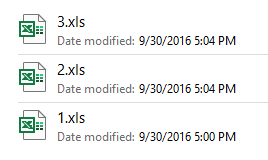
For example, you have some Excel files to be merged sheets.
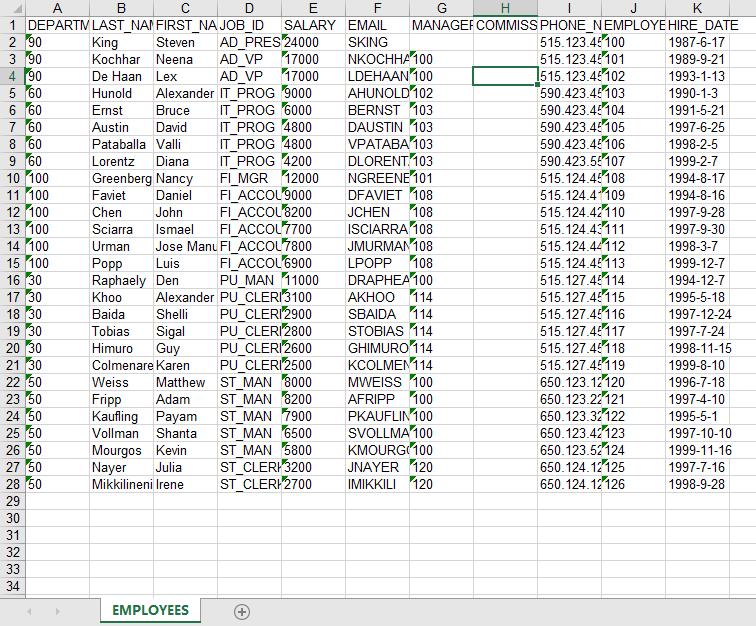
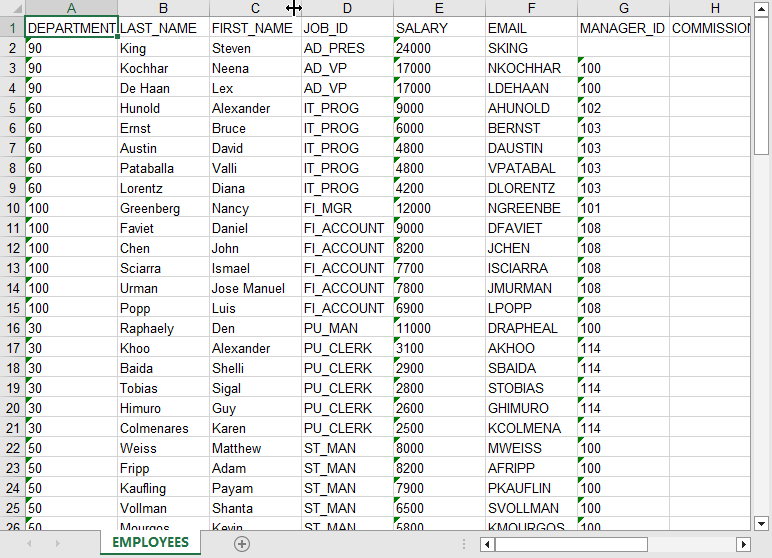
Each file has a “EMPLOYEES” sheet, as in “1.xls”:
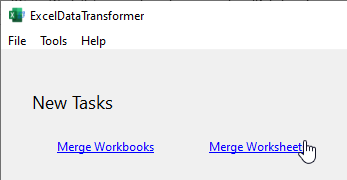
Start ExcelDataTransformer, click “Merge Worksheets” to start a new task.
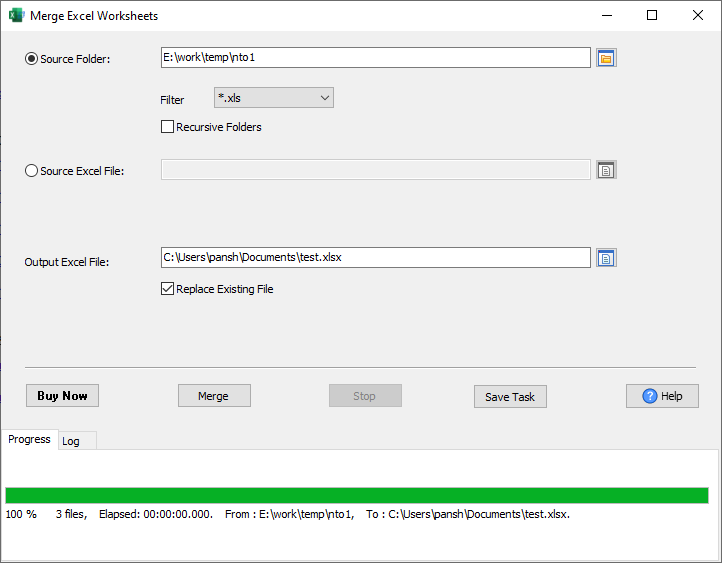
Select Excel file folder, enter output Excel file, and then, merge Excel files and worksheets.
After merging, you can view the output Excel file, “EMPLOYEES” have all data from source files.
More about Excel Merger
Download Withdata ExcelDataTransformer
Want to do it without copying and pasting? ExcelDataTransformer merges the worksheets of a whole folder into one sheet, skips the repeated header row and keeps a .bak of the file it replaces: merge Excel worksheets into one sheet (free trial, Windows/macOS/Linux, no Excel needed).
Excel Data Transformer without the manual work
For batch jobs, large files and scheduling use the Excel Data Transformer converter — an offline desktop app for Windows, Linux and macOS. Free trial.