ExcelDataTransformer » Use cases » One file per worksheet
Download ExcelDataTransformer Free Trial » Buy ExcelDataTransformer Now »
The situation
A workbook arrives with every department, region or month on its own worksheet - forty tabs in one file. Sending it around means everyone downloads all forty, and the tabs they do not need. Reviewing it means scrolling past rows that are not theirs, and a change in one tab makes the whole file a new version.
Splitting it by hand - one Save As per tab - is forty operations, and the sort of job that gets one tab wrong.
What you do
- Choose the workbook.
- Choose the split into worksheets, and set the output folder.
- Run it. Each worksheet is written to its own file in one pass, so this is how you split an Excel sheet into multiple files, and the file can be named after the sheet.
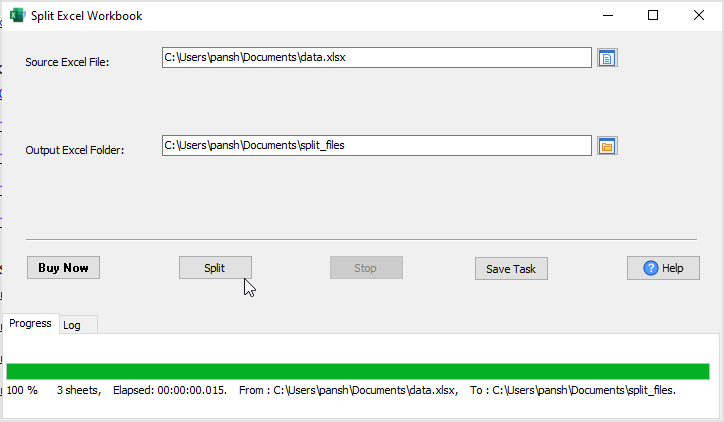
Need to split Excel into multiple files by row count or by a column value rather than by worksheet? That is what split an Excel worksheet is for.
The tabs are the tabs - nothing is reorganised and nothing is recalculated on the way out. And Microsoft Excel does not have to be installed: the workbook is read and written locally on Windows, Mac or Linux, which is what makes it usable on a server or in a scheduled task.
What it will not do
- It is not a spreadsheet editor. It splits and merges; it does not change cell contents, formulas or charts. Editing is Excel's job.
- It does not convert formats. Excel in, Excel out. To turn an Excel file into CSV, JSON or SQL, use DataFileConverter; to load it into a database, FileToDB.
- It does not send anything. It writes files to a folder; distributing them is your step.
Related
Splitting instead of merging: split an Excel workbook, split an Excel worksheet. Merging the other way: merge Excel workbooks. Automating it: command line, scheduled task.