FileToDB » Use cases » Import HTML tables
Download FileToDB Free Trial » Buy FileToDB Now »
The situation
Some sources never offer a file. A supplier publishes a price list as a web page, a public statistics site shows a table, a report is saved as HTML, or an internal system exports "HTML" because that is what its report engine does. What you can see is a grid of cells; what you can copy is a mess of text and links.
What you do
- Save the page (or the report) as an HTML file, or keep its address for the URL import.
- Start an import in FileToDB and set the source type to HTML Table. Point it at the file.
- Pick which table on the page you mean - one page often has several - and check the preview: the header row, the columns and the values as FileToDB reads them.
- Connect to the database, choose the destination table (or let FileToDB create it from the columns), map the fields, and run.
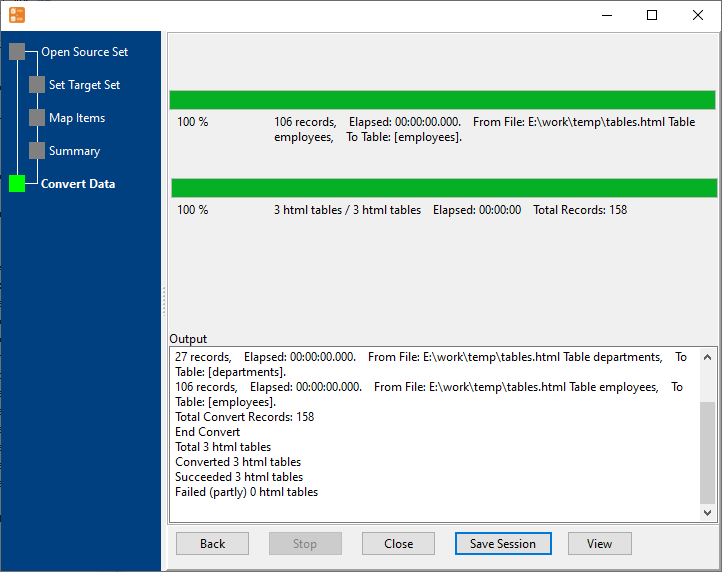
The values arrive as data, not as markup: no <td> tags, no links pasted into the cell. Do this on a schedule with a saved session via the command line and a price list becomes a table that is updated without anyone touching a browser.
What it will not do
- It does not run JavaScript. If the table is drawn by the page's scripts, saving the page does not save the table. Take the data from a URL that returns it, or export it from the site properly.
- It does not untangle complex markup. Tables with merged cells, nested tables or a two-row header often need cleanup before the import, and the preview is where you find out.
- It creates a table, not a schema. FileToDB can create the target table from the file's columns, but only the columns - indexes, primary keys, constraints and defaults are not created for you.
- It reads the file you give it. If the page changes its layout next month, check the mapping again; the import will not notice on its own.
Related
Straight from a web address: import from a URL. One page with several tables: one file into many tables. The basic mode: file to table. A whole folder of pages: folder to table, sessions, command line.