TTSBatchConverter » Use cases » Private, offline voiceovers
Download TTSBatchConverter Free Trial » Buy TTSBatchConverter Now »
The situation
Some documents are not allowed to go to a cloud service. Contracts and drafts, patient notes, HR cases, legal briefs, results before they are published, security reports - the text is confidential, and pasting it into a website or a text-to-speech API means it leaves your network, where it may be logged, retained or reviewed. For a lot of organisations that alone rules the cloud service out, whatever it sounds like.
At the same time an audio version is genuinely useful. A long report can be listened to on the way to work, a document can be reviewed without sitting at a screen, and audio makes material accessible to people who read it with difficulty.
The two needs pull in opposite directions. TTSBatchConverter resolves them by doing the reading on the machine that already holds the text.
What you do
- Install the voices once, locally - the voices that come with Windows and the Microsoft Speech Platform, plus any others you add on the machine. There is no account and no key.
- Choose the files, or point it at a folder (sub-folders included), and set the voice, rate, output format (MP3/WAV) and output folder. Save the setup as a session.
- Convert. The text is read by the local voice engine and written to audio files on your own disk. Nothing is uploaded, no account is created and no API key is used.
- For a folder that keeps receiving documents, run the same job from the command line or a scheduled task so the audio appears without anyone at the machine.
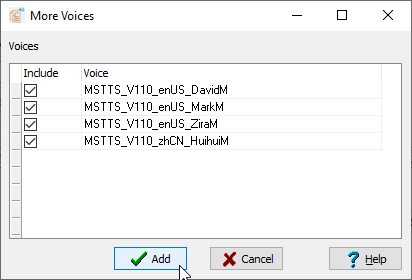
Because the voices live on the system, the conversion runs with no network at all once they are installed - so it also fits a machine kept off the internet on purpose.
What it will not do
- It is not a neural AI voice. It uses the speech voices installed on the system: clear and consistent, but less natural than a good cloud AI service. If the text is not confidential and naturalness matters most, a cloud service is the right tool for a single recording - what it is not right for is text that must not be uploaded.
- It does not transcribe or edit audio. It turns text into speech; it is not speech-to-text and does not cut, mix or master the result.
- It reads text files, not PDFs or Word documents. Export those to text first, then convert.
- It does not decide what is confidential. Everything it processes stays on the machine - that is the point - but the choice of what to run through it is yours.
- Windows only (Windows 10 and 11; Windows Server is supported).
Related
All scenarios: TTSBatchConverter use cases. Running it unattended: text-to-speech on a schedule. A whole folder at once: listen to a folder of documents. From a script: command line. Saved setup: sessions.