Want to import multiple TXT (“;” semicolon delimited text) files into a single Access table?
Try Withdata FileToDB, a desktop TXT to Access converter for Windows, MacOS, and Linux, Convert TXT to Access, Easy and Fast.
- Can run in GUI mode, Step by Step, just a few mouse clicks.
- Can run in Command line, for Scheduled Tasks and Streams.
- Convert locally and privately, avoid uploading large or private TXT files to online services.
- Support Windows, Linux, and macOS.

Import multiple TXT (“;” semicolon delimited text) files into a single Access table
Login to Access -> Choose TXT files -> Set Access table -> Import TXT files to Access table
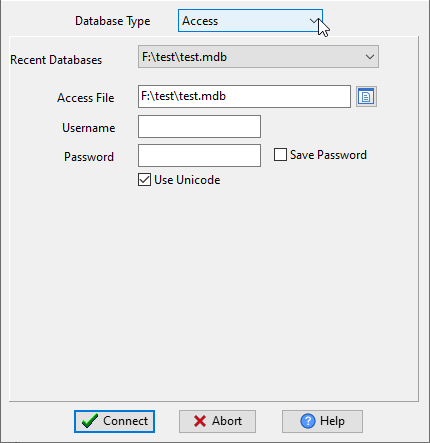
Choose Access and logon.
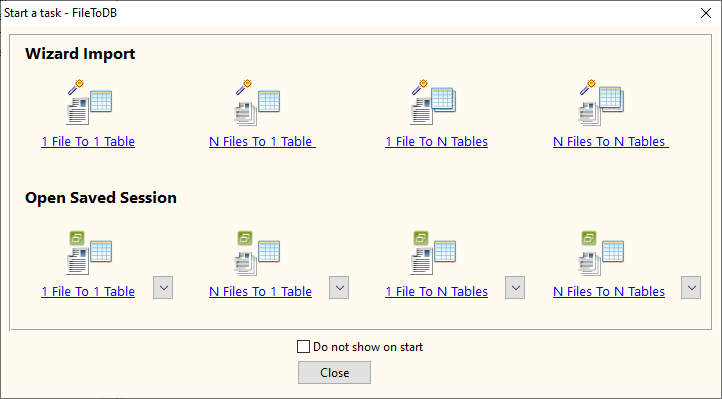
Click “Wizard – N Files To 1 Table” at task dialog.
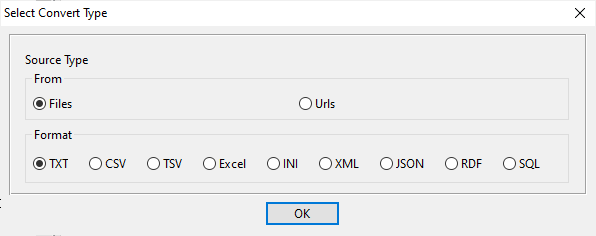
Select the “TXT” file type.
then show the wizard.
1. Select a folder that constains TXT (“;” semicolon delimited text) files.
Support large ( > 4GB ) TXT (“;” semicolon delimited text) files.
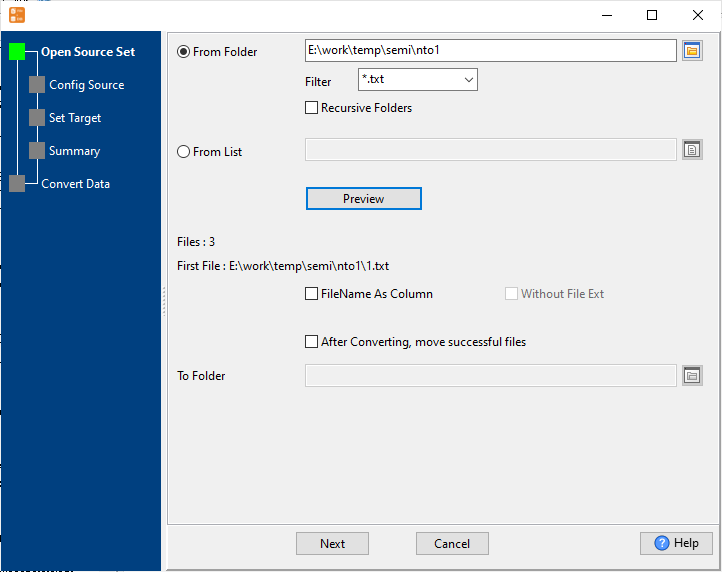
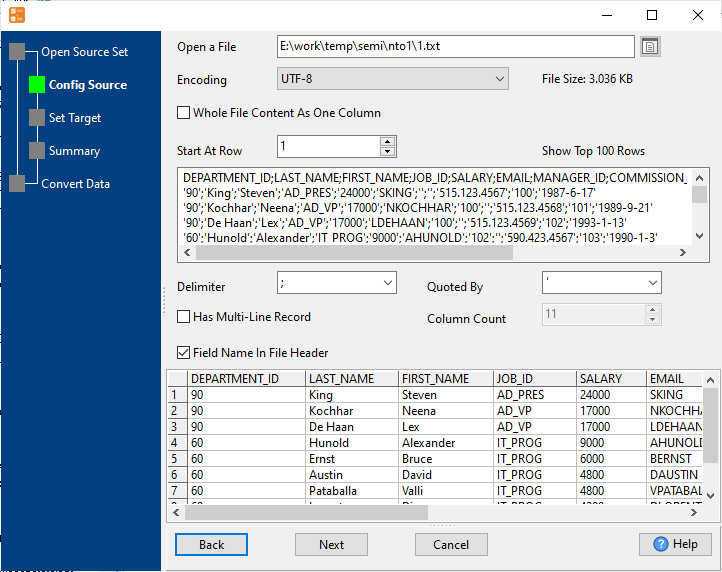
2. Config first TXT (“;” semicolon delimited text) file importing options.
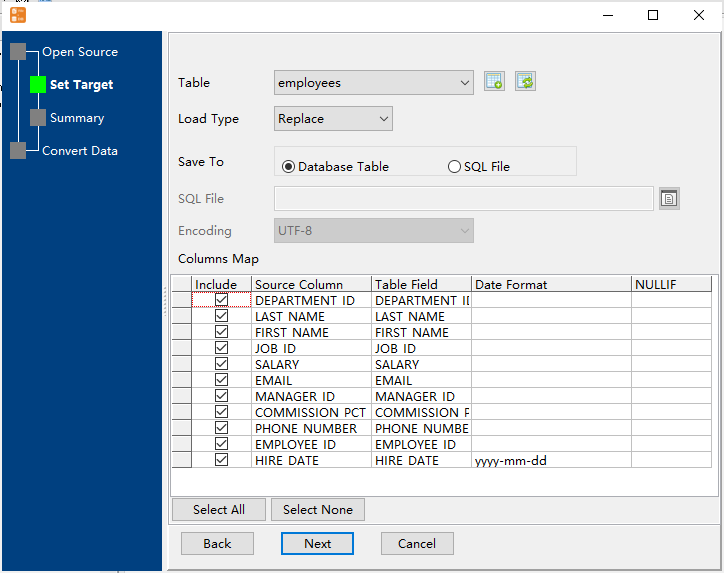
3. Select a Access table and config fields.
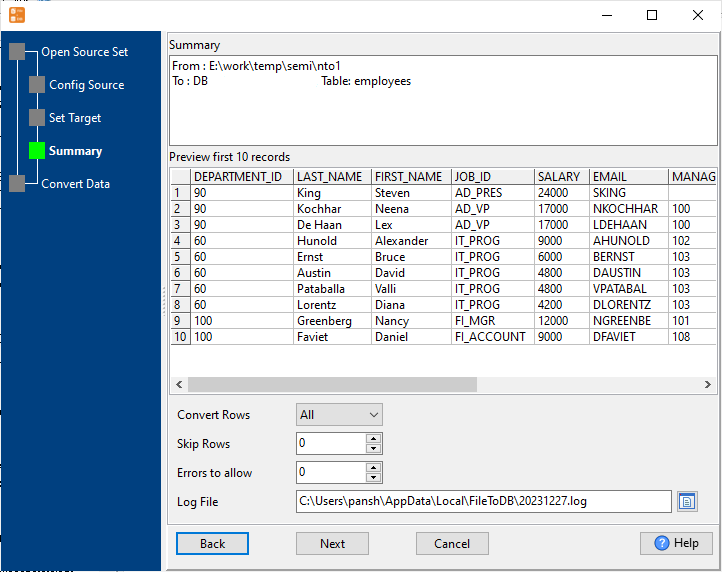
4. Preview data will be in Access table.
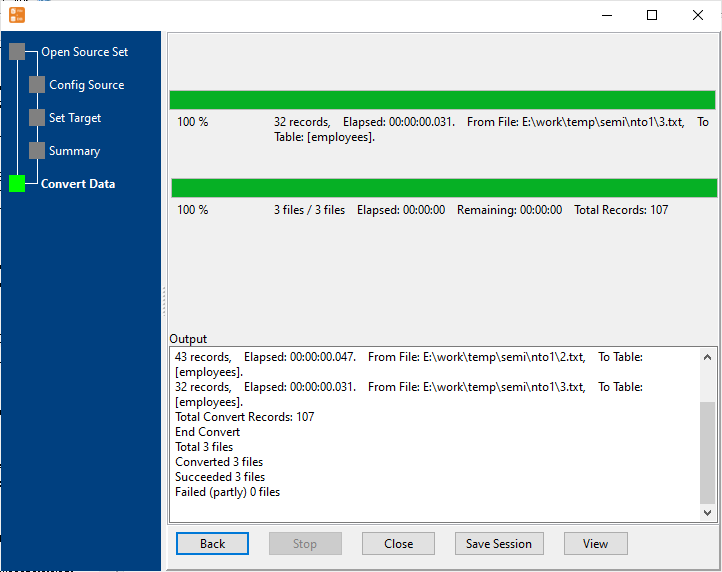
5. Import multiple TXT (“;” semicolon delimited text) files to the Access table.
View imported data in Access table
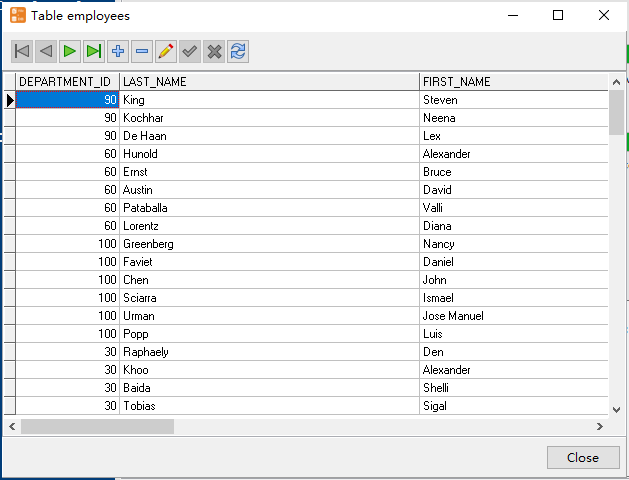
Import multiple TXT (“;” semicolon delimited text) files to Access in command line
Save “multiple TXT (“;” semicolon delimited text) files to Access” session, then you can:
- Import multiple TXT (“;” semicolon delimited text) files to Access in Windows command line.
- Import multiple TXT (“;” semicolon delimited text) files to Access in Linux command line.
- Import multiple TXT (“;” semicolon delimited text) files to Access in macOS command line.
Set scheduled tasks for importing multiple TXT (“;” semicolon delimited text) files to Access
You can schedule and automate this converting task by:
- Save session and create .bat (Windows) or .sh (Linux/macOS) file for “TXT to Access” conversion.
- Set scheduled task for “TXT to Access” conversion.
FAQ
More about Withdata FileToDB – TXT (“;” semicolon delimited text) to Access converter
Download Withdata FileToDB
See also:
Semicolon-delimited text → Access reference
Type mapping
| Value kind | in Semicolon-delimited text | in Access |
|---|---|---|
| Int | 1234 | Long Integer |
| Bigint | 9007199254740993 | Long Integer |
| Decimal | 1234.56 | Decimal |
| Float | 1.234e+10 | Double |
| Text | quoted only when it contains a semicolon or a quote | Text(n) |
| Long text | must be quoted; line breaks inside force multi-line records | Long Text |
| Date | 2026-09-18 | Date/Time |
| Datetime | 2026-09-18 14:30:00 | Date/Time |
| Binary | not representable - base64 or hex string | OLE Object |
| Boolean | TRUE / FALSE, or 1 / 0 depending on the writer | Yes/No |
| JSON | the whole JSON value quoted, with internal quotes doubled | Long Text |
Dialect differences
Semicolon-delimited text is a file format and Access is a database server, so the target has to be told the types the file never carried - the rows below are where the two sides diverge.
| Property | in Semicolon-delimited text | in Access |
|---|---|---|
| port | — | (file-based) |
| identifiers | Double quotes; a literal quote is doubled ("" ) | [square brackets] |
| row limit | — | SELECT TOP n |
| dates | Dates often use D/M/Y or D.M.Y in European exports | Date/Time |
| long text | — | MEMO |
| binary | Not supported | OLE Object |
| separator | Semicolon ";" | — |
| encoding | Often ANSI or Latin-1 in European exports; UTF-8 needs a BOM | — |
| typing | None - every field is text | — |
| shape | Flat table, optional header row | Tables of rows and columns |
| ceiling | No formal limit; row count bounded by memory | — |
Convert your data online, free
Free in-browser converters for CSV, Excel, JSON, XML and SQL: Withdata Online Data Conversion. Large files, batch conversion or scheduling? See the offline desktop apps, or browse all data conversion tools.