Download FileToDB Now

Why Choose Withdata FileToDB for JSON to SQLite?

Blazing Fast

Convert millions of JSON rows to SQLite in under a minute

100% Local & Secure

No data upload to online servers—all processing on your device

Cross-Platform

Full support for Windows, Linux, and macOS (GUI + CLI modes)

All JSON Types Supported

Standard JSON, JSON Array, JSONL/NDJSON/LDJSON, MongoDB exported JSON

Flexible Import Modes

Single file, multiple files to 1 table, bulk files to multiple tables

REST API JSON Parsing

Directly import JSON from open RESTful APIs to SQLite

Update & Upsert

Not just import—update existing SQLite data or upsert via JSON

Automation Ready

Schedule recurring JSON to SQLite tasks with CLI/Crontab/Task Scheduler

What You Can Import to SQLite with FileToDB

We support all common JSON data sources and formats for seamless SQLite integration—no manual coding required:

4 Simple Steps to Import JSON to SQLite (GUI Mode)

Our intuitive wizard makes JSON to SQLite import effortless—no technical skills needed. Follow these steps for any JSON type (standard, JSONL, MongoDB export, etc.):

  1. Step 1: Connect to Your SQLite Database

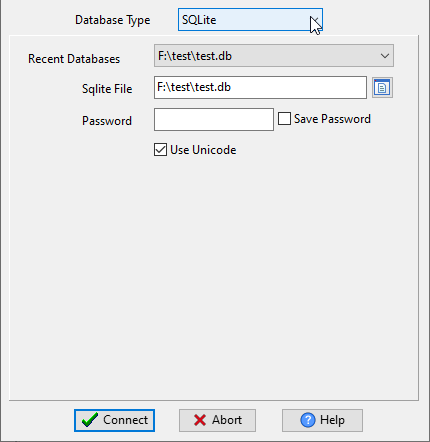
    Select SQLite as the database type, enter your SQLite file path (e.g., F:\test\test.db), set optional password and Unicode support, then click Connect. 📷

  2. Step 2: Select Your JSON Source & Import Wizard

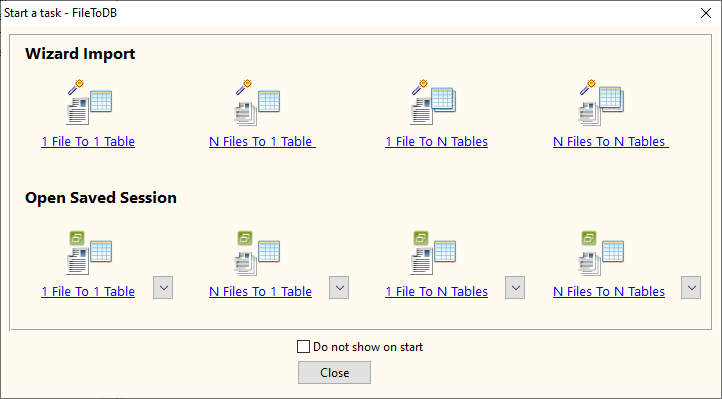
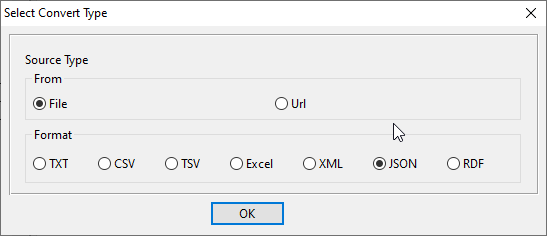
    Choose the wizard matching your use case (1 File To 1 Table, N Files To 1 Table, N Files To N Tables, URL Source for API JSON 📷). Select JSON as file format and load your data/URL—FileToDB auto-parses the structure. 📷

  3. Step 3: Configure Target Table & Fields

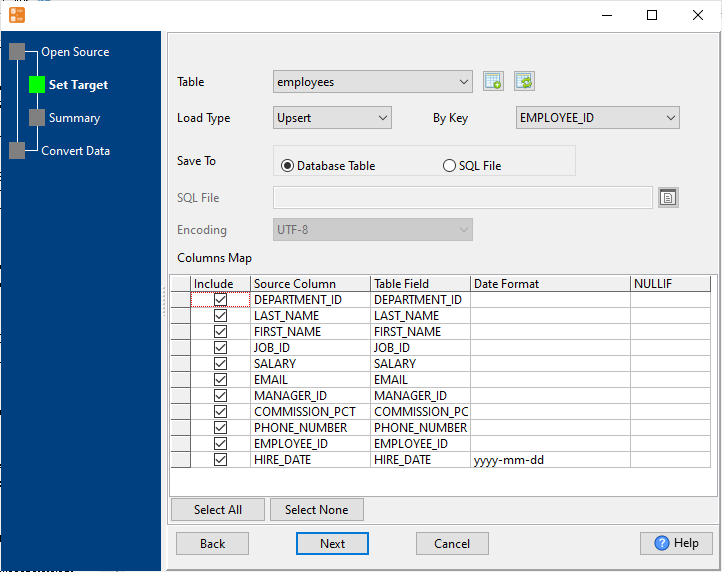
    Select existing table or create new from JSON structure, map JSON columns to SQLite fields (auto-mapping available), set load type (Replace/Append/Update/Upsert), customize date/number formats. 📷

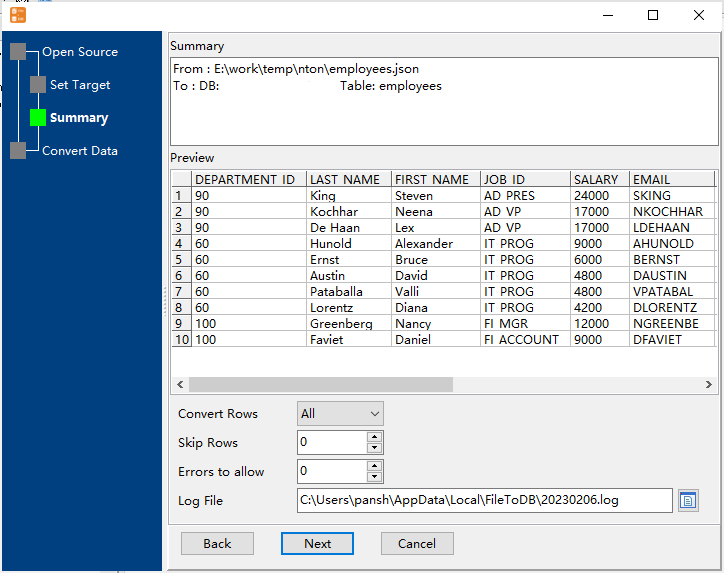
  4. Step 4: Preview & Import

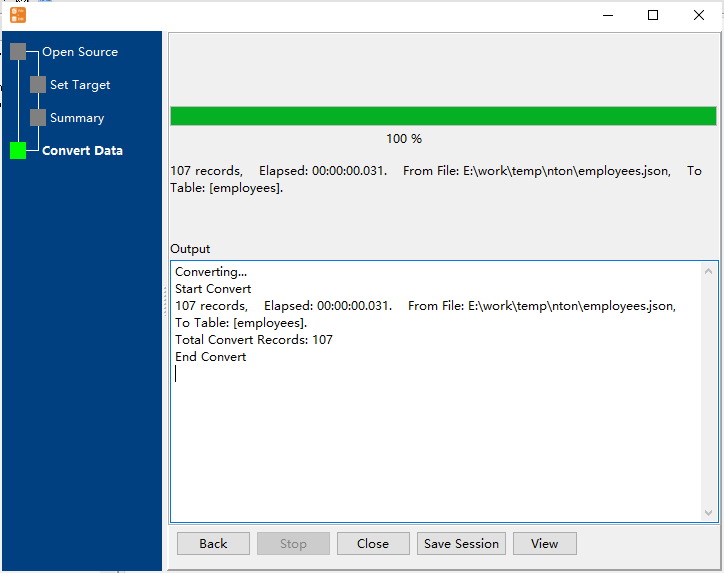
    Preview parsed JSON data, set optional parameters (skip rows, error handling), 📷 click Start Convert—view real-time progress and final import summary. 📷

Pro Tip: For REST API JSON—FileToDB auto-downloads the API JSON data to a local file and imports it to SQLite in one workflow!

Key Use Cases (Step-by-Step for Special Scenarios)

Import MongoDB Exported JSON to SQLite

  1. Follow the 1 File To 1 Table wizard (Step 2 above)
  2. Load your MongoDB exported JSON file (auto-parses $oid and other structures)
  3. Map MongoDB JSON fields to SQLite table columns (e.g., _id, age, classid)
  4. Preview and import—your MongoDB JSON is now in SQLite!

Import JSON from RESTful API to SQLite

  1. In source selection, choose Url instead of File
  2. Input API URL (e.g., http://jsonplaceholder.typicode.com/users) and local save path
  3. Auto-parses nested fields (e.g., address.geo.lng, company.name)
  4. Create table with nested fields and import the data

Import JSONL/NDJSON/LDJSON to SQLite

  1. Use 1 File To 1 Table wizard and select your JSONL file
  2. Native parsing of newline-delimited JSON—no conversion needed
  3. Configure table fields and load type
  4. Preview and import (107 records in ~0.047 seconds in tests!)

Update / Upsert SQLite Data with JSON

  1. In Set Target step, set Load Type to Update or Upsert
  2. Select key column (e.g., EMPLOYEE_ID) to match existing data
  3. Map JSON fields to update/upsert
  4. Modify only specified data—no full table overwrite!

CLI Mode & Task Automation

For developers, DevOps, or recurring JSON to SQLite tasks—FileToDB’s CLI mode lets you run imports via command line, with full support for automation on all OS:

  1. Save Your GUI Session: After completing import in GUI mode, click Save Session to store configuration.
  2. Generate Script Files: Windows (.bat) or Linux/macOS (.sh) from saved session.
  3. Schedule Recurring Tasks:
    • Windows: Use Windows Task Scheduler to run .bat file
    • Linux/macOS: Use Crontab to schedule .sh file (hourly/daily/weekly)

CLI mode supports all FileToDB features: bulk import, API JSON, update/upsert, JSONL, and MongoDB JSON—same as the GUI!

FAQ

How long does it take to import JSON to SQLite?

FileToDB is optimized for speed—millions of rows are converted in under a minute. Small datasets (100-1000 records) take milliseconds.

Is FileToDB safe to use for sensitive JSON data?

Yes! All JSON parsing and SQLite import happens locally on your device—no data is uploaded to Withdata or any third-party servers.

Does FileToDB work on Linux/macOS?

Absolutely—FileToDB is a cross-platform tool with full GUI and CLI support for Windows, Linux, and macOS.

Can I import nested JSON to SQLite?

Yes! FileToDB auto-parses nested JSON fields (e.g., address.geo.lat) and lets you map them to SQLite columns (auto-named with underscores: address_geo_lat).

Can I schedule JSON to SQLite imports?

Yes—save your GUI session, generate a .bat (Windows) or .sh (Linux/macOS) file, and schedule it with Windows Task Scheduler or Crontab.

Get Started with FileToDB Today

Download Withdata FileToDB and start importing JSON to SQLite in minutes—no hidden fees, and free technical support for all users.

Download Now

Cross-Platform Download: Works on Windows 10/11, Linux (Ubuntu, CentOS, Debian), macOS 10.15+.
FileToDB is More Than JSON to SQLite: Import CSV, TXT, Excel, and XML to SQLite/MySQL/PostgreSQL too!