Want to import multiple TXT (“|” pipe delimited text) files into a single Azure table?
Try Withdata FileToDB, a desktop TXT to Azure converter for Windows, MacOS, and Linux, Convert TXT to Azure, Easy and Fast.
- Can run in GUI mode, Step by Step, just a few mouse clicks.
- Can run in Command line, for Scheduled Tasks and Streams.
- Convert locally and privately, avoid uploading large or private TXT files to online services.
- Support Windows, Linux, and macOS.

Import multiple TXT (“|” pipe delimited text) files into a single Azure table
Login to Azure -> Choose TXT files -> Set Azure table -> Import TXT files to Azure table
Choose Azure and logon.
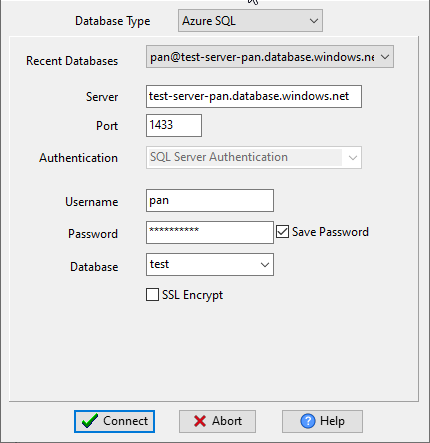
Click “Wizard – N Files To 1 Table” at task dialog.
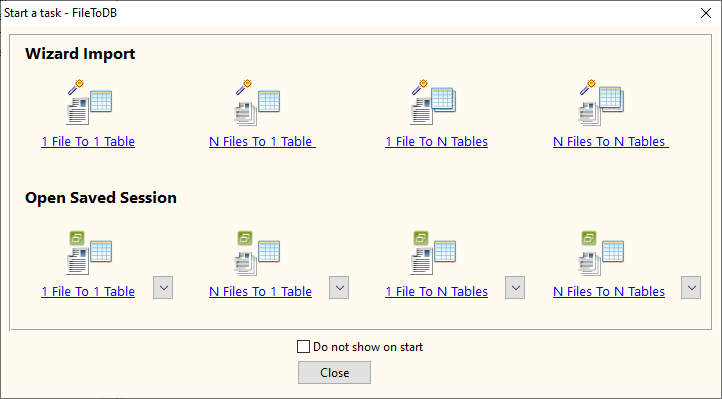
Select the “TXT” file type.
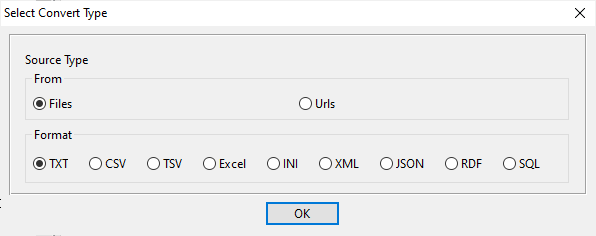
then show the wizard.
1. Select a folder that constains TXT (“|” pipe delimited text) files.
Support large ( > 4GB ) TXT (“|” pipe delimited text) files.
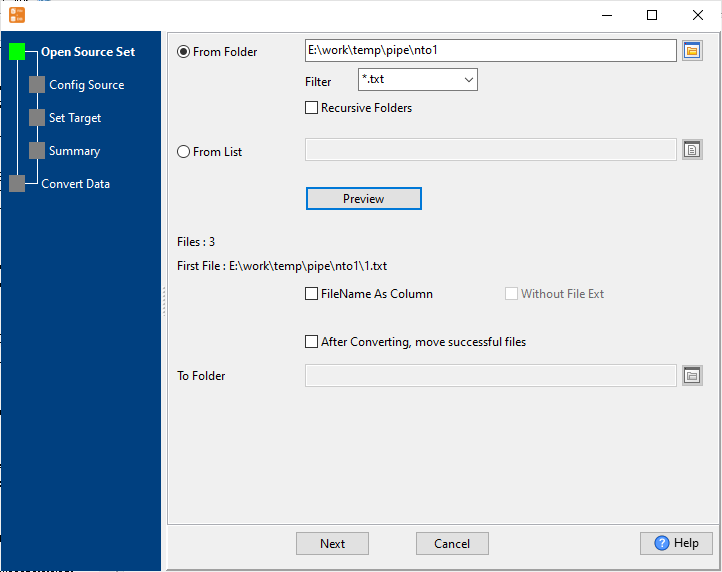
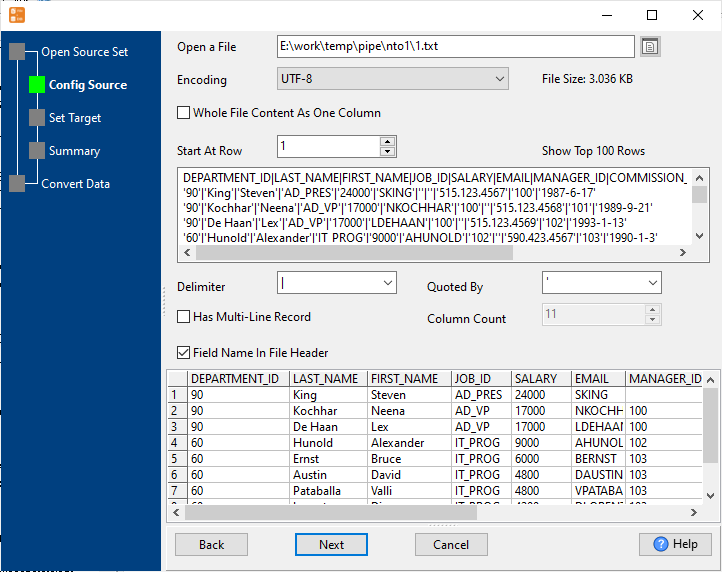
2. Config first TXT (“|” pipe delimited text) file importing options.
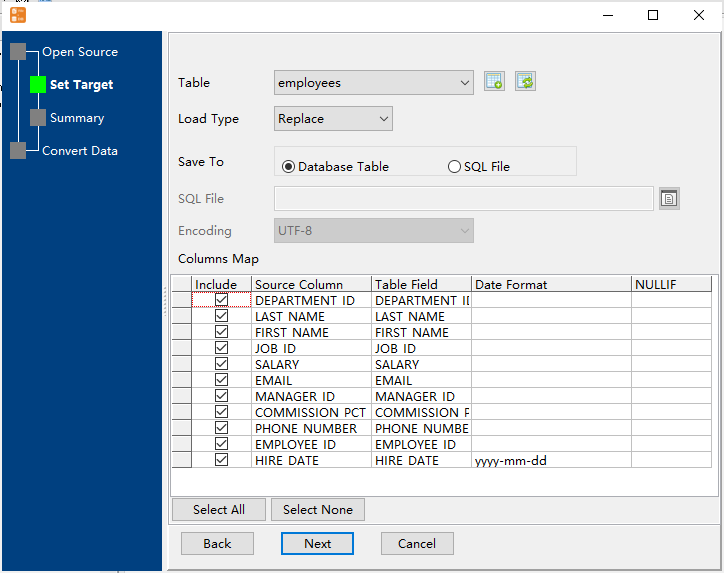
3. Select a Azure table and config fields.
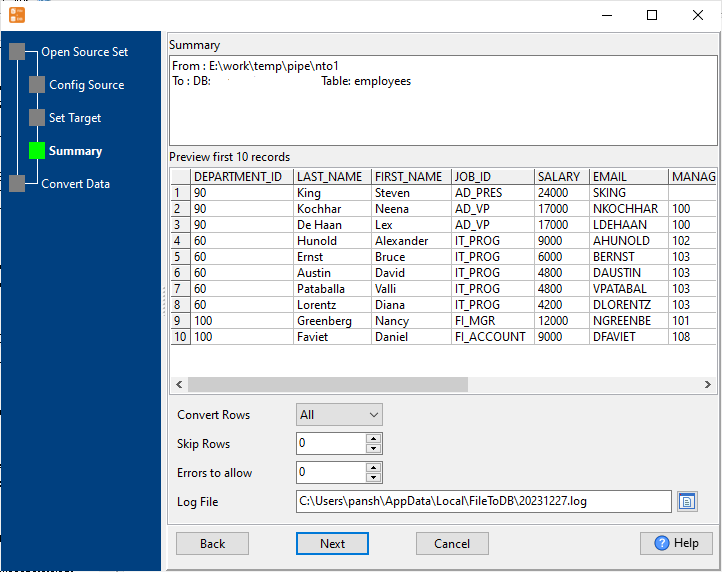
4. Preview data will be in Azure table.
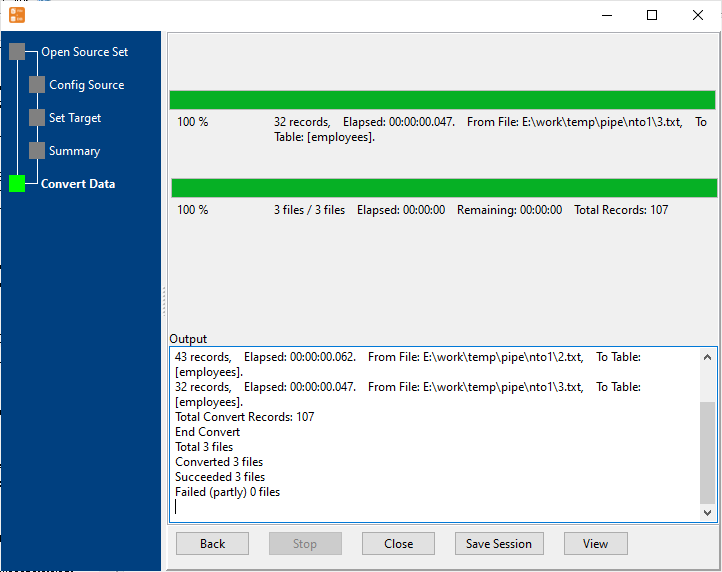
5. Import multiple TXT (“|” pipe delimited text) files to the Azure table.
View imported data in Azure table
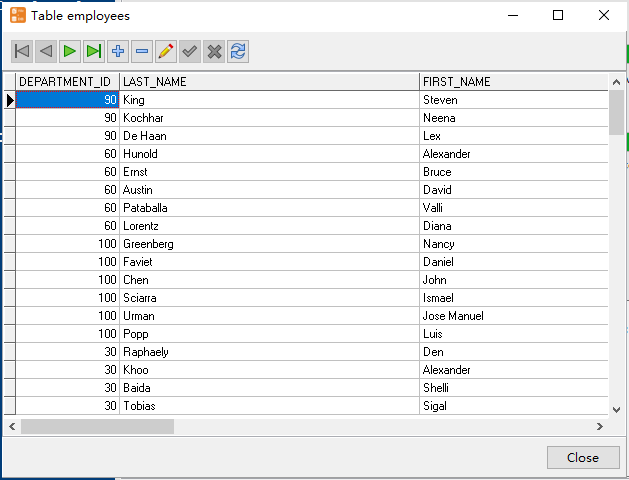
Import multiple TXT (“|” pipe delimited text) files to Azure in command line
Save “multiple TXT (“|” pipe delimited text) files to Azure” session, then you can:
- Import multiple TXT (“|” pipe delimited text) files to Azure in Windows command line.
- Import multiple TXT (“|” pipe delimited text) files to Azure in Linux command line.
- Import multiple TXT (“|” pipe delimited text) files to Azure in macOS command line.
Set scheduled tasks for importing multiple TXT (“|” pipe delimited text) files to Azure
You can schedule and automate this converting task by:
- Save session and create .bat (Windows) or .sh (Linux/macOS) file for “TXT to Azure” conversion.
- Set scheduled task for “TXT to Azure” conversion.
FAQ
More about Withdata FileToDB – TXT (“|” pipe delimited text) to Azure converter
Download Withdata FileToDB
See also:
Pipe-delimited text → Azure SQL reference
Type mapping
| Value kind | in Pipe-delimited text | in Azure SQL |
|---|---|---|
| Int | 1234 | int |
| Bigint | 9007199254740993 | bigint |
| Decimal | 1234.56 | decimal(p,s) |
| Float | 1.234e+10 | float |
| Text | quoted only when it contains a pipe or a quote | nvarchar(n) |
| Long text | must be quoted; line breaks inside force multi-line records | nvarchar(max) |
| Date | 2026-09-18 | date |
| Datetime | 2026-09-18 14:30:00 | datetime2 |
| Binary | not representable - base64 or hex string | varbinary(max) |
| Boolean | TRUE / FALSE, or 1 / 0 depending on the writer | bit |
| JSON | the whole JSON value quoted, with internal quotes doubled | nvarchar(max) |
Dialect differences
Pipe-delimited text is a file format and Azure SQL is a database server, so the target has to be told the types the file never carried - the rows below are where the two sides diverge.
| Property | in Pipe-delimited text | in Azure SQL |
|---|---|---|
| port | — | 1433 |
| identifiers | Double quotes; a literal quote is doubled ("" ) | [square brackets] |
| row limit | — | SELECT TOP n |
| dates | Conventional text: 2026-09-18 or 2026-09-18 14:30:00 | datetime2, date, time |
| long text | — | nvarchar(max) |
| binary | Not supported | varbinary(max) |
| separator | Pipe "|" | — |
| encoding | No declaration - UTF-8 works only with a BOM | — |
| typing | None - every field is text | — |
| shape | Flat table, optional header row | Tables of rows and columns |
| ceiling | No formal limit; row count bounded by memory | — |
Command line
| Side | Command |
|---|---|
| Azure SQL | bcp |
| Azure SQL (load) | bcp, or BULK INSERT |
Convert your data online, free
Free in-browser converters for CSV, Excel, JSON, XML and SQL: Withdata Online Data Conversion. Large files, batch conversion or scheduling? See the offline desktop apps, or browse all data conversion tools.