Want to bulk import CSV files into dBase tables at one time?
Try Withdata FileToDB, a desktop CSV to dBase converter for Windows, MacOS, and Linux, Convert CSV to dBase, Easy and Fast.
- Can run in GUI mode, Step by Step, just a few mouse clicks.
- Can run in Command line, for Scheduled Tasks and Streams.
- Convert locally and privately, avoid uploading large or private CSV files to online services.
- Support Windows, Linux, and macOS.

Bulk import CSV files into dBase tables
Login to dBase -> Choose CSV files -> Set dBase tables -> Import CSV files to dBase tables
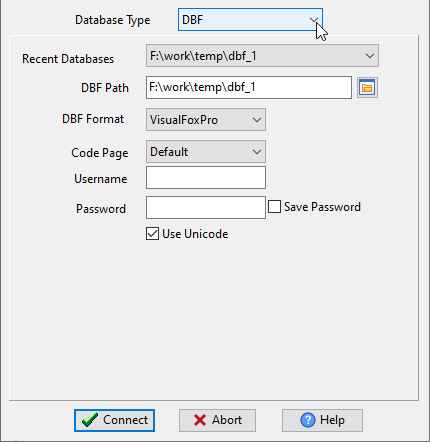
Choose dBase and logon.
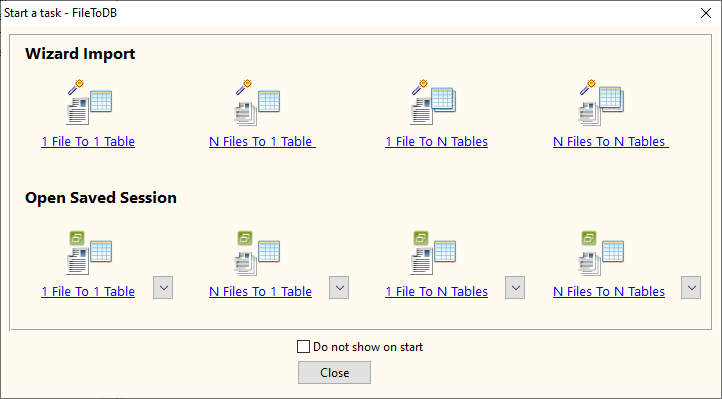
Click “Wizard – N Files To N Tables” at task dialog.
Select the “CSV” file type.

then show the wizard.
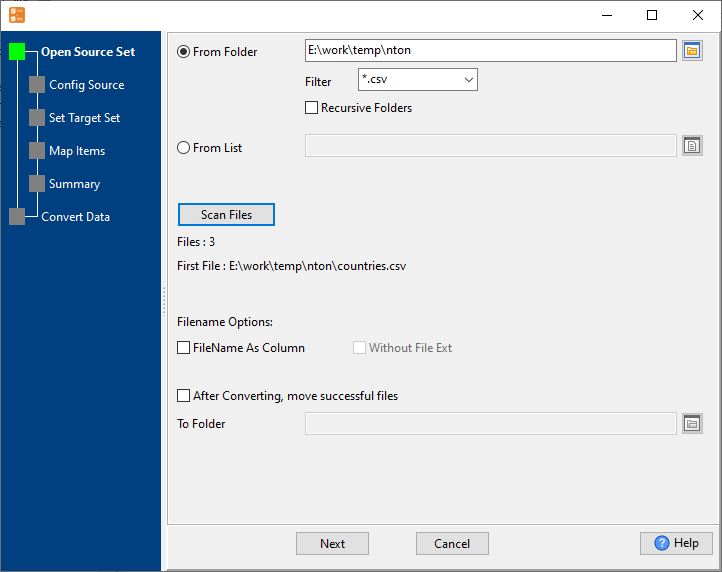
1. Select a folder that constains CSV files.
Support large ( > 4GB ) CSV files.
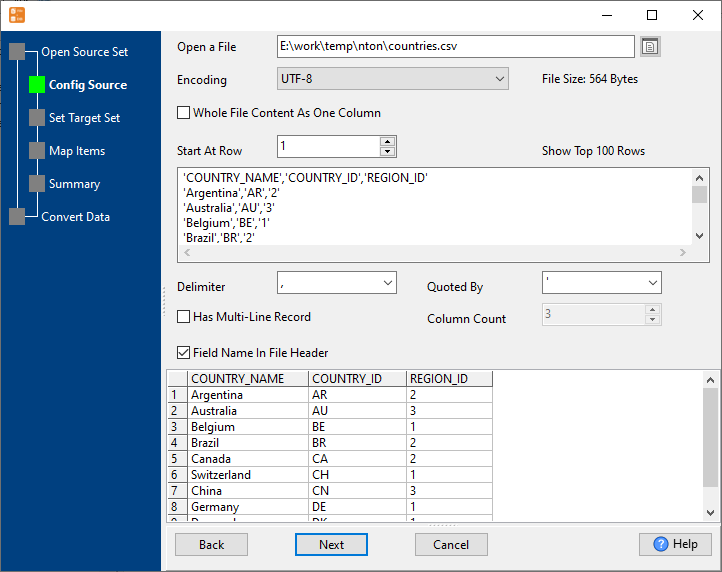
2. Config first CSV file importing options.
3. Set “Import Type”.
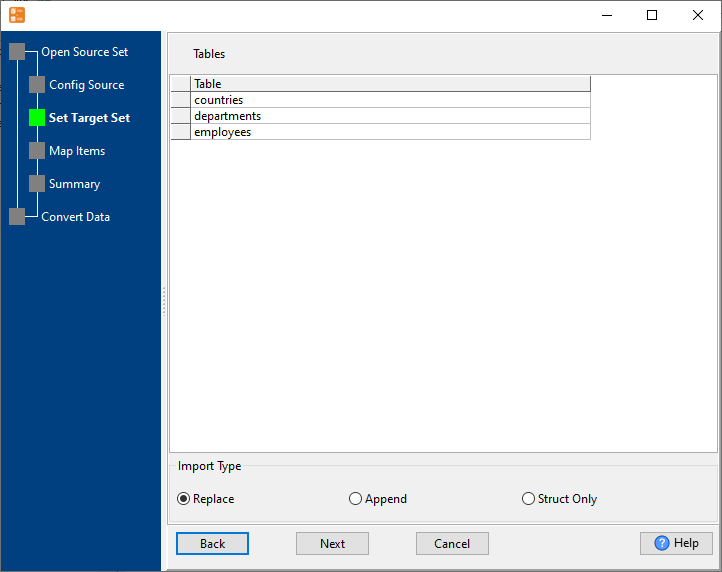
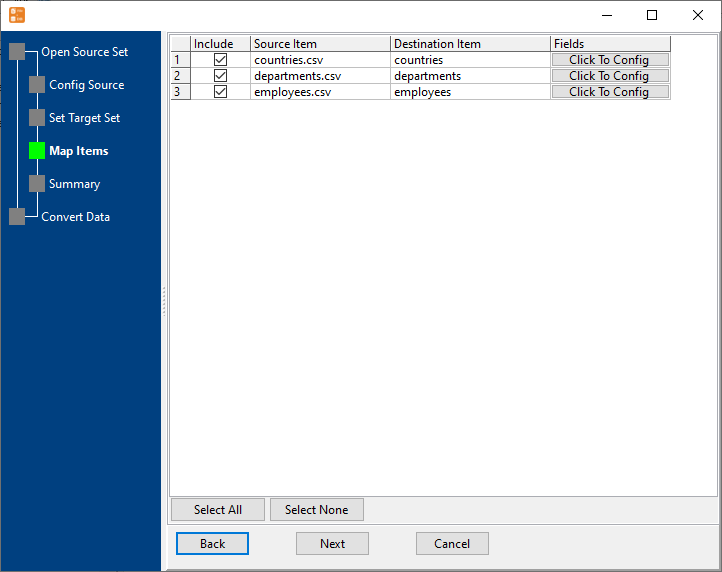
4. Map dBase tables to CSV files.
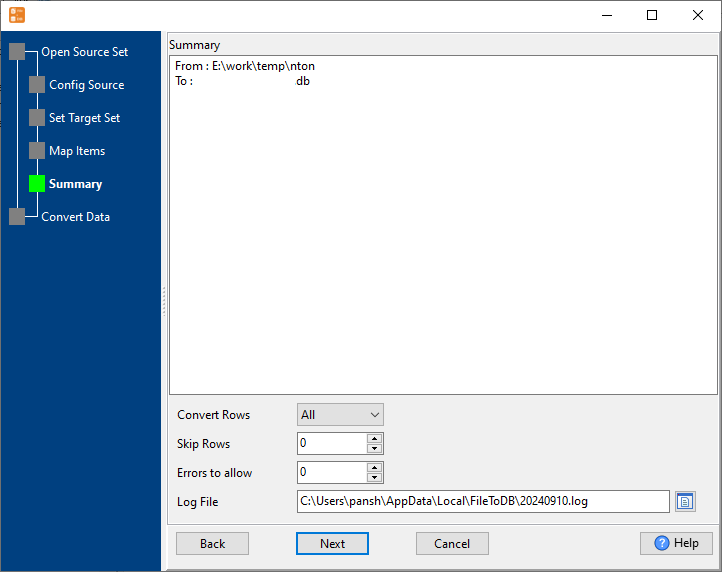
5. Summary. Set “Convert Rows” and “Skip Rows” if need.
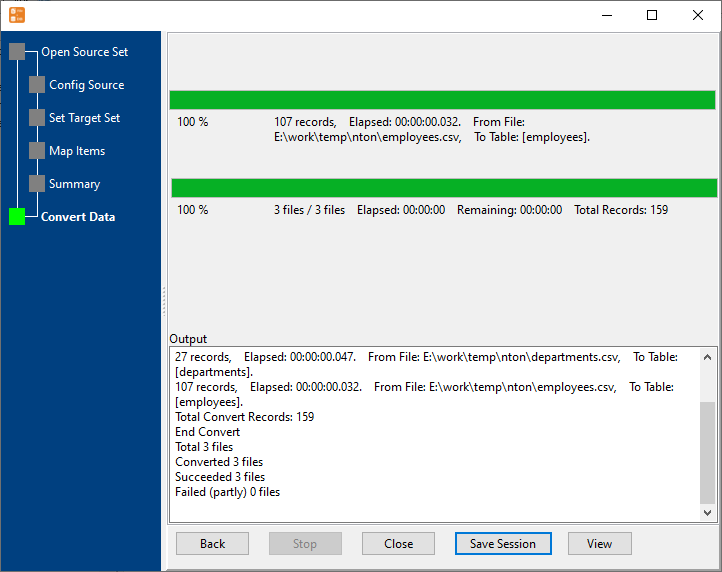
6. Import CSV files to dBase tables, 1 file to 1 table, one by one.
View imported data in dBase table
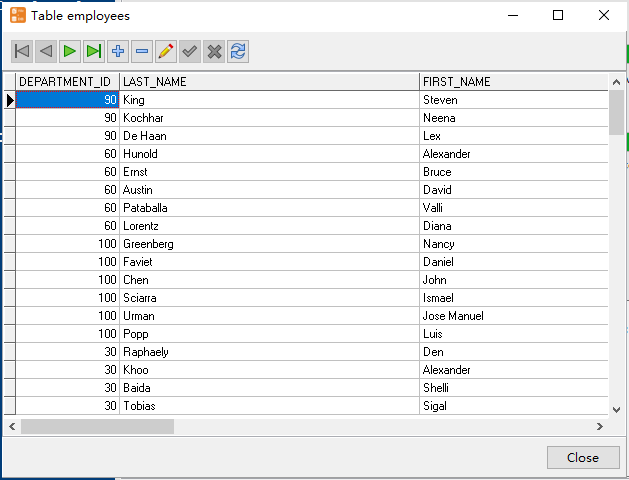
Bulk import CSV files into dBase tables in command line
Save “bulk CSV files to dBase tables” session, then you can:
- Bulk import CSV files into dBase tables in Windows command line.
- Bulk import CSV files into dBase tables in Linux command line.
- Bulk import CSV files into dBase tables in macOS command line.
Set scheduled tasks for bulk importing CSV files into dBase tables
You can schedule and automate this converting task by:
- Save session and create .bat (Windows) or .sh (Linux/macOS) file for “CSV to dBase” conversion.
- Set scheduled task for “CSV to dBase” conversion.
FAQ
More about Withdata FileToDB – CSV to dBase converter
Download Withdata FileToDB
See also:
CSV → dBase reference
Type mapping
| Value kind | in CSV | in dBase |
|---|---|---|
| Int | 1234 | Numeric(10,0) |
| Bigint | 9007199254740993 | Numeric(19,0) |
| Decimal | 1234.56 | Numeric(p,s) |
| Float | 1.234e+10 | Float |
| Text | quoted only when it contains a comma or a quote | Character(n) |
| Long text | must be quoted; line breaks inside force multi-line records | Memo |
| Date | 2026-09-18 | Date |
| Datetime | 2026-09-18 14:30:00 | (none) |
| Binary | not representable - base64 or hex string | (none) |
| Boolean | TRUE / FALSE, or 1 / 0 depending on the writer | Logical |
| JSON | the whole JSON value quoted, with internal quotes doubled | (none) |
Dialect differences
CSV is a file format and dBase is a database server, so the target has to be told the types the file never carried - the rows below are where the two sides diverge.
| Property | in CSV | in dBase |
|---|---|---|
| port | — | (file-based) |
| identifiers | Double quotes; a literal quote is doubled ("" ) | — |
| row limit | — | (driver dependent) |
| dates | Conventional text: 2026-09-18 or 2026-09-18 14:30:00 | Date (D) |
| long text | — | Memo (M) |
| binary | Not supported | — |
| separator | Comma "," | — |
| encoding | No declaration - UTF-8 works only with a BOM | — |
| typing | None - every field is text | — |
| shape | Flat table, optional header row | Tables of rows and columns |
| ceiling | No formal limit; row count bounded by memory | — |
No counterpart
- CSV values of kind Date and time have nowhere to go in dBase.
- CSV values of kind Binary have nowhere to go in dBase.
- CSV values of kind JSON have nowhere to go in dBase.
Convert your data online, free
Free in-browser converters for CSV, Excel, JSON, XML and SQL: Withdata Online Data Conversion. Large files, batch conversion or scheduling? See the offline desktop apps, or browse all data conversion tools.