Want to upsert data from CSV file to dBase?
Upsert: inserts rows into a table if they do not already exist, or updates them if they do.
Try Withdata FileToDB, a desktop CSV to dBase converter for Windows, MacOS, and Linux, Convert CSV to dBase, Easy and Fast.
- Can run in GUI mode, Step by Step, just a few mouse clicks.
- Can run in Command line, for Scheduled Tasks and Streams.
- Convert locally and securely, avoid uploading large or private CSV file(s) to online services.

Upsert data from CSV file to dBase
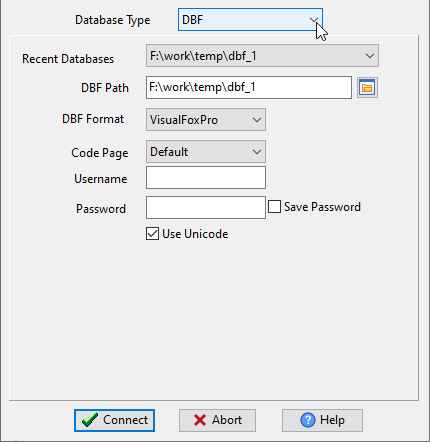
Choose dBase and logon.
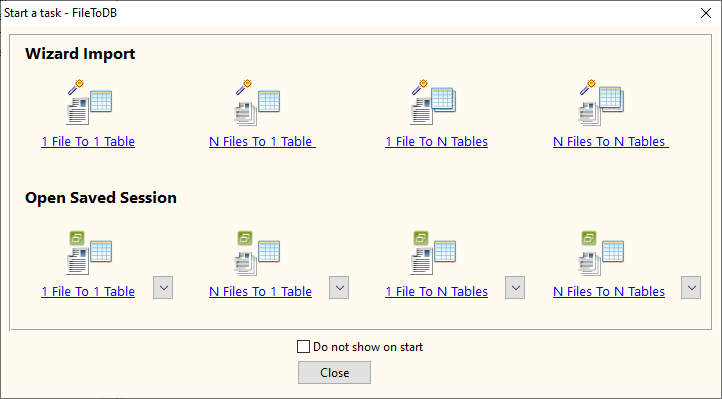
Click “Wizard – 1 File To 1 Table” at task dialog.
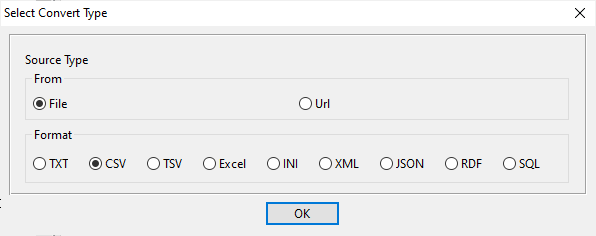
Select the “CSV” file type.
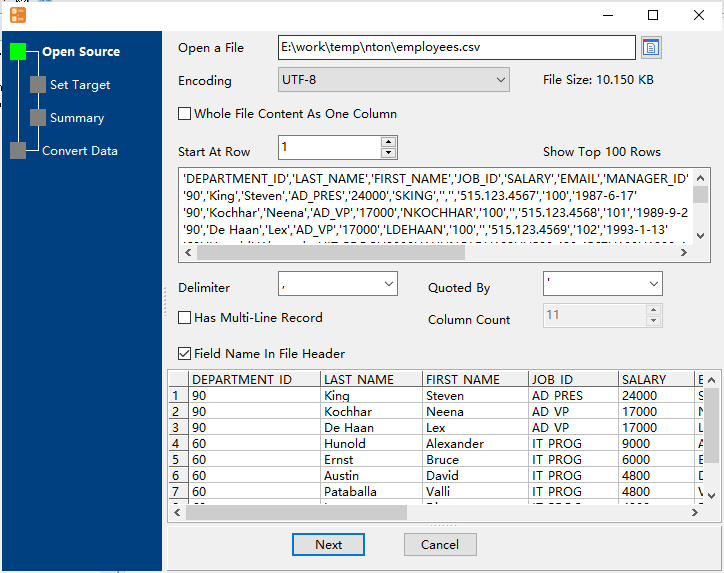
then show the wizard.
1. Open a CSV file.
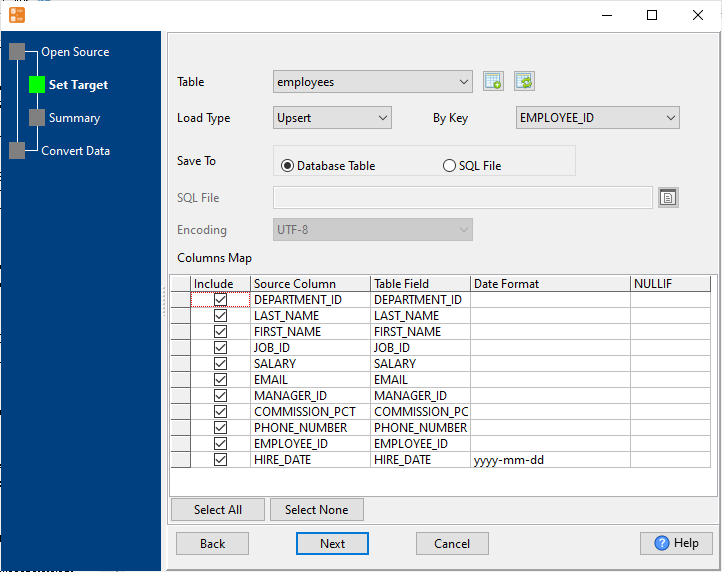
2. Select a table and config fields.
Set “Load Type” to “Upsert”, choice “By Key”.
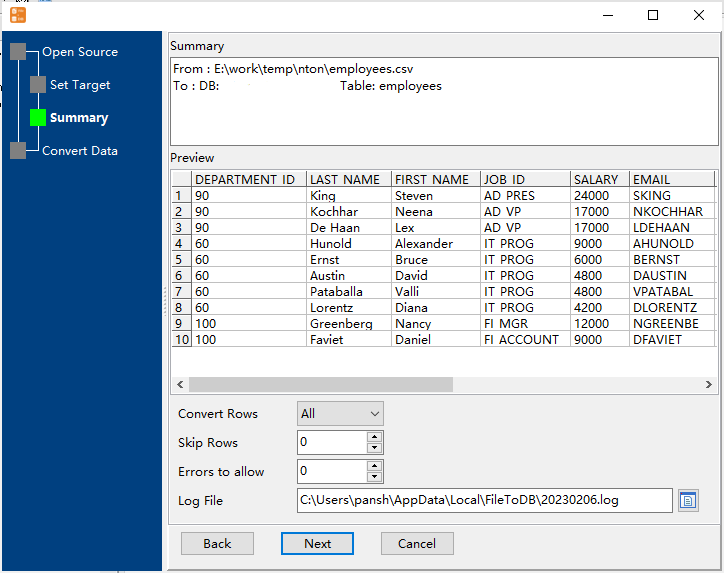
3. Preview data.
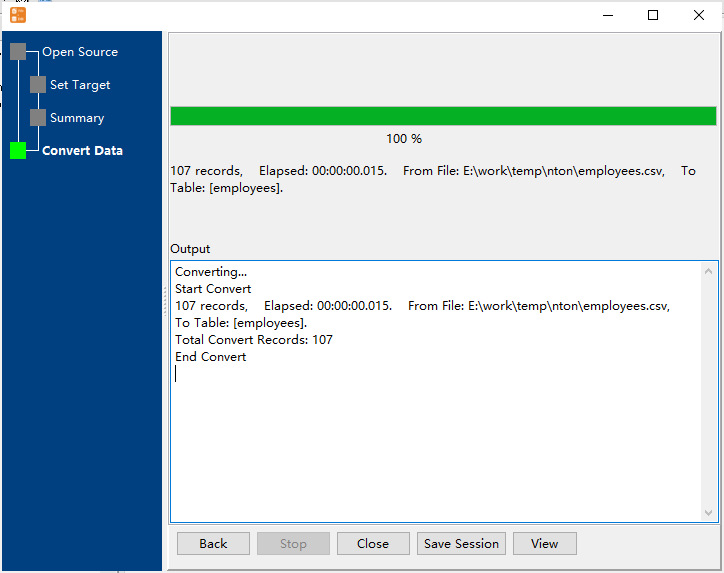
4. Upsert CSV data to dBase.
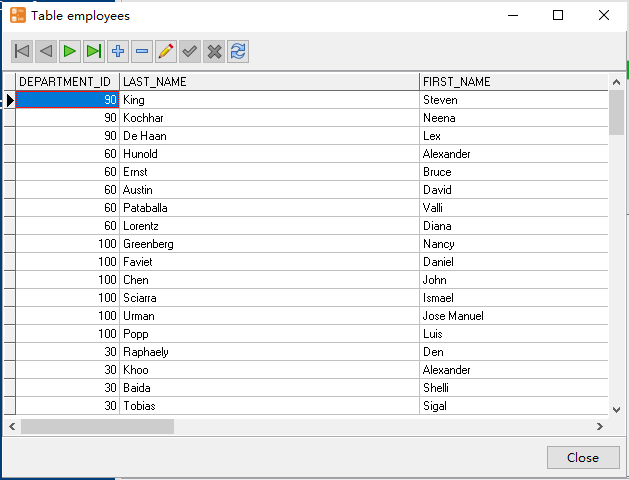
View upserted data
Upsert CSV data to dBase in command line
Save “CSV to dBase” session, then you can:
- Upsert CSV to dBase in Windows command line.
- Upsert CSV to dBase in Linux command line.
- Upsert CSV to dBase in macOS command line.
Set scheduled tasks for upseting CSV data to dBase
You can schedule and automate this “CSV to dBase” conversion task by:
- Save session and create .bat (Windows) or .sh (Linux/macOS) file for “CSV to dBase” conversion.
- Set scheduled task for “CSV to dBase” conversion.
FAQ
More about Withdata FileToDB – CSV to dBase converter
Download Withdata FileToDB
Convert your data online, free
Free in-browser converters for CSV, Excel, JSON, XML and SQL: Withdata Online Data Conversion. Large files, batch conversion or scheduling? See the offline desktop apps, or browse all data conversion tools.