Download free trialBuy TextMerger
How to merge log files into one
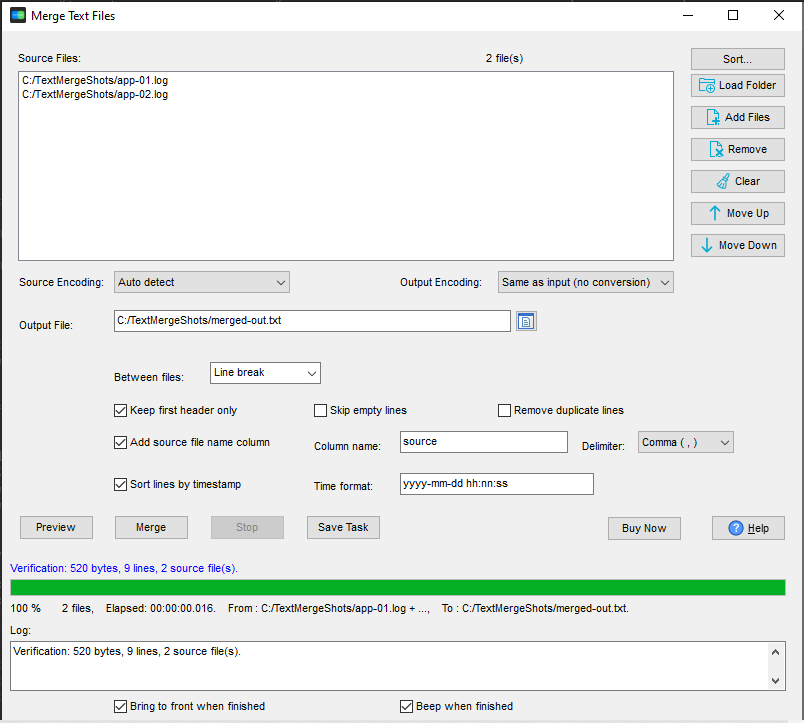
- Open TextMerger and click New Task.
- Use Add Folder... on the folder the logs are rotated into - sub-folders are included, and every daily file is picked up in one go.
- Drag the list into the order you want the days to appear, and add a separator between files if the merged file needs one.
- Click Merge and choose the output file.
Why not an online merger
Log files are the worst thing to upload. They carry IP addresses, user names, request paths, session tokens and whatever else the application decided to log - and an online merger means all of it leaves the machine.
TextMerger runs entirely on your computer. Nothing is uploaded, there is no file size limit and no cap on how many files you add - the only limit is your disk space. Line breaks and the original encoding are preserved, so the merged file is the same bytes in the same order, just in one place.
Merge logs in timestamp order
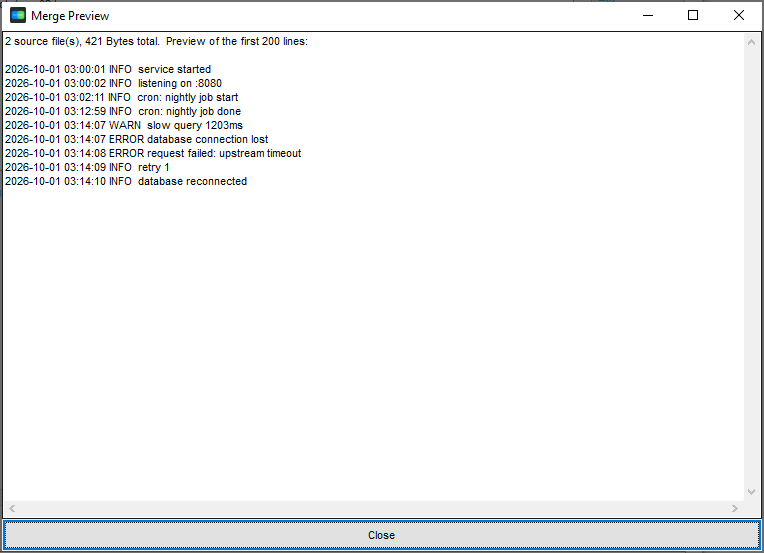
When several logs cover the same period, concatenation is not enough. Turn on Sort lines by timestamp (and set the time format if it is not the default) and TextMerger merges the entries chronologically: lines that continue a log entry inherit the previous line's time, and the sort is stable, so equal timestamps keep their original order. If the logs come from several machines, tick Add source file name column so every line still says which file it came from.
Need to clean the result as it is written? Skip empty lines and Remove duplicate lines do exactly that while merging - no second pass over the output file. See merging log files by timestamp and removing duplicate lines while merging.
What it does not do
It does not parse or reformat log entries. It reads a timestamp at the start of each line (in the format you choose) and sorts by it - enough for the usual "one file per day" or "one file per machine" case. If your logs need full parsing, use a dedicated log tool.
What to do with the result
Search it, archive it, or attach it to a ticket. Write the output as .gz or .zip and it is compressed as it is written - handy when a month of logs has to be sent somewhere. If the merged file is too big for a normal editor to open, use BigTextFileViewer, which is built for exactly that. Need to cut it back into pieces later? BigTextFileSplitter is the opposite direction.
Related tools
Opening a very large log instead of merging it: BigTextFileViewer. Splitting a big file again: BigTextFileSplitter. Merging in the browser: merge TXT files. Full reference: merging text files.