Download free trialBuy TextMerger
How to merge text files into one
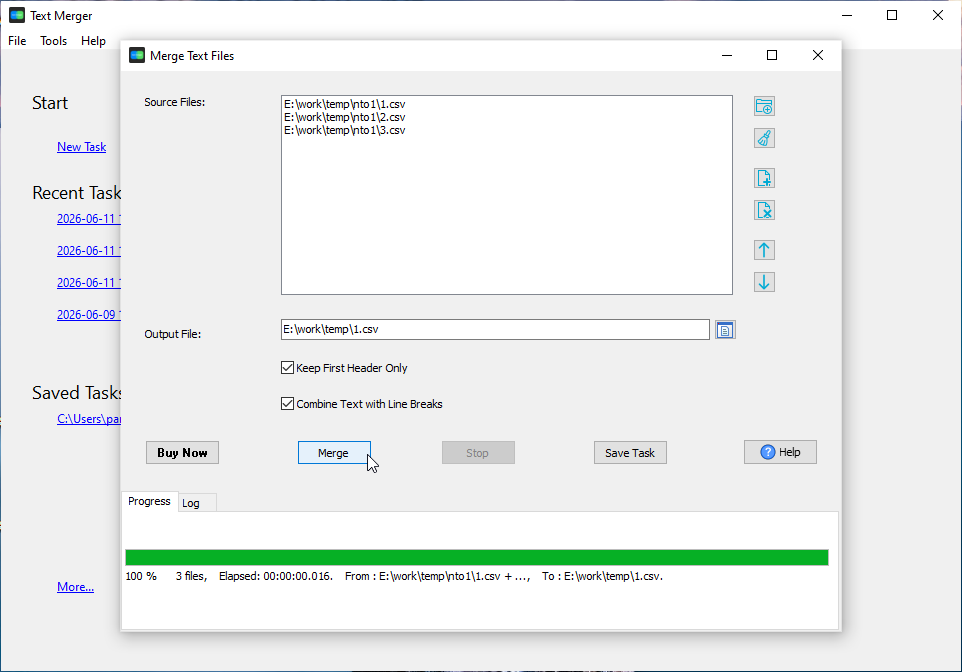
- Open TextMerger and click New Task.
- Add files with Add Files..., or drop in a whole folder with Add Folder... (sub-folders included).
- Drag the file list into the order you want, and add a separator between files if the merged document needs one.
- Click Merge, choose the output file, and the result is written to a single new file.
What it handles
Plain text (.txt), CSV, TSV, JSONL / NDJSON, log files and script files; UTF-8, ANSI and ASCII encodings. Line breaks, encoding and the original layout are preserved, so nothing is re-encoded or lost on the way.
It is the same job as cat *.txt > all.txt, but with a preview, an order you control, and no command line. Online mergers usually cap the upload and send your files to a server; TextMerger runs entirely on your computer.
More than a plain concatenation
When you need more control than cat gives you:
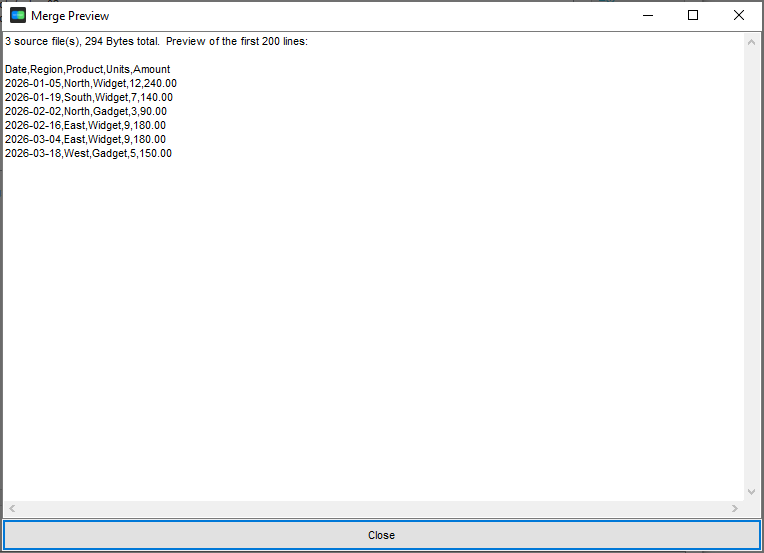
- Preview the first 200 lines before writing anything.
- Choose what goes between files: nothing, a line break, a blank line, or a custom separator.
- Keep the first header only when merging CSV or TSV exports.
- Add a source file name column so every line still says which file it came from.
- Skip empty lines and remove duplicate lines while merging.
- Merge logs in timestamp order, not just file by file. See merging log files by timestamp.
- Convert encodings - read one encoding and write another (28 encodings). See merging files with different encodings.
- Write compressed output (.gz / .zip) and get a merge report with size, lines and an optional MD5.
The merge preview shows the first 200 lines of the result - in your file order, with the header and separator rules already applied - so you can check it before anything is written:
Frequently asked questions
How do I merge text files into one?
Open TextMerger, add the text files or a whole folder, drag the list into the order you want, and click Merge. Line breaks and the original encoding are kept, and the result is written to a single new file.
Can I merge text files in a specific order?
Yes. The file list can be reordered by dragging, so the merged document follows your order rather than the file name.
Is there a limit on file size or how many files I can merge?
No fixed limit. TextMerger runs locally, so the only limit is your disk space.
Does TextMerger upload my files?
No. It is a fully offline desktop application - your files never leave your computer.
Related tools
Need the opposite - cutting one big file into smaller pieces? Use BigTextFileSplitter, or open a very large log with BigTextFileViewer. Converting between formats after merging? Use DataFileConverter. Prefer the browser: merge TXT files and merge CSV files.