LevelDataStudio » Use cases » Fix one key by hand
Download LevelDataStudio Free Trial » Buy LevelDataStudio Now »
The situation
A setting in the store holds an old value, a key was written with the wrong payload, a corrupt entry makes the application fail on start-up, or a test store needs an entry that the application would never create itself. The application has no screen for any of this, and the alternative - writing a small program that opens the store just to change one value - is more work than the correction.
What you do
- Close the application that owns the store (LevelDB allows one process at a time) and open the database folder.
- Find the key - filtering and search, and the value shown as text, JSON, HEX or image so you can confirm it is the right one before touching it.
- Change the value, add a new key with a key you type, or delete the entry that is causing trouble.
- Close the tool and start the application again. The operations are the same ones the application would have performed.
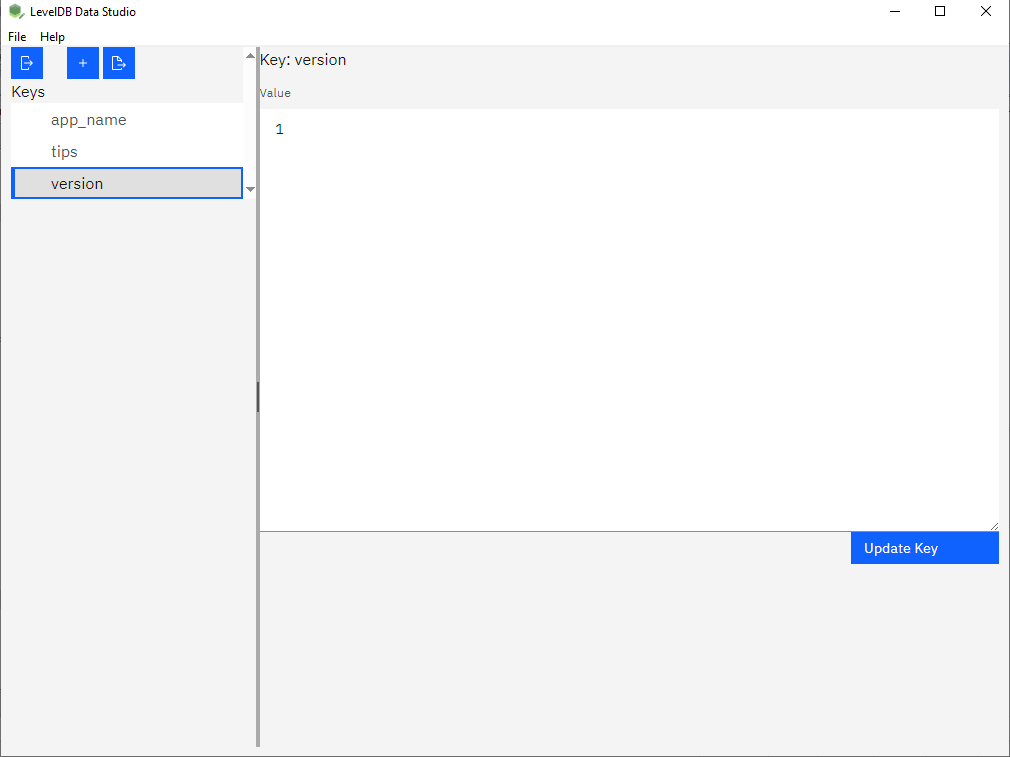
This is also the pragmatic way to plant test data: a developer points the tool at a copy of a store and adds the entries the test needs, rather than writing code to seed them. Working on a copy is worth the habit - there is no undo here.
What it will not do
- It does not undo. A changed or deleted key is changed or deleted. Keep a copy of the database folder before editing anything you might want back.
- It does not validate the value against the application. The bytes you write are the bytes stored. Whether the application accepts them is not something the tool can check.
- It can break a running application. Editing a store behind a live process is unsafe by design - LevelDB holds the lock for a reason. Close the application first.
- It is not a bulk correction tool. Fixing thousands of entries is an import job, not a session in the editor.
Related
Finding the key: look inside the database. The editor itself: edit a LevelDB key. Many keys at once: load keys from files. Keeping a copy first: export the keys. Starting a store for tests: create a LevelDB database.